AI
Logo file formats are confusing because people ask for “the logo” when they actually need different files for different jobs. Your website developer may need SVG. Your social media manager may need PNG. Your printer may ask for PDF, EPS, or AI. A teammate may only need a JPG preview.
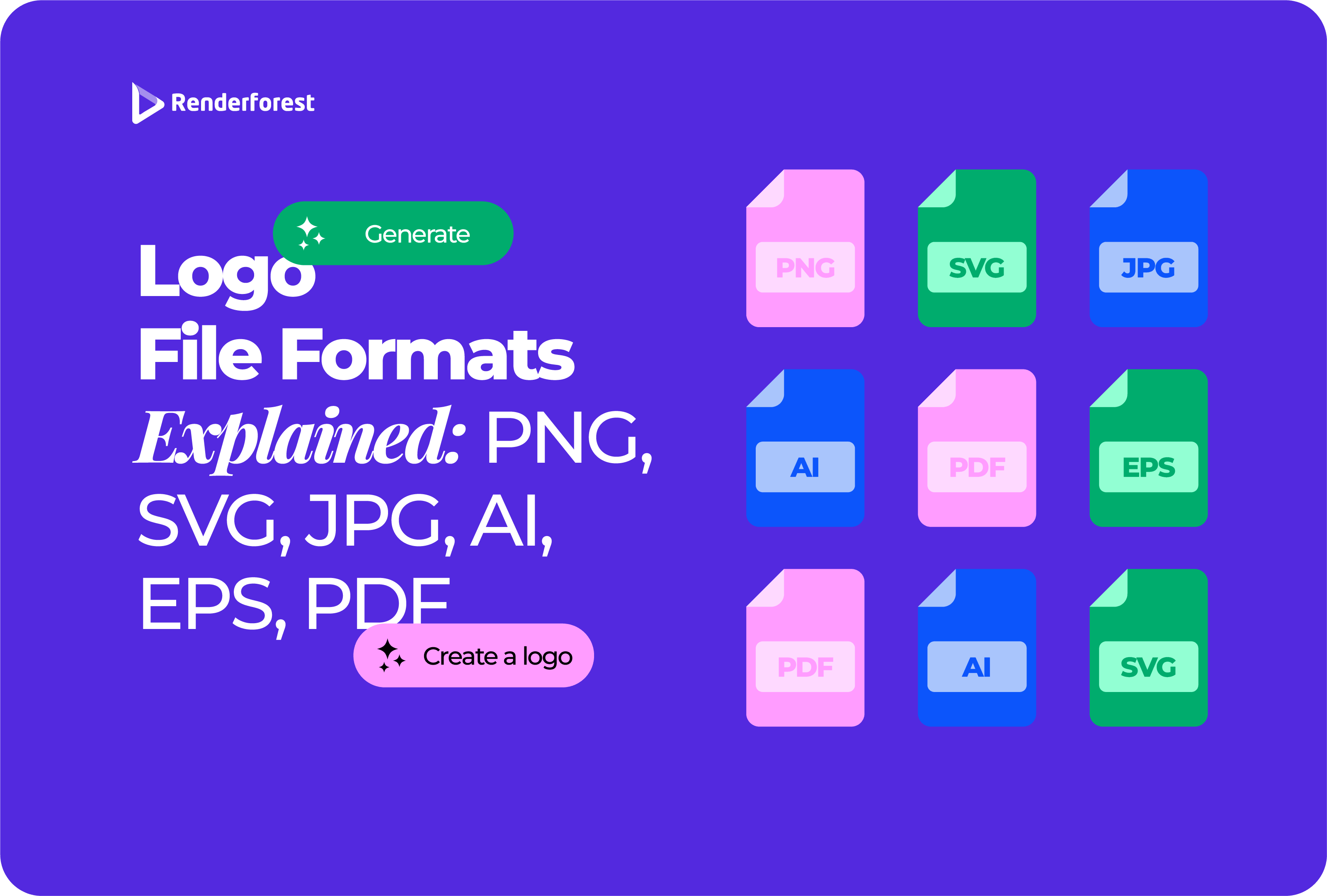
The right logo file format depends on where the logo will be used. PNG is best for everyday digital use and transparent backgrounds. SVG is best for scalable website graphics. JPG is mostly for previews. AI is the editable Adobe Illustrator source file. EPS is still common for vendors and production. PDF is useful for sharing, approval, and print delivery.
A professional logo is not one file. It is a file kit. This guide explains what each format is, when to use it, what to avoid, and how to organize your logo files so you do not send the wrong file to the wrong person.
Use the logo file format based on the job, not based on whichever file is easiest to find.
If you only remember one rule, remember this:
Use PNG when you need a transparent digital logo. Use SVG when the logo needs to scale cleanly on a website. Use JPG only when transparency and editing do not matter. Use AI as the editable design source file. Use EPS when a printer or vendor asks for vector artwork. Use PDF when you need a clean, shareable, print-friendly file.
Most logo file decisions become easier when you start with the destination.
The biggest mistake is using one format for everything. A PNG that works in your website header may fail on a storefront sign. A PDF that works for approval may not be the editable source file. A JPG that works in an email may look terrible over a colored background.
Before you compare PNG, SVG, JPG, AI, EPS, and PDF, you need to understand raster and vector.
Raster files are made of pixels. Vector files are made of paths, curves, shapes, and mathematical instructions.
This is why designers care so much about vector files. A logo may appear on a tiny favicon, website header, invoice, hoodie, storefront sign, packaging label, YouTube intro, and trade show banner. If the only file you have is a small PNG or JPG, the logo may blur when enlarged. If you have a true vector file, the logo can scale cleanly.
Adobe explains that vector files can be resized without losing resolution, which makes them ideal for logos. Source: Adobe: vector files.
That does not mean raster files are bad. PNG and JPG are useful every day. The problem is using a raster file when the job needs a vector file.
A proper logo handoff is not one file. It is a folder with the right formats, colors, and layout versions.
At minimum, your logo kit should include:
You should also keep logo variations, not just file types.
If your entire logo folder is one file named logo.png, the logo is not ready for real business use. It may work today, but it will create problems when a developer, printer, sponsor, designer, or packaging vendor asks for something more specific.
If you are not building a full enterprise brand system, keep it simple. A small business should still have these files:
This minimum kit prevents most everyday problems. You can always add EPS, extra color versions, print-specific files, or merchandise files later.
PNG stands for Portable Network Graphics. It is one of the most useful logo file formats for everyday digital use.
A PNG is a raster file, which means it is made of pixels. Its biggest advantage for logos is transparency. A transparent PNG can sit on top of a colored background, photo, presentation slide, video, or website section without a white box around it.
The W3C PNG specification describes PNG as a lossless raster image format that supports an optional alpha channel, which allows transparency. Source: W3C PNG Specification.
Use PNG when you need a logo for social media graphics, presentations, video overlays, email signatures, website builders, documents, or any layout where the background should stay transparent.
PNG is usually the everyday logo format most teams use. If you are adding a logo to slides, Instagram graphics, YouTube thumbnails, invoices, internal documents, or videos, PNG is often the easiest choice.
PNG is not ideal when you need to scale the logo far beyond its original pixel size. A 600-pixel-wide PNG may look fine in a website header. It may look terrible on a storefront sign.
Avoid PNG when a printer asks for vector artwork, the logo needs to be enlarged heavily, or you need to edit the original logo shapes.
Best-fit verdict: PNG is the best logo file format for everyday digital use when you need transparency. It should not be your only logo file.
SVG stands for Scalable Vector Graphics. It is one of the best logo file formats for websites and digital interfaces.
An SVG is a vector file, which means it can scale without becoming blurry. That makes it especially useful for logos, icons, favicons, app interfaces, and responsive websites.
The W3C describes SVG as a format for two-dimensional graphics, and MDN describes it as a web-friendly vector format that can render cleanly at different sizes. Sources: W3C: Scalable Vector Graphics and MDN: SVG.
Use SVG when you need a website logo, scalable header logo, favicon, app icon, interface graphic, or logo that stays sharp on high-resolution screens.
SVG is often the best format for a website logo because it is not locked to one pixel size. A PNG logo might look fine on one screen and slightly soft on another. An SVG gives developers more flexibility.
SVG is not always accepted by every platform or vendor. Some website platforms restrict SVG uploads for security reasons. Some print vendors prefer EPS, PDF, or AI. Some SVG files also include effects, filters, or embedded raster images that do not behave as expected.
Best-fit verdict: SVG is usually the best logo format for websites and scalable digital use. Every professional logo kit should include it.
JPG and JPEG refer to the same common image format. JPG is simply the shorter file extension.
JPEG is a raster format that uses lossy compression. That means it can reduce file size by permanently discarding some image data. This can be useful for photos, but it is not ideal for most logo artwork.
W3C describes JPEG as a lossy compression method standardized by ISO. Source: W3C: JPEG JFIF.
Use JPG when you need a simple logo preview, a small file for email, a logo on a white or solid background, or a quick image almost anyone can open.
JPG is common and convenient. It is easy to share and supported almost everywhere.
JPG is usually not the best logo format if quality, transparency, or sharp edges matter.
Avoid JPG when you need a transparent background, when the logo has small text or fine lines, when the logo will be placed over different backgrounds, or when the file will be edited repeatedly.
JPG does not support transparency. If your logo appears on a white rectangle when placed over a colored background, JPG is the wrong format.
Best-fit verdict: JPG is fine for simple previews and sharing, but it should not be your main logo file. Never rely on JPG as your only logo format.
An AI file is an Adobe Illustrator Artwork file. In logo design, “AI file” usually means the editable Adobe Illustrator source file, not artificial intelligence.
AI is a vector format used by designers to create and edit logos, illustrations, icons, and brand graphics. It can preserve editable shapes, paths, layers, typography, colors, and artboards.
Adobe lists AI as a common vector file type used in print media and digital graphics, such as logos. Source: Adobe: vector files.
Use AI when you need the editable master logo file, a designer needs to make changes later, you need vector artwork with layers, or you are preparing brand identity files.
The AI file is often the file designers care about most because it keeps the logo editable. If you hire a designer, ask for the AI file or another editable vector source file. Without it, future edits may be harder, slower, or more expensive.
AI is not always useful for non-designers. Do not send AI to someone who only needs to place the logo in a document, upload it to a social post, or add it to a website builder.
Best-fit verdict: AI is the best format for editable professional logo work in Adobe Illustrator. Keep it as a source file, but do not expect every teammate or vendor to use it.
EPS stands for Encapsulated PostScript. It is an older vector file format that is still used in print, signage, embroidery, and vendor workflows.
Adobe describes EPS as a vector file format traditionally used for professional printing and graphics production. Source: Adobe: EPS files.
Use EPS when a printer, signage vendor, embroidery vendor, promotional product supplier, or production team asks for vector artwork.
EPS is useful when the logo needs to be reproduced physically, especially at different sizes.
EPS is not usually the best file for everyday digital use. Avoid EPS when you are uploading a logo to a website, placing it into a social media design, sending a simple preview, or working with people who cannot open vector files.
A common EPS mistake is assuming an EPS file is always true vector. Sometimes a raster image is placed inside an EPS wrapper. That does not make the embedded image scalable.
Best-fit verdict: EPS is still useful for print and vendor workflows, but it is not the easiest everyday logo format. Keep it in your logo kit for production needs.
PDF stands for Portable Document Format. For logos, PDF is often used as a shareable, vector-friendly file for approvals, printing, and vendor delivery.
A PDF can contain text, images, graphics, links, metadata, and other content. The Library of Congress describes PDF as a family of formats for page-oriented documents that can include text, graphics, images, annotations, metadata, links, and bookmarks. Source: Library of Congress: PDF format family.
Use PDF when you need to send a logo to a print vendor, share a logo for approval, preserve a clean layout, or provide a file that non-designers can open.
PDF is often the easiest professional delivery format because most people can view it, and it can preserve vector artwork if exported correctly.
PDF is not always the best editing source file. Avoid relying only on PDF when you need to edit logo shapes later, preserve original layers and artboards, or upload a logo to a website that needs SVG or PNG.
A PDF is only as good as what was exported into it. A vector logo saved as PDF can stay scalable. A low-resolution JPG placed inside a PDF is still a low-resolution image.
Best-fit verdict: PDF is one of the best formats for sharing and print delivery. It is not always the best master file, so keep the editable vector source too.
For digital use, most people choose between PNG, SVG, and JPG.
If a platform accepts SVG safely, use SVG for web logos and icons. If not, use a high-resolution PNG with a transparent background. Use JPG only when a flat background is acceptable.
For print and production, the choice usually comes down to AI, EPS, or PDF.
When in doubt, ask the vendor what they need. Do not guess. Some printers prefer PDF. Some older production workflows still ask for EPS. Designers may prefer AI.
A bad logo file is not always obvious until someone tries to use it.
A good logo file kit prevents these problems before they become urgent.
Some logo requests sound simple but are easy to misunderstand.
A transparent logo has no solid background behind it. It can sit naturally on a colored background, photo, video, or slide. PNG is the most common transparent raster format. SVG can also support transparent logo artwork. JPG does not support transparency.
A high-resolution logo usually means a raster logo with enough pixels for the intended use. A 3000-pixel PNG may be high resolution for many digital layouts. But “high resolution” does not automatically mean editable or scalable forever. For that, you need vector artwork.
A print-ready logo is prepared for the vendor, production method, size, material, and color requirements. For many print jobs, that means vector PDF, EPS, or AI. But a business card printer, embroidery vendor, packaging designer, and signage company may ask for different versions.
The safest move is to keep vector files and ask the vendor exactly what they need.
Bad file names create mistakes.
Avoid names like:
logo.pnglogo final.pngnew-logo-final-v3-real-final.pngblack thing transparent maybe.pngUse names that explain what the file is.
Better naming examples:
brand-logo-primary-full-color.svgbrand-logo-primary-full-color.pngbrand-logo-white-transparent.pngbrand-logo-black.svgbrand-logo-horizontal.pdfbrand-logo-icon-only.svgbrand-logo-master.aibrand-logo-print.epsA clear file name should tell you the brand name, logo version, color version, background or transparency, file format, and use case if needed.
A useful folder structure can look like this:
This folder structure is not only for designers. It helps everyone. A social media manager knows where to find PNGs. A printer knows where to find vector files. A designer knows where to find the editable source.
The most common logo file mistakes are simple, but they create expensive delays.
Only keeping a JPG. A JPG may be easy to open, but it does not support transparency and is not ideal for sharp logo artwork.
Using a small PNG for print. A small PNG may look fine on screen but blur when printed large. Use vector files for print whenever possible.
Thinking PDF is always editable. A PDF can contain vector artwork, but it can also contain a flattened image. Keep the original AI or editable source file.
Sending AI files to everyone. AI files are useful for designers, but many people cannot open them. Send PNG, SVG, or PDF depending on the use case.
Uploading JPG when you need transparency. If the logo needs to sit on a colored background, use PNG or SVG instead.
Not saving black and white versions. A logo that only works in full color is not flexible enough.
Not checking whether an EPS is truly vector. Sometimes a raster image is placed inside an EPS file. That does not make it a real vector logo.
Losing the master file. Your PNGs and PDFs are exports. The editable source file is what lets you update the logo later.
If you are creating a logo from scratch, start with the final uses in mind. A logo for a YouTube channel, website, local café, SaaS product, or packaging label may need different file versions.
Renderforest’s Logo Maker lets users create logos online by choosing a template and customizing the design with fonts, colors, and alignment. Source: Renderforest Logo Maker.
A practical workflow:
If you are still exploring the logo concept before finalizing files, Renderforest’s AI Logo Generator can help you generate logo options from a short description and style direction. Source: Renderforest AI Logo Generator.
The goal is not just to make a logo that looks good once. The goal is to build a logo file kit that your team can actually use.
Before you consider your logo package finished, make sure you have the files and versions people will actually ask for.
You may not need every file every day. But when you do need one, it is better to already have it than to rebuild it under pressure.
The best logo file format depends on the use case. SVG is best for scalable web use, PNG is best for everyday digital use with transparency, AI is best for editable design work, EPS and PDF are best for print and vendor delivery, and JPG is best only for simple previews.
SVG is usually best for website logos because it scales cleanly across screen sizes. PNG is also common, especially when a platform does not support SVG uploads.
Vector formats such as PDF, EPS, and AI are usually best for print because they can scale without losing sharpness. Always ask the printer which format they prefer.
PNG is usually better for logos because it supports transparency and is lossless. JPG is better for photos and simple previews, but it does not support transparent backgrounds and can create compression artifacts.
SVG is better when the logo needs to scale cleanly on websites and digital interfaces. PNG is better when you need an easy-to-use transparent image file for presentations, social media, or video overlays.
An AI logo file is an Adobe Illustrator Artwork file. It is usually the editable source file designers use to create and modify a vector logo.
An EPS logo file is a vector file often used for printing, signage, embroidery, and older production workflows. Many vendors still request EPS because it can preserve scalable artwork.
PDF is good for sharing, approvals, and print delivery if the logo is exported correctly. A vector PDF can preserve scalable artwork, but a PDF can also contain a flattened raster image, so it is not always a replacement for the original source file.
A transparent logo file has no solid background behind the logo. PNG is the most common transparent logo format for everyday digital use, while SVG can also support transparent logo artwork.
Your logo likely does not have a transparent background. Use a transparent PNG or SVG instead of a JPG or a flat PNG with a white background.
Yes. It is smart to keep both. PNG is easy to use in everyday design tools, while SVG is better for scalable web and interface use.
A vector logo is built from shapes, paths, and curves instead of fixed pixels. Vector logos can scale up or down without becoming blurry, which makes them useful for print, signage, websites, and brand systems.
Logo file formats are not interchangeable. PNG, SVG, JPG, AI, EPS, and PDF each solve a different problem.
Use PNG for transparent digital graphics. Use SVG for scalable web logos. Use JPG for simple previews only. Keep AI as the editable source file. Keep EPS for vendors and production workflows. Use PDF for sharing, approval, and print delivery.
A professional logo is not just the design. It is the file kit that lets the design work everywhere your brand needs to appear.
Share this


Article by: Liana Ziroyan
Liana is a marketing professional with 11 years of experience in digital marketing, content, and product communication. She has a strong eye for visual storytelling and loves turning ideas into engaging campaigns that connect with audiences. With her experience across branding, creative content, and user-focused messaging, Liana enjoys finding simple, effective ways to make products feel clear, useful, and exciting.
Read all posts by Liana Ziroyan