
YouTube
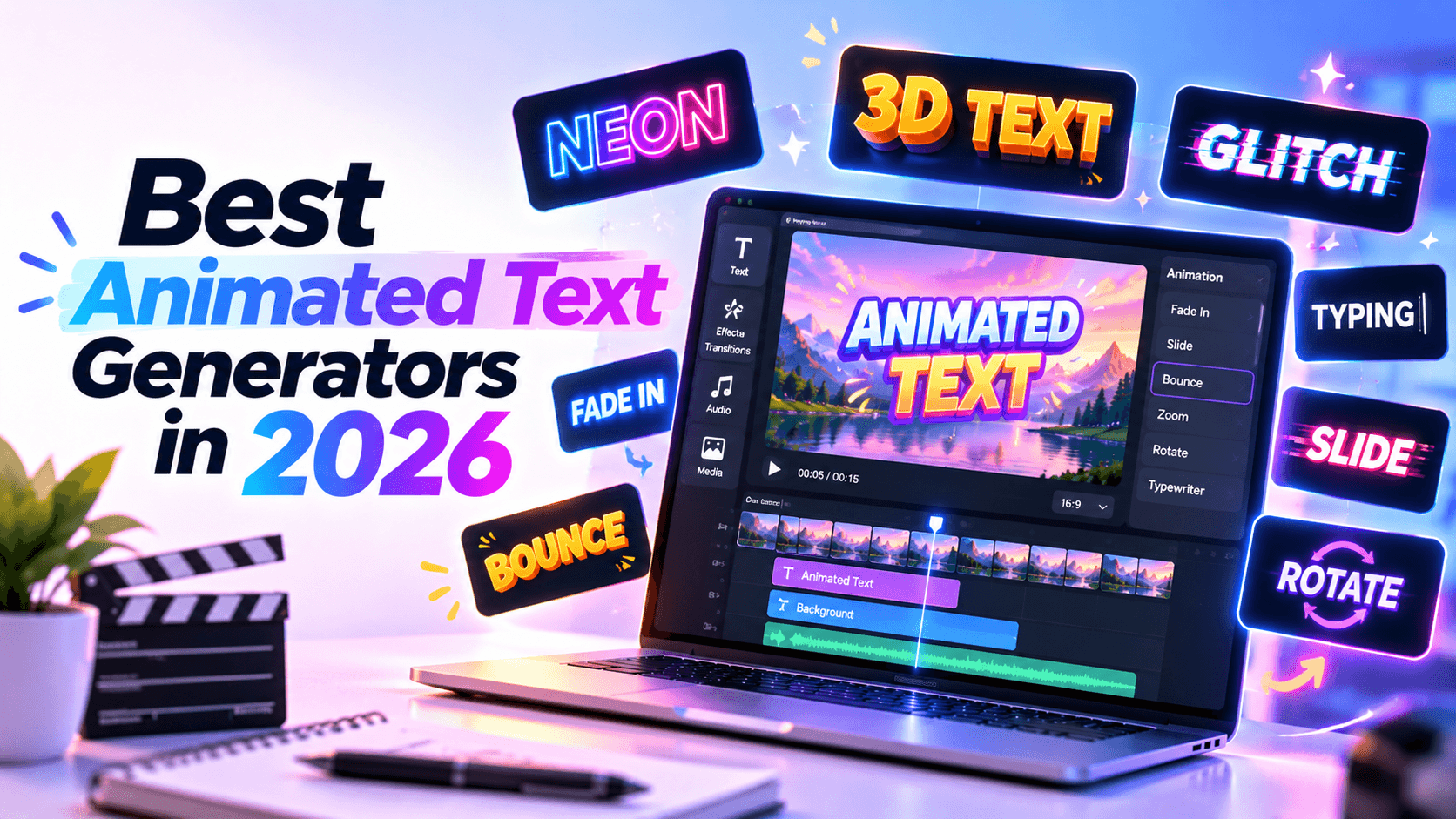
The best animated text generators in 2026 are not all built for the same job. Some are made for kinetic typography videos. Some are better for captions. Some are best for TikTok hooks, YouTube intros, animated ads, or branded title sequences.
If you want animated text inside a finished video, Renderforest is a strong starting point. If you need simple social graphics, Canva is easier. If you want more custom motion control, Jitter is better. If you mostly edit short-form videos, CapCut, VEED, and Kapwing may fit better.
This guide compares the best animated text generators by real use case, not by feature count.
A good animated text generator should do more than make words move. It should help the text become easier to notice, understand, and remember.
For this comparison, the tools were evaluated using six practical criteria:
The main question was not “Which tool has the most effects?” The better question is: which tool creates the right kind of animated text for the job you need to finish?
Before choosing a tool, run it through the TEXT test.
This matters because animated text fails when it is treated as decoration. A headline, caption, CTA, quote, subtitle, and kinetic typography sequence should not move the same way.
The more important the text is, the easier it should be to read.
Best for: kinetic typography videos, intros, promos, title sequences, logo reveals, and branded video templates.
Renderforest is the strongest fit when animated text needs to live inside a finished video. Its video templates page includes categories such as Typography, YouTube Intros, Opener Animations, Video Titles, Lower Thirds, Animated Promotions, and Social Media Videos. Renderforest also describes its template library as a place to create animated promos, logo reveals, slideshows, kinetic typography, music visualizations, and more.
That makes Renderforest different from tools that only animate a text layer. It is better suited to full video formats: a launch video, title sequence, YouTube intro, brand opener, product teaser, event promo, or social ad.
Renderforest is best for small businesses, YouTubers, marketers, social media teams, agencies, and creators who want animated text without building motion graphics from scratch.
It is especially useful when you already know the end format. For example, you need a YouTube intro, a promotional video, a lower third, a title sequence, or a kinetic typography-style video.
Renderforest gives users access to video templates, typography packs, opener animations, logo animations, social media video formats, brand-friendly customization, and browser-based editing. The broader platform also includes an Animation Maker, AI Video Generator, and Intro Maker, which can support related video workflows.
Renderforest offers free access for testing and paid options for higher-quality exports, branding, and broader commercial use. Check the current Renderforest pricing page before adding exact plan details.
Use Renderforest when you want animated text as part of a complete video, not just a moving text effect.
Verdict: Best for kinetic typography-style templates, intros, and branded animated text videos.
Best for: simple animated text in social posts, presentations, short videos, and lightweight marketing assets.
Canva is one of the easiest tools for adding motion to text in everyday design work. Canva’s text animation maker says users can make text pop, fade, flicker, pan, tumble, and move across an image or video.
This makes Canva a good choice for people who already use it for social graphics, presentations, ads, posters, carousels, and short video content.
Canva is best for social media managers, small business owners, educators, freelancers, and teams that need fast animated text without a video-heavy workflow.
It is a good tool when the design comes first and the animation is there to add movement, not carry the whole story.
Canva includes text animation presets, social templates, presentation tools, animated design elements, GIF and video export, brand kits on paid plans, and simple motion paths.
Canva has a free plan and paid plans with more templates, brand tools, storage, and team features. Check Canva’s current pricing before publishing exact prices.
Use Canva when you need simple animated text for social graphics, presentations, short announcements, quote posts, or quick marketing clips.
Verdict: Best for simple animated text in social graphics and presentation-style content.
Best for: custom motion design, kinetic type, product animations, social motion graphics, GIFs, videos, and Lottie export.
Jitter is more motion-design focused than most tools on this list. It is still browser-based and easier than professional tools like After Effects, but it gives more control than simple preset-based text animation makers.
Jitter’s site describes text animations that can animate lines, words, and letters. It also highlights reusable animations, custom easings, a smarter timeline, vector paths, custom fonts, and exports such as 4K video, GIF, and Lottie.
That makes it a strong choice for designers, startup teams, product marketers, and agencies that need more precise motion without a heavy desktop workflow.
Jitter is best for designers, marketers with design experience, product teams, motion-aware brand teams, and startups that need animated assets for ads, websites, product demos, or social campaigns.
It is also useful when you need Lottie animations for product or web use. Lottie is a JSON-based animation format often used for lightweight vector animations on websites and apps.
Jitter includes text animation controls, built-in presets, timeline editing, custom easings, reusable animations, custom fonts, vector paths, video and audio import, team collaboration, and exports to video, GIF, and Lottie.
Jitter has free and paid plans. Exact limits, export options, and team features should be verified on Jitter’s current pricing page before publication.
Use Jitter when you need custom animated text, kinetic type, brand motion, or export formats like GIF, video, and Lottie.
Verdict: Best for custom animated typography and lightweight motion design.
Best for: TikTok, Instagram Reels, YouTube Shorts, captions, text effects, and fast mobile-first social video editing.
CapCut is built for short-form video speed. Its official site lists tools for auto captions, caption templates, speech recognition, text-to-speech, subtitles, and online video editing for YouTube, TikTok, and Reels.
For animated text, CapCut works best when the goal is social performance. Think hooks, captions, punchy overlays, fast edits, stickers, and trend-based text effects.
CapCut is best for TikTok creators, Reels creators, YouTube Shorts creators, social media managers, influencers, and mobile-first video editors.
It is especially strong when you need to publish quickly and follow short-form video conventions.
CapCut includes mobile and online editing, captions, subtitle tools, text-to-speech, templates, effects, transitions, stickers, AI tools, and exports built around social platforms.
CapCut offers free tools and paid or Pro features depending on platform and region. Check current pricing before publication.
Use CapCut when you need animated captions, text hooks, and fast social edits for TikTok, Reels, or Shorts.
Verdict: Best for short-form social animated text.
Best for: captions, subtitles, talking-head videos, text overlays, and fast browser-based editing.
VEED is more of a practical video editor than a typography-first generator. Its add text to video page describes a drag-and-drop interface for text overlays, animation presets, dynamic captions, automatic word highlighting, and brand kit support for fonts, colors, and logos.
That makes VEED useful when your animated text needs to support spoken content.
VEED is best for creators, educators, marketers, podcasters, founders, and teams that edit videos with speech, captions, subtitles, and callouts.
It works well for talking-head videos, webinars, clips, product demos, and social posts where text clarity matters more than complex motion design.
VEED includes text overlays, animated captions, automatic word highlighting, subtitles, video editing, brand kits, resizing, recording tools, and browser-based export.
VEED has free and paid plans. Free exports may include limitations. Check VEED’s current pricing before publication.
Use VEED when your main job is adding captions, subtitles, titles, and callout text to real video footage.
Verdict: Best for caption-heavy videos and practical text overlays.
Best for: collaborative video editing, subtitles, resizing, social clips, and text-heavy content workflows.
Kapwing is a browser-based video editor with a drag-and-drop timeline, subtitles, AI tools, resizing, collaboration, and export options. Its online video editor page describes uploading any video, editing with a drag-and-drop timeline and AI tools, then exporting in HD.
Kapwing is not the most motion-focused tool here, but it is practical for teams creating a lot of social content.
Kapwing is best for content teams, educators, creators, social media teams, and marketing teams that collaborate on video edits.
It is especially useful when you need subtitles, text overlays, resizing, team feedback, and fast repurposing.
Kapwing includes timeline editing, text layers, subtitles, AI tools, resizing, translations, collaboration, templates, and browser-based export.
Kapwing has free and paid plans. Paid tiers typically expand export quality, watermark removal, storage, collaboration, and AI limits.
Use Kapwing when multiple people need to edit, subtitle, resize, and publish text-heavy videos together.
Verdict: Best collaborative editor for text-heavy social videos.
Best for: AI-assisted text-to-animation videos, character explainers, training videos, and educational content.
Animaker is different from most tools in this list because it is not only about animating text layers. Its text animation maker describes a text-to-animation workflow where users enter a prompt, answer follow-up questions, and generate animated videos with scenes, characters, voiceovers, and music.
That makes Animaker useful when your text needs to become an animated explainer rather than a title sequence.
Animaker is best for educators, training teams, internal communication teams, HR teams, marketers, and small businesses creating animated explainers.
It is useful when you want characters, scenes, voiceovers, props, and text together.
Animaker includes text-to-animation generation, animated characters, AI voiceovers, scene editing, props, subtitles, translation tools, music, and advanced editing after generation.
Animaker has free and paid options. Verify current plan details before adding exact pricing.
Use Animaker when you want to turn text prompts into animated explainer videos with characters, scenes, and voiceovers.
Verdict: Best for text-to-animation explainers.
Best for: fast animated text presets, simple title cards, lightweight videos, and GIF-style text effects.
FlexClip is a simple animated text maker for users who want fast presets without much setup. Its animated text maker page lists motion effects such as typewriter, fade, zoom, swipe, jump, and flip. It also mentions GIF-style animated text options.
FlexClip is not the deepest motion tool, but it is useful for quick output.
FlexClip is best for beginners, small business owners, creators, and marketers who need simple animated text for short videos, GIFs, promos, or social posts.
FlexClip includes text animation presets, GIF-style animated text, templates, custom fonts, video editing tools, and video or GIF export options.
FlexClip has free and paid options. Free exports may have limits, while paid plans typically unlock more assets, quality, and usage.
Use FlexClip when you need quick animated text for simple videos, GIFs, title cards, or short promotional clips.
Verdict: Best lightweight animated text maker for quick presets and GIF-style outputs.
Choose based on the job, not the biggest feature list.
For most small businesses and marketers, the safest starting point is a template-based video workflow. It gives you structure, timing, and design polish without requiring motion design experience.
For short-form creators, speed matters more. CapCut is usually the better fit.
For designers and product teams, Jitter gives more control.
For videos driven by speech, VEED and Kapwing are better choices than pure text animation tools.
Animated text works when motion makes the message clearer.
It fails when motion becomes decoration.
A 2024 paper on kinetic typography generation identifies aesthetic appearance, motion effects, and readable letters as key requirements for effective kinetic typography. Source: Kinetic Typography Diffusion Model.
That point matters in real projects. The viewer should never have to choose between watching the motion and reading the words.
A good rule: animate for emphasis, not noise.
Before publishing, check the animated text like a viewer.
This last point is easy to miss. A title that looks readable on a laptop can become too small in a vertical feed. Always check animated text on the device where most people will watch it.
If every line bounces, spins, flashes, and slides, nothing feels important. Use motion hierarchy. The headline can move more. Supporting text should stay calmer.
A glitch effect may work for a gaming intro, but it may feel wrong for a finance tutorial, healthcare explainer, or nonprofit campaign. The motion style should match the message.
Captions should be easy to read. Save big motion effects for titles, transitions, or key phrases.
Most social video is watched on phones. Use shorter lines, larger text, and stronger contrast.
Trend effects can help short-form videos, but they date quickly. For brand content, use motion that still feels right months later.
Animated text should still feel like your brand. Use consistent fonts, colors, spacing, and motion style across videos.
The best animated text generator in 2026 depends on the kind of text you need to animate.
Choose Renderforest if you want animated text inside complete videos, kinetic typography templates, intros, openers, promos, and branded video projects.
Choose Canva for simple animated social graphics.
Choose Jitter for custom motion design, kinetic type, and Lottie/GIF/video exports.
Choose CapCut for TikTok, Reels, Shorts, and fast animated captions.
Choose VEED or Kapwing for subtitles, overlays, and text-heavy video editing.
Choose Animaker for text-to-animation explainers.
Choose FlexClip for quick animated text presets and GIF-style outputs.
Do not choose based only on effects. Choose based on where the animated text will live, how much control you need, and how quickly you need to publish.
Renderforest is the best choice for kinetic typography-style videos, intros, promos, and branded template-based animated text videos. Canva is better for simple social graphics. Jitter is better for custom motion design. CapCut is best for short-form captions and social effects.
An animated text generator is a tool that adds motion to words, titles, captions, or typography. Common effects include fade, pop, typewriter, slide, zoom, bounce, glitch, captions, and kinetic typography.
Animated text is any text that moves. Kinetic typography is a more intentional style where text movement, timing, scale, rhythm, and layout are used to create meaning or emotion.
Renderforest is a strong choice for YouTube intros because it offers intro, opener, typography, and logo animation templates. Canva can work for simpler title cards, while Jitter is better for custom motion design.
CapCut is usually the best fit for TikTok and Reels because it is fast, mobile-friendly, and built around short-form editing, captions, templates, and effects.
VEED, Kapwing, and CapCut are strong choices for captions. VEED is especially useful for talking-head videos, Kapwing for collaborative editing, and CapCut for short-form social captions.
Yes. Many tools offer free access, including Renderforest, Canva, Jitter, CapCut, VEED, Kapwing, Animaker, and FlexClip. Free plans may include watermarks, export limits, or restricted assets.
Canva and FlexClip are among the easiest for simple animated text. Renderforest is beginner-friendly when you want to start from animated video templates instead of building motion from scratch.
Renderforest is a strong option for business videos because it supports animated text inside templates for promos, intros, logo reveals, openers, and social videos. VEED and Kapwing are better for captioned talking-head business clips.
Animated text can help viewers notice and understand key messages, especially when videos are watched without sound. But too much motion can reduce readability. The best animated text highlights the right words at the right time.
Share this


Article by: Liana Ziroyan
Liana is a marketing professional with 11 years of experience in digital marketing, content, and product communication. She has a strong eye for visual storytelling and loves turning ideas into engaging campaigns that connect with audiences. With her experience across branding, creative content, and user-focused messaging, Liana enjoys finding simple, effective ways to make products feel clear, useful, and exciting.
Read all posts by Liana Ziroyan