AI
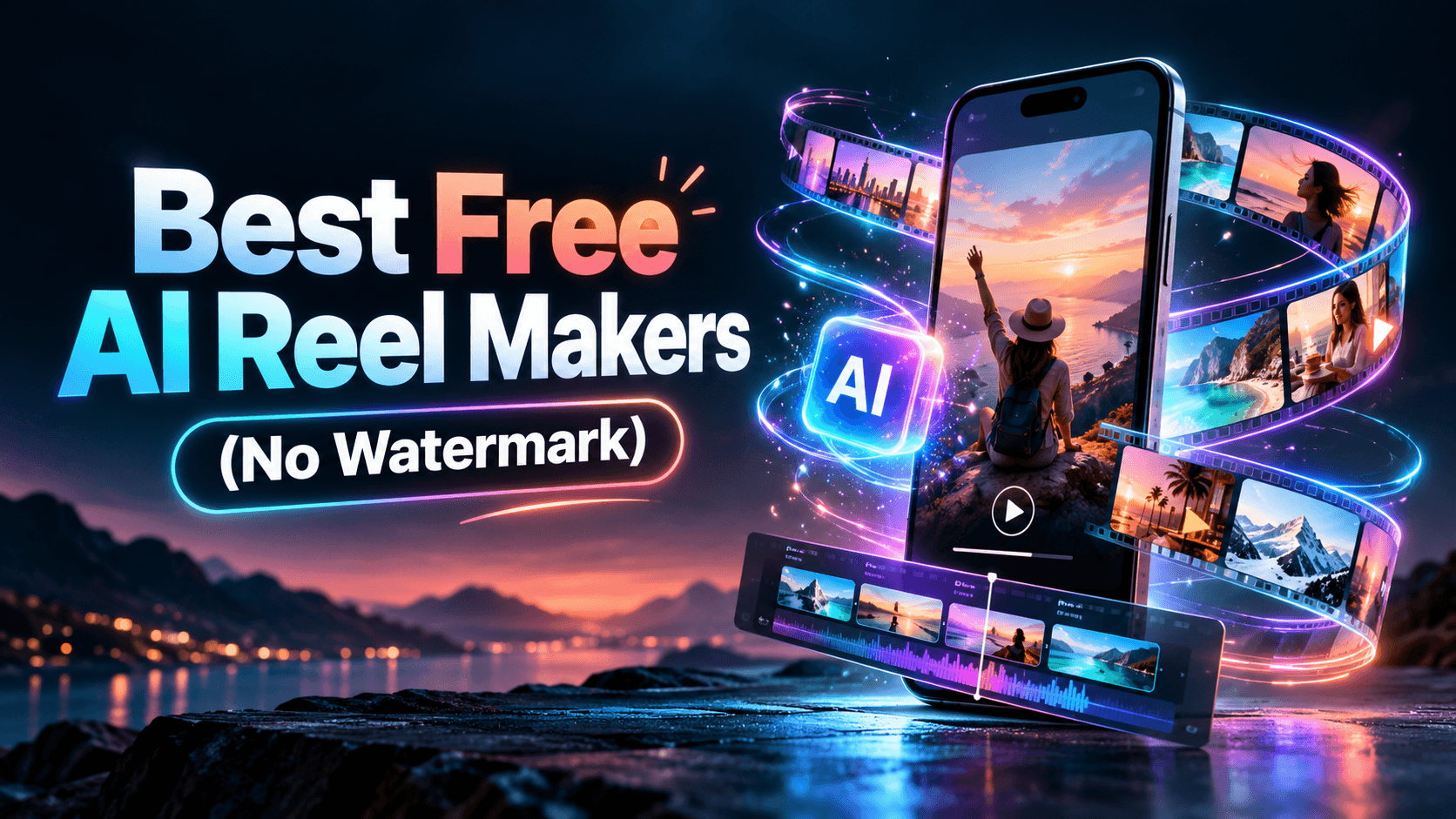
A free AI reel maker no watermark tool sounds simple until you try to export. Some tools are free while you edit but add a logo at the end. Some let you generate a Reel for free but lock clean downloads behind a paid plan. Others are genuinely watermark-free, but only if you avoid premium templates, paid stock, or default outros.
So the real question is not “Which AI Reel maker is free?” It is: which free AI Reel makers let you export a usable vertical video without a visible watermark?
This guide compares the best free AI Reel makers with no watermark, explains where the limits are, and separates truly free clean-export tools from tools that are only free to test.
The best free AI Reel makers with no watermark are Edits by Instagram, VN Video Editor, Microsoft Clipchamp, and CapCut with caveats.
Edits is the strongest mobile-first option because its Google Play listing says users can export videos in 4K with no watermark and share them to any platform. Source: Edits on Google Play.
VN Video Editor is one of the strongest free editing apps because its Google Play listing says VN is a free video editor with no watermark, and its auto caption tool supports caption generation and editing. Sources: VN on Google Play and VN Auto Captions.
Microsoft Clipchamp is the safest browser/desktop choice because its official no-watermark editor page says the free online editor lets users export videos watermark-free. Source: Clipchamp no-watermark video editor.
CapCut is one of the best free AI-assisted editors for social video, but it needs a caveat. CapCut’s help page says watermark-free exports are possible in most cases, while template endings, attribution assets, or default outros can still add a watermark. Source: CapCut: export without watermark.
For clean publishing, start with Edits, VN, Clipchamp, or CapCut. For branded design, use Canva or Adobe Express carefully. For polished AI-generated brand videos, use Renderforest when you are ready to move beyond free testing and export clean, higher-quality content.
“Free” can mean four different things in video tools. This is where many creators waste time.
You can open the editor, import clips, add text, use templates, and build a Reel without paying. But the final export may still include a watermark.
You can use an AI feature, such as text-to-video, auto captions, avatar generation, or image animation. But the tool may require payment to download the finished video cleanly.
You can download the finished video without paying. This is better, but it still does not guarantee the export is watermark-free.
This is what most people mean. The final MP4 does not include a corner logo, branded outro, template mark, attribution screen, or tool watermark.
For this article, “no watermark” means no visible watermark in the exported video file. It does not refer to invisible AI provenance systems, platform metadata, or content credentials.
Before choosing any free AI Reel maker, run this test. It is the fastest way to avoid surprises.
Do this before you edit a full campaign. A tool can look free in the editor and still add branding when you export.
This distinction matters. A tool can be excellent and still not be the right answer for “free AI Reel maker no watermark.” For this query, clean export matters more than the longest feature list.
Best for: truly free mobile Reel creation with clean exports
Free no-watermark export: yes
Best workflow: record, edit, caption, animate, and export Reels from your phone
Best users: Instagram creators, small brands, social media managers, and mobile-first creators
Edits by Instagram is one of the clearest free no-watermark choices. Its Google Play listing describes Edits as a free video editor and says users can export videos in 4K with no watermark and share them to any platform. Source: Edits on Google Play.
Meta’s launch announcement describes Edits as a standalone video creation app for making videos on your phone, with creator-focused tools and updates based on creator feedback. Meta also mentions AI-powered video effects in later updates. Source: Meta: Introducing Edits.
Edits is not just a generic editor. It is built around short-form creation: ideas, recording, editing, captions, export, posting, and performance thinking. If Instagram is your main channel, that tight workflow is useful.
Edits is best for creators who want a free mobile editor with clean exports and Reels-native tools. It works well for talking-head videos, quick product clips, behind-the-scenes content, mobile demos, creator updates, and simple brand videos.
Edits is not the best option if you want a browser-based editor, multi-brand workspace, or full prompt-to-video generation from scratch. It is strongest inside the Meta ecosystem, which is useful for Instagram creators but less ideal for teams that want platform-neutral workflows.
Pros
Cons
Best for you if: you mainly create Instagram Reels from your phone and want a clean free export.
Skip it if: you need desktop editing, team collaboration, or full text-to-video generation.
Verdict: Edits is the best truly free no-watermark AI-assisted Reel maker for Instagram-first creators.
Best for: free no-watermark editing with captions
Free no-watermark export: yes
Best workflow: mobile editing, captions, templates, multi-track timeline, fast social exports
Best users: creators, freelancers, social media editors, and small brands
VN Video Editor is another strong free no-watermark choice. Its Google Play listing says VN is an easy-to-use free video editing app with no watermark. Source: VN on Google Play.
VN is especially useful if your Reel starts with footage rather than a prompt. You can bring in clips, trim them, add captions, use templates, adjust pacing, and export a clean short-form video.
VN also has AI-assisted captions. Its Auto Captions page says captions can be generated with word-level timing, then edited and customized. Source: VN Auto Captions.
VN is best for creators who already have footage and need a free editor with clean exports, captions, templates, and timeline control. It works well for talking-head Reels, product demos, short tutorials, creator clips, and educational videos.
VN is less useful if you want AI to create the whole Reel from only a text prompt. It is an AI-assisted editor, not a full AI video generator.
Pros
Cons
Best for you if: you have footage and want a free no-watermark editor with captions.
Skip it if: you need AI to generate a complete video from only a prompt.
Verdict: VN is the best free no-watermark editor for creators who already have clips and need captions, cuts, and clean exports.
Best for: free no-watermark editing on browser and desktop
Free no-watermark export: yes
Best workflow: browser/desktop editing, templates, recording, AI-assisted tools, social exports
Best users: small businesses, educators, marketers, Windows users, and non-designers
Microsoft Clipchamp is one of the safest desktop/browser picks because its official no-watermark video editor page says the free online editor gives users editing tools and lets them export videos watermark-free. Source: Clipchamp no-watermark video editor.
Clipchamp’s main editor page also describes browser-based video creation, templates, recording tools, stock media, and exports up to 4K depending on plan/features. Source: Microsoft Clipchamp video editor.
Clipchamp is not the flashiest AI Reel generator, but it is practical. It is useful for editing uploaded footage, screen recordings, webcam videos, product demos, simple social clips, and educational videos.
Clipchamp is strongest for users who prefer editing on a computer. It is a good fit for small business videos, tutorials, simple ads, training clips, screen recordings, and short-form videos that need a clean export.
Clipchamp is less mobile-native than Edits, VN, and CapCut. It is also less focused on social trends and generative AI visuals than some creator-first tools.
Pros
Cons
Best for you if: you want a clean, free, no-watermark editor on desktop or browser.
Skip it if: you want a mobile-first Reels app or advanced AI-generated footage.
Verdict: Clipchamp is the best free no-watermark option for desktop/browser users who want practical AI-assisted video editing.
Best for: social-native AI Reel editing
Free no-watermark export: yes in many cases, with caveats
Best workflow: AI video generation, captions, templates, effects, mobile editing, trend-style Reels
Best users: creators, TikTok/Reels editors, social media managers, and small brands
CapCut is one of the most popular short-form video editors because it is fast, social-native, template-heavy, and comfortable for creators who make Reels, TikToks, and Shorts frequently.
CapCut’s AI video generator page says users can create videos with avatars, templates, text-to-video, and automated storyboarding. Source: CapCut AI Video Generator. Its AI caption generator page describes automatic captions and customization options for font, size, color, position, and animation. Source: CapCut AI Caption Generator.
The watermark question is more nuanced. CapCut’s help page says watermark-free exports are possible in most cases, but watermarks may appear when a template includes an ending clip, a stock asset requires attribution, or export settings include the default outro. Source: CapCut: export video without watermark.
CapCut is best for quick social edits, auto captions, trend formats, creator-style Reels, mobile-first editing, and fast iteration.
CapCut can feel too trend-led for brands that need consistent visual systems. It also requires an export check. Some templates, default endings, or assets can add branding unless removed or replaced.
Pros
Cons
Best for you if: you want a fast social-native AI Reel editor and are willing to check templates before exporting.
Skip it if: you need guaranteed no-watermark export without inspecting assets or outros.
Verdict: CapCut is one of the best free AI Reel makers, but always remove default outros and avoid templates/assets that add watermarks.
Best for: branded free AI Reels with design control
Free no-watermark export: conditional
Best workflow: AI Reel Maker, templates, brand visuals, short-form social design
Best users: small businesses, marketers, creators, educators, and teams already using Canva
Canva is a strong free AI Reel maker when you care about design consistency. Its AI Reel Maker page says users can create Reels online for free with AI, templates, music, media, and editing tools. Source: Canva AI Reel Maker.
Canva is useful because Reels rarely live alone. A business may also need a matching Instagram Story, carousel, YouTube thumbnail, ad creative, or presentation slide. Canva makes it easy to keep those assets visually consistent.
The watermark caveat matters. Canva’s licensing page says free users will see a watermark on Pro content. Source: Canva licensing explained. That means free users should use free assets, avoid Pro elements, and check the export screen before publishing.
Canva is best for branded Reels, simple promotional videos, educational clips, announcement videos, and social content that needs to match a broader brand system.
Canva is not the safest “free no watermark under every condition” pick. It is better described as a free AI Reel maker where clean export depends on using free assets and avoiding Pro content.
Pros
Cons
Best for you if: you want branded Reels and already use Canva for social content.
Skip it if: you need guaranteed free no-watermark exports regardless of assets or AI features.
Verdict: Canva is a strong free AI Reel maker for branded content, but free users should stick to free assets and check exports carefully.
Best for: free design-first social video creation
Free no-watermark export: conditional
Best workflow: short videos, templates, social posts, Adobe assets, quick edits
Best users: marketers, students, small businesses, creators, and Adobe users
Adobe Express is useful for making short social videos with templates and Adobe’s creative ecosystem. Adobe’s video maker page describes a free online video maker with ready-made templates and no prior editing experience required. Source: Adobe Express Free Video Maker.
Adobe’s free plan page says Adobe Express Free is available at no cost and includes access to static and video templates, fonts, and creation tools. Source: Adobe Express Free plan.
Adobe Express is not the most aggressive AI Reel generator, but it is easy to use and helpful for polished social clips, brand announcements, educational posts, and quick marketing videos.
Adobe Express is strongest for simple short-form videos, template-led social content, brand graphics, and beginner-friendly marketing assets.
It is not the best pure AI generator for Reels, and users should still check premium asset labels before exporting. It is a good free creative tool, but not the first pick if your only requirement is guaranteed no-watermark AI Reels.
Pros
Cons
Best for you if: you want a free design-first video maker for simple branded social videos.
Skip it if: you need a tool that clearly promises watermark-free exports for every free Reel workflow.
Verdict: Adobe Express is a good free video maker for design-led social content, but clean free export depends on the assets and features you use.
Best for: free AI visual experiments for Reels
Free no-watermark export: conditional
Best workflow: animate, restyle, and generate short video ideas from text, images, or videos
Best users: creators testing AI visuals, social experimenters, and Meta ecosystem users
Meta’s AI Video Generator page says users can animate and restyle from text, images, and videos, and make video stories and Reels from animated images, avatars, photos, and templates. Source: Meta AI Video Generator.
This makes Meta AI interesting for visual experiments. If you want to animate a photo, restyle a clip, or create a short AI visual that can later be edited into a Reel, it can help.
But it is not the same as a complete Reel editor. You may still need Edits, CapCut, VN, Clipchamp, Canva, or another editor to add captions, pacing, structure, and final polish.
Meta AI is best for AI visuals, animated photos, restyled clips, and quick creative experiments.
It is not the best full workflow for scriptwriting, caption editing, brand controls, or multi-clip exports. Availability and export behavior can also vary by feature, location, and account access.
Pros
Cons
Best for you if: you want AI-generated visual assets to bring into a Reel editor.
Skip it if: you need a complete no-watermark Reel maker with captions and timeline editing.
Verdict: Meta AI can help create visual assets, but pair it with Edits or another editor for finished Reels.
Some AI video tools are excellent, but they should not be listed as top free no-watermark picks if their free exports include a watermark or clean downloads require a paid plan.
Renderforest is a strong branded AI video platform, especially if you need more polished generative video and brand-friendly workflows. Its AI Reel Generator page says users can start with a free plan to explore the AI reel creator and generate videos with a watermark, while paid plans remove the watermark and unlock higher-resolution exports, AI credits, premium templates, brand kit, and team features. Source: Renderforest AI Reel Generator.
That makes Renderforest useful as a free-to-start AI Reel workflow, but not the best pure free no-watermark pick. It fits better when you are ready to move from free testing to polished branded AI video production.
Best use: branded AI Reels, product promos, explainers, ads, and multi-model AI video generation.
Main limitation for this article: free AI Reel exports include a watermark; paid plans remove it.
VEED is strong for AI Reels, subtitles, dubbing, and talking-head edits. Its AI Reel Generator page describes creating Reels with AI workflows. Source: VEED AI Reel Generator.
But VEED’s help center says the watermark is added to all exported videos while an account has a free subscription, and users must export again after upgrading to remove it. Source: VEED export help.
Best use: testing AI captions, subtitles, and talking-head video workflows.
Main limitation for this article: free exports are watermarked.
Kapwing is a useful online AI video generator and collaborative editor. Its AI Video Generator page says users can create text-to-video and image-to-video clips using AI models and social aspect ratios. Source: Kapwing AI Video Generator.
But Kapwing’s watermark policy says free-plan creators may notice a watermark added to projects. Source: Kapwing watermark policy. Its paid-plan FAQ also says free-plan workspaces add a watermark while paid-plan users can export watermark-free content. Source: Kapwing paid plan FAQ.
Best use: testing browser-based AI video generation, team editing, subtitling, and resizing.
Main limitation for this article: free exports may include a Kapwing watermark.
Fliki has a dedicated AI Reel Generator that turns prompts, topics, or blog URLs into Reels with visuals, transitions, captions, and overlays. Source: Fliki AI Reel Generator.
Fliki can be useful for testing script-to-Reel or blog-to-video workflows. But before using it for published brand content, check the current free-plan export and watermark rules inside your account. Many text-to-video platforms let users test generation for free but reserve clean, high-quality, or commercial exports for paid tiers.
Best use: testing script-to-Reel, blog-to-video, and voiceover-driven short videos.
Main limitation for this article: verify free-plan export and watermark rules before publishing.
For clean publishing, start with Edits, VN, Clipchamp, or CapCut. For more polished brand design, try Canva or Adobe Express carefully. For higher-end AI video production, use Renderforest when watermark-free export and brand polish matter enough to justify a paid plan.
Choose Edits if Instagram is your main channel and you want a free mobile app that exports without a watermark. It is especially useful for creator videos, product clips, and Reels that need fast mobile editing.
Choose VN if you already have footage and need cuts, captions, templates, and no-watermark exports. It is a strong choice for talking-head Reels, tutorials, creator clips, and short educational videos.
Choose Clipchamp if you prefer editing on a computer and want watermark-free exports without professional editing software. It works well for small business videos, education, screen recordings, and simple social posts.
Choose CapCut if you want effects, templates, captions, and creator-style edits. It is one of the strongest tools for social-native editing, but always check templates and outros before export.
Choose Canva if your Reel needs to match a broader brand system, such as Instagram posts, Stories, ads, thumbnails, and carousels. Use free assets and verify the export before publishing.
Choose Adobe Express if you want quick templates, clean design, and simple video creation with Adobe’s creative tools. It works best for simple promotional clips and brand visuals.
Choose Meta AI if you want to create AI visual assets, then finish the Reel in another editor like Edits, CapCut, VN, or Canva.
Choose Renderforest when you want AI video generation, templates, branding, and more polished production. It is better as a free-to-start or paid production workflow than as a pure free no-watermark pick.
The cleanest workflow is usually the simplest: use your own footage, use free assets only, avoid premium templates, delete default outros, then export and inspect the file.
No. If a watermark appears because the free plan does not include clean exports, removing it may violate the tool’s terms, the asset license, or the creator agreement.
A better approach is to use a genuinely no-watermark tool, replace the premium asset, remove the default outro if the editor allows it, or upgrade to a plan that includes clean export.
For business content, this matters even more. A removed watermark can create licensing problems later, especially if the Reel is used in ads, client work, product promotion, or paid social campaigns.
A no-watermark export is only the minimum. The Reel still needs to work.
AI helps with production. It does not replace the need for a good hook, clear structure, readable captions, and human editing.
Choose the tool based on what you already have:
Weak hook:
Check out our new product.
Better hook:
This is the fastest way to turn one product photo into a Reel.
A good hook makes the viewer understand the value before they scroll away.
A simple structure works:
Example:
Captions should be readable on a phone. Keep them short, high-contrast, and away from the bottom edge where platform buttons may cover them.
Check the end of the timeline. If there is a branded outro, remove it before exporting if the tool allows it.
Open the final MP4 outside the editor. Confirm there is no visible watermark, corner logo, attribution screen, or unwanted ending frame.
Once you find a clean format, save it as a template. Reuse the same caption style, title placement, pacing, and brand colors so future Reels look consistent.
Use these prompts in tools that support AI generation or script assistance. For editors like VN, Edits, CapCut, and Clipchamp, use them as structure before editing.
Create a 20-second vertical Reel for [audience] showing how [product] solves [problem]. Start with a clear hook, show the product in use, add three short benefits as captions, and end with a simple CTA. Keep the tone practical and avoid exaggerated claims.
Turn this talking-head clip into a 25-second Reel. Remove filler words, keep the strongest idea, add short captions, use subtle zooms, and make the first sentence the hook.
Create a 30-second vertical educational Reel about [topic]. Start with the most common mistake, explain the better approach in three simple steps, and end with a save-worthy takeaway.
Create a short before-and-after Reel showing the difference between [old state] and [new result]. Use large captions, quick pacing, and a clear final takeaway.
Create a 20-second Reel using this customer result: [result]. Open with the result, briefly show the problem, explain what changed, and end with a soft CTA.
Create a 20-second Reel introducing [brand] to [audience]. Focus on the problem we solve, not a generic company overview. Use simple visuals, captions, and a closing line that makes viewers want to learn more.
Most short-form videos should be created vertically first.
YouTube’s help documentation says videos uploaded after October 15, 2024 with a square or vertical aspect ratio up to three minutes can be categorized as Shorts, with additional notes for Official Artist Channels. Source: YouTube Help. TikTok’s ad help includes creative specs and safe-zone considerations for in-feed ads. Source: TikTok Business Help.
For most creators, the practical default is simple: export in 9:16, keep captions large, and avoid placing important text near platform buttons.
The best free AI Reel makers with no watermark are Edits by Instagram, VN Video Editor, Microsoft Clipchamp, and CapCut with caveats. Edits is best for Instagram-first mobile creators. VN is best for clean mobile editing and captions. Clipchamp is best for browser and Windows editing. CapCut is best for social-native editing, but you should check templates and default outros before exporting.
Yes, but the best options are often AI-assisted editors rather than full text-to-video generators. Edits, VN, Clipchamp, and CapCut can help create Reels with AI-assisted features and clean exports. Full prompt-to-video tools often reserve watermark-free export for paid plans.
CapCut says watermark-free exports are possible in most cases, but watermarks may appear if a template includes an ending clip, an asset requires attribution, or the default outro is included. Check your timeline and export before posting.
Canva’s AI Reel Maker is free to use, but clean export depends on the assets and features used. Free users should avoid Pro elements because Canva says free users will see watermarks on Pro content.
VEED’s help center says the watermark is added to all exported videos while an account has a free subscription. To export without a VEED watermark, users need to upgrade and export the original project again.
Kapwing’s help center says creators using the free plan may notice a watermark added to projects. Its paid-plan FAQ says free-plan workspaces add a watermark, while paid-plan users can export watermark-free content.
Renderforest is free to start, but its AI Reel Generator page says free-plan users can generate videos with a watermark and paid plans remove the watermark. Renderforest is better for branded AI video production when clean export is important enough to upgrade.
Edits, VN, and CapCut are the strongest mobile options. Edits is best for Instagram-first creators, VN is best for clean editing and captions, and CapCut is best for trend-style social editing.
Microsoft Clipchamp is the strongest free desktop/browser choice because its official page says the free online editor exports videos watermark-free. CapCut desktop is also useful for social-native editing, but templates and outros should be checked before export.
No. If a watermark is added because the free plan does not include clean exports, removing it may violate the platform’s terms or asset license. Use a genuinely no-watermark tool or upgrade to a plan that allows clean exports.
Often, yes, but check the tool’s commercial-use terms and asset licenses. If you use stock media, AI-generated content, templates, music, or premium assets, make sure those elements are allowed for commercial use.
Use a free no-watermark editor if you already have footage and need captions, cuts, and clean exports. Use a paid AI Reel generator if you need advanced text-to-video, image-to-video, brand control, higher-quality outputs, or commercial production at scale.
The best free AI Reel maker with no watermark depends on what you need to create.
If you want a truly free mobile Reel workflow, start with Edits. If you need captions and clean mobile editing, use VN. If you want a browser or Windows editor with no watermark, use Clipchamp. If you want trend-style social editing, use CapCut, but check templates and outros before export.
Canva and Adobe Express are strong for branded social content, but free users should watch asset and export limits. Renderforest, VEED, Kapwing, and Fliki are useful AI video tools, but they are better treated as free-to-test or paid-for-clean-export options.
Do not choose only by the word “free.” Choose by the exported file. If the final MP4 is clean, readable, vertical, and useful to your audience, then the tool did its job.
Share this


Article by: Liana Ziroyan
Liana is a marketing professional with 11 years of experience in digital marketing, content, and product communication. She has a strong eye for visual storytelling and loves turning ideas into engaging campaigns that connect with audiences. With her experience across branding, creative content, and user-focused messaging, Liana enjoys finding simple, effective ways to make products feel clear, useful, and exciting.
Read all posts by Liana Ziroyan