AI
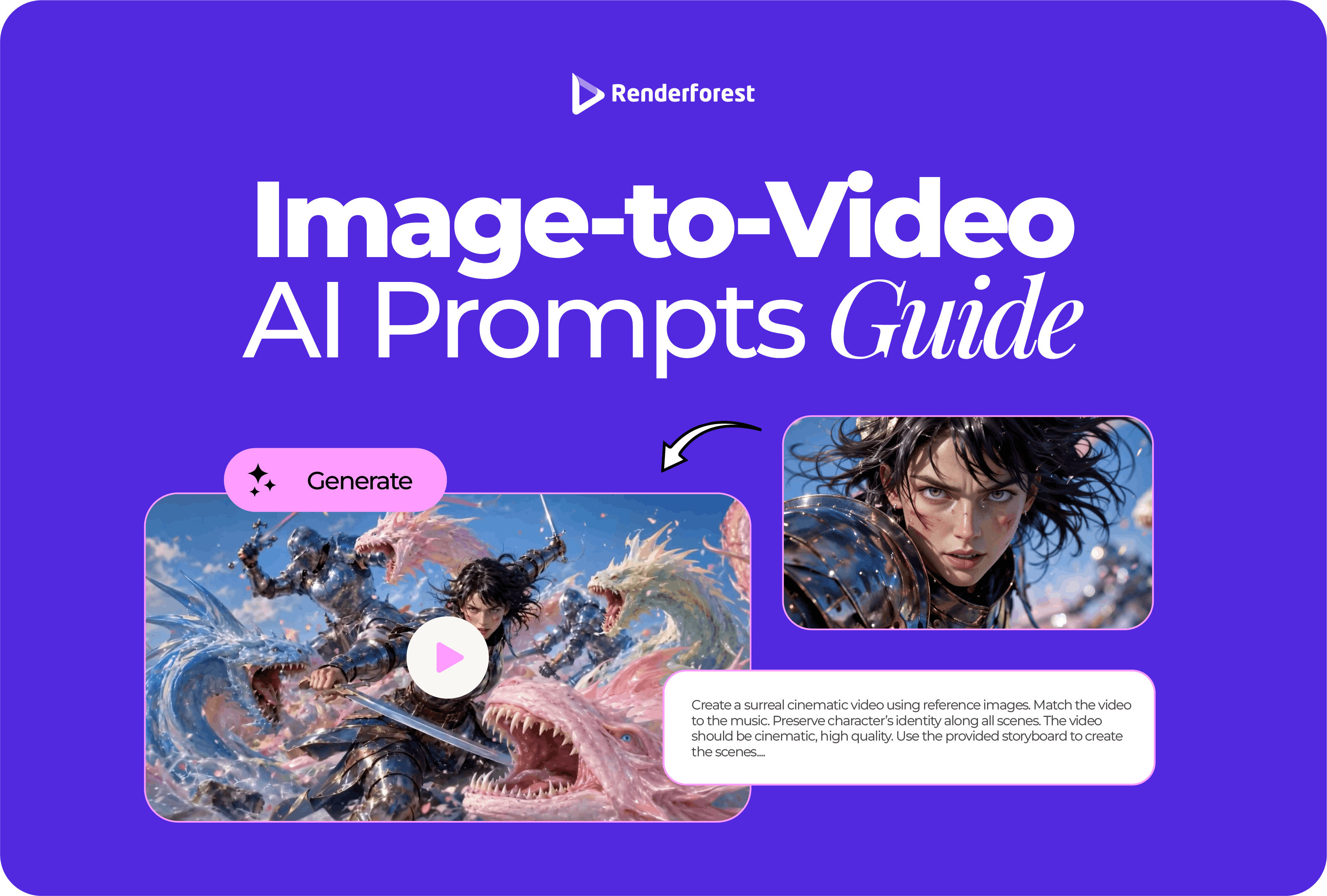
Image-to-video AI prompts work best when they do one job clearly: tell the model how the still image should move.
The image already gives the AI the subject, framing, lighting, colors, and visual style. Your prompt should not rewrite the image. It should direct the motion: what moves, what stays still, how the camera behaves, how fast the clip feels, and what details must not change.
That is where most weak prompts fail. They describe the image again. They add too many movements. Or they forget to protect faces, logos, labels, text, product shapes, app screens, room layouts, and brand details.
This guide gives you a practical prompting system, copy-ready examples, motion words, negative prompt ideas, and a repair framework for turning still images into clean, usable AI videos.
To write a good image-to-video AI prompt, describe the motion, not the whole image. The uploaded image already provides the subject, composition, lighting, and style. Your prompt should specify what moves, what stays unchanged, the camera movement, the visual style, the avoid list, and the aspect ratio.
Use this formula:
Turn this [image type] into a [length] video for [use case]. Keep [protected details] unchanged. Add [main motion] with [camera movement]. Use a [style] look. Avoid [common mistakes]. Format as [aspect ratio].
Example:
Turn this product photo into a 6-second vertical video for Instagram Reels. Keep the product shape, label, logo, color, and packaging unchanged. Add a slow camera push-in with a soft studio light sweep across the bottle. Use a clean premium ecommerce style. Avoid warping the label, changing text, adding objects, or making the motion too dramatic. Format as 9:16.
This structure works because it gives the AI two things at once: a clear motion plan and a clear protection list. Runway’s image-to-video prompting guide explains that, in image-to-video generation, the uploaded image defines composition, subject matter, lighting, and style, while the text prompt should describe motion, camera work, and temporal progression. Source: Runway Image to Video Prompting Guide.
A text-to-video prompt has to build the whole scene from words. It needs to describe the subject, location, style, lighting, action, and camera direction.
An image-to-video prompt starts with a visual source. That changes the job.
With image-to-video, your prompt should answer four questions:
If you upload a perfume bottle, the AI does not need a paragraph describing the bottle. It can see the bottle. What it needs is direction:
That is the difference between a prompt that animates and a prompt that confuses.
The fastest way to understand image-to-video prompting is to compare weak prompts with stronger ones.
A weak prompt asks the AI to improvise. A strong prompt gives the AI boundaries.
That is the central idea of this guide: protect first, animate second.
Use this formula for most still images:
Full formula:
Turn this [image type] into a [length] video for [use case]. Keep [protected details] unchanged. Add [main motion] with [secondary motion]. Use a [style] visual tone. Avoid [specific mistakes]. Format as [aspect ratio].
Example:
Turn this skincare product photo into a 6-second video for an Instagram ad. Keep the jar shape, label, logo, color, cream texture, and packaging unchanged. Add a slow camera push-in with soft light movement across the surface. Use a clean premium beauty style. Avoid changing the text, adding objects, warping the jar, or making the motion too dramatic. Format as 9:16.
This is not the only possible structure, but it is reliable because it covers the main things image-to-video tools need: source type, motion, protection, style, avoid list, and format.
Most image-to-video prompt guides focus on cinematic camera words. Those matter, but the protection sentence matters more.
The protection sentence tells the model what not to improvise.
Use it whenever your image includes:
A product video is not useful if the bottle looks cinematic but the label is wrong. A portrait video is not useful if the person looks like someone else. A real estate video is not useful if the AI makes the room bigger.
The protection sentence is the difference between a fun test and a usable marketing asset.
Not every image needs the same level of control. Some images are low-risk because small changes do not matter much. Others are high-risk because one changed detail can make the output unusable.
Low-risk images can use shorter prompts. High-risk images need stronger protection sentences and more specific avoid lists.
The easiest way to ruin an image-to-video prompt is to ask for too much movement.
A still image usually needs a small motion budget. That means one primary motion and, at most, one subtle supporting motion.
Think of motion like seasoning. Enough makes the image feel alive. Too much makes it look generated.
Kling’s image-to-video guide teaches a simple “Subject + Movement” formula and explains that image-to-video generation can turn an uploaded image into 5-second or 10-second videos using an added text description. Source: Kling Image-to-Video Guide.
Use specific motion language. “Make it cinematic” is too broad. “Slow push-in with soft light movement” is useful.
The examples below are written to be copied, adapted, and tested. Replace the protected details with the exact details from your image.
Turn this product photo into a 6-second vertical video for a social ad. Keep the product shape, label, logo, color, packaging, and proportions unchanged. Add a slow camera push-in with a soft studio light sweep across the product. Use a clean premium ecommerce style. Avoid changing text, adding objects, warping the label, or making the motion too dramatic. Format as 9:16.
Best for: Ecommerce ads, product pages, Instagram Reels, TikTok ads.
Why it works: It asks for one clear product motion and protects all commercial details.
Turn this perfume bottle image into a 6-second luxury beauty video. Keep the bottle shape, label, logo, cap, glass color, and reflections unchanged. Add a slow push-in with a soft light sweep across the glass and subtle background depth. Use an elegant studio-ad style. Avoid warping the bottle, changing the label, adding flowers, or changing the liquid color. Format as 4:5.
Best for: Beauty campaigns, luxury ads, ecommerce banners.
Watch out: Glass can distort easily. Keep the label static when the brand name matters.
Turn this coffee product photo into a warm 6-second ecommerce video. Keep the coffee bag, label, logo, colors, mug, table, and packaging unchanged. Animate gentle steam rising from the cup, with a slow camera push and soft morning light movement. Avoid covering the label, changing the packaging, adding objects, or making the steam too thick. Format as 9:16.
Best for: Coffee shops, product launches, social ads.
Watch out: Steam should support the product, not hide it.
Turn this restaurant dish photo into a short appetizing video. Keep the plate, food, ingredients, colors, garnish, and composition accurate. Add gentle steam and a slow camera push-in under soft restaurant lighting. Avoid changing ingredients, adding sauce, moving the plate, or making the food texture artificial. Format as 9:16.
Best for: Restaurant promos, delivery ads, menu visuals.
Watch out: Food prompts should be restrained. Too much motion makes the dish look fake.
Turn this jewelry close-up into a 5-second luxury product video. Keep the ring shape, gemstone, metal setting, color, reflections, and proportions unchanged. Add a subtle camera push-in with soft sparkle and shallow depth of field. Avoid adding stones, changing the setting, over-brightening the metal, or distorting the reflection. Format as 4:5.
Best for: Jewelry ecommerce, luxury social posts, product launches.
Watch out: Sparkle should be subtle. If it looks like a filter, reduce it.
Add subtle motion to this fashion portrait. Keep the model’s face, identity, body shape, pose, clothing design, colors, and fabric pattern unchanged. Add a soft fabric breeze, slight hair movement, and gentle camera push. Use a polished fashion editorial style. Avoid changing facial features, hands, clothing seams, skin tone, or body proportions. Format as 9:16.
Best for: Fashion campaigns, lookbooks, social ads.
Watch out: Faces, hands, and clothing seams are high-risk areas.
Turn this founder headshot into a professional 5-second motion portrait. Keep the person’s face, identity, expression, hairstyle, clothing, skin tone, and posture unchanged. Add a slow camera push-in and subtle background parallax. Use a clean professional brand style. Avoid changing facial features, teeth, eyes, age, clothing, or background objects. Format as 4:5.
Best for: LinkedIn posts, company announcements, about pages.
Watch out: Background motion is safer than facial motion.
Turn this room photo into a polished 7-second real estate video. Keep the room layout, furniture, walls, windows, flooring, decor, and colors accurate. Add a slow camera push-in with soft natural light movement and subtle depth. Avoid changing furniture, making the room larger, adding objects, or warping architecture. Format as 16:9.
Best for: Property listings, hotel pages, interior design portfolios.
Watch out: Real estate videos must not misrepresent the property.
Turn this beach photo into an 8-second cinematic travel video. Keep the shoreline, sand, water, people, buildings, and composition accurate. Add gentle wave motion, slow cloud drift, and a smooth camera glide forward. Use a natural sunny travel style. Avoid adding people, changing the weather, exaggerating waves, or making the water artificial. Format as 9:16.
Best for: Travel Reels, hotel promos, destination content.
Watch out: The place should still look like the same place.
Animate this event poster into a short vertical promo. Keep all text, dates, times, speaker names, venue details, logos, colors, and layout unchanged. Add subtle background motion, soft light movement, and slight depth around the speaker photo. Avoid rewriting text, changing dates, distorting logos, or moving important information. Format as 9:16.
Best for: Webinars, conferences, local events, workshops.
Watch out: Text-heavy images are risky. For safer results, generate the motion first and add text manually afterward.
Turn this logo image into a clean 5-second branded intro. Keep the logo shape, typography, colors, proportions, and placement unchanged. Add subtle background depth, soft gradient movement, and a polished light reveal behind the logo. Avoid changing the logo, adding new text, distorting brand colors, or moving the logo too much. Format as 16:9.
Best for: YouTube intros, brand reveals, website hero loops.
Watch out: Logo accuracy is non-negotiable. Keep the logo as a separate static layer when possible.
Turn this app screenshot mockup into a clean 6-second product video. Keep the phone frame, UI text, buttons, icons, screen layout, colors, and logo unchanged. Add a slow camera push-in, subtle background depth, and soft light movement. Avoid changing UI text, moving buttons, adding screens, or altering the interface. Format as 9:16.
Best for: SaaS ads, product updates, app launch videos.
Watch out: Never rely on AI to preserve small UI text perfectly.
Sometimes you already know the effect you want, but not how to phrase it. Use these templates.
Turn this image into a [length] video. Keep [protected details] unchanged. Add a slow camera push-in toward the main subject with subtle background depth. Use a [style] look. Avoid changing the subject, adding objects, or warping important details. Format as [aspect ratio].
Best for: Products, portraits, food, hero images.
Create a cinemagraph-style video from this image. Keep the camera locked and keep [protected details] unchanged. Animate only [specific element], such as steam, flame, water, or light. Keep the motion subtle and seamless. Avoid moving the main subject or changing the background. Format as [aspect ratio].
Best for: Coffee, candles, cocktails, water, cozy lifestyle images.
Add subtle parallax depth to this image. Keep [protected details] unchanged. Separate the foreground and background with a gentle camera movement. Use natural depth and soft motion. Avoid changing faces, text, logos, architecture, or object shapes. Format as [aspect ratio].
Best for: Portraits, landscapes, posters, real estate images.
Turn this image into a short premium video. Keep [protected details] unchanged. Add a soft light sweep across the main subject with a slow camera push-in. Use clean studio lighting and minimal background movement. Avoid changing labels, reflections, colors, or object shape. Format as [aspect ratio].
Best for: Beauty, jewelry, tech, packaging, luxury products.
Animate only the background of this image. Keep [protected details] completely static and unchanged. Add subtle light movement, depth, or atmospheric motion behind the main subject. Avoid moving text, logos, faces, products, or important layout elements. Format as [aspect ratio].
Best for: Posters, logos, event flyers, thumbnails, UI visuals.
Turn this image into a calm [length] video. Keep [protected details] unchanged. Add subtle natural light movement across the scene with a slow camera push. Use a warm realistic style. Avoid changing objects, adding new elements, or making the lighting too dramatic. Format as [aspect ratio].
Best for: Interiors, lifestyle images, cafes, home decor, hospitality.
Turn this product image into a short reveal video. Keep the product shape, logo, label, color, packaging, and proportions unchanged. Add a slow camera move from [direction] with soft shadow movement and clean studio lighting. Avoid changing the design, adding objects, or warping the product. Format as [aspect ratio].
Best for: Product launches, ecommerce ads, social teasers.
A good avoid list is not just “no distortion.” Be specific.
The avoid list should match the risk of the image. A landscape may not need a long avoid list. A product label, portrait, poster, app screenshot, or real estate photo does.
Most failed clips come from one of six problems: too much motion, weak protection, vague camera direction, missing avoid list, wrong aspect ratio, or an overcomplicated prompt.
Use this repair table before rewriting everything.
Weak prompt:
Make this product photo look cinematic and exciting.
Better prompt:
Turn this product photo into a 6-second premium ecommerce video. Add a slow camera push-in with a soft light sweep across the product. Use a clean studio style.
Best prompt:
Turn this product photo into a 6-second premium ecommerce video. Keep the product shape, label, logo, packaging, color, and proportions unchanged. Add a slow camera push-in with a soft light sweep across the product. Use a clean studio style. Avoid changing text, adding objects, warping packaging, or making the motion too dramatic. Format as 9:16.
The best prompt wins because it gives the AI boundaries. It says what to move, what to protect, and what not to do.
The best prompt is usually specific, but not overloaded.
A useful image-to-video prompt is often 40–90 words. Shorter prompts can work for simple motion. Longer prompts can help when faces, text, products, logos, or architecture must stay accurate.
For most marketing use cases, start short. Add detail only when the output fails.
Always include the final format. Otherwise the output may look good in preview but fail in the actual channel.
For vertical formats, add one more line:
Keep the main subject centered with safe space around the edges.
That protects the asset from being cropped under captions, buttons, or platform UI.
A generic prompt can work, but platform context makes the result more practical.
This is where prompt writing becomes less about “cool visuals” and more about usable content.
Use this workflow when you want to turn a still image into a short video without building the motion manually.
Renderforest describes its Image to Video AI as a tool for turning static visuals into motion videos with smooth transitions, depth, and movement from still images. Source: Renderforest Image to Video AI.
If your image-to-video clip needs to become part of a longer campaign, use Renderforest AI Video Generator to build a fuller video from text, image, or script, then refine visuals, voiceover, and scenes. Source: Renderforest AI Video Generator.
Before you press generate, check the prompt against this list:
A prompt that passes this checklist is much more likely to produce a usable first draft.
Weak:
A beautiful coffee cup on a table in the morning with warm lighting.
Better:
Keep the cup, table, background, and colors unchanged. Animate only gentle steam rising from the coffee with a locked camera and soft morning light movement.
The image already gives the AI the scene. The prompt should give it movement.
Weak:
Add a zoom, pan, light sweep, particles, smoke, rotation, and cinematic motion.
Better:
Add a slow camera push-in with one soft light sweep across the product.
Too many effects create visual noise. One clear motion usually looks more professional.
Weak:
Animate this event poster.
Better:
Keep all text, dates, names, logos, and layout unchanged. Animate only subtle background light movement behind the poster design.
Text is one of the easiest things to ruin. If the text matters, protect it or add it after generation.
Weak:
Make it cool and cinematic.
Better:
Use a clean premium ecommerce style with soft studio lighting and minimal background movement.
Style words work best when they are tied to a real use case.
Weak:
Make this person smile, blink, turn their head, and look at the camera.
Better:
Keep the person’s face, identity, expression, clothing, and posture unchanged. Add a slow camera push-in and subtle background parallax.
Faces are high-risk. If identity matters, move the camera or background instead.
Longer clips give the AI more time to drift. Start with 4–8 seconds, review the output, then extend only if the first result is stable.
A good video can still fail if the subject gets cropped in Reels, Shorts, or Stories. Always include aspect ratio and safe-space instructions.
If you publish your own prompt guide, visual proof matters. Show the original image, the generated result, the prompt, and the revision notes.
Google’s helpful content guidance says content should be created to benefit people, provide original information or analysis, and avoid simply repackaging what others have already published. Source: Google Search Central: Creating helpful, reliable, people-first content.
For visual pages, Google’s image SEO guidance recommends using contextual, high-quality images, descriptive file names, useful alt text, and standard HTML image elements where possible. Source: Google Search Central: Image SEO best practices.
If you embed videos, Google’s video SEO guidance recommends making videos easy to find, using high-quality thumbnails, and providing clear information about each video. Source: Google Search Central: Video SEO best practices.
For key embedded clips, VideoObject structured data can help Google understand video details like name, description, thumbnail, upload date, and duration. Source: Google Search Central: Video structured data.
Google’s current guidance for generative AI features also says standard SEO remains relevant because AI Overviews and AI Mode are rooted in Google’s core Search ranking and quality systems. Source: Google Search Central: Optimizing for generative AI features.
For this topic, that means the best page is not just a prompt list. It should include original examples, useful visuals, clear structure, and practical explanation that helps people create better videos.
An image-to-video AI prompt is a written instruction that tells an AI video tool how to animate a still image. The image provides the visual reference, while the prompt describes motion, camera movement, style, protected details, and things to avoid.
Start by saying what the image is and what kind of video you want. Then add what must stay unchanged, one clear motion idea, one camera movement, a visual style, an avoid list, and the aspect ratio.
The best general formula is: “Turn this [image type] into a [length] video for [use case]. Keep [protected details] unchanged. Add [main motion] with [camera movement]. Use a [style] look. Avoid [common mistakes]. Format as [aspect ratio].”
Most prompts should be specific but not overloaded. Around 40–90 words is usually enough for products, portraits, food, travel, and social clips. Use longer prompts only when important details need protection.
Mention anything that would make the output unusable. For products, avoid changing labels, logos, packaging, shape, or color. For portraits, avoid changing facial features, skin tone, clothing, expression, or body shape. For posters, avoid rewriting text or changing dates.
It can sometimes preserve them, but logos and text are high-risk. For professional results, keep logos and text static or add them manually after generating the motion.
Slow push-in, subtle pull-back, gentle pan, slight tilt, locked camera, and parallax depth usually work better than fast zooms, dramatic rotations, or complex camera paths.
The prompt may be asking for too much movement, missing a protection sentence, or leaving too much room for the AI to invent details. Reduce the motion, add protected details, and include a clear avoid list.
Most marketing clips work best at 4–8 seconds. Longer clips can work for website heroes or mood videos, but they are more likely to drift or distort.
Use the same structure, not the same exact prompt. A product image, portrait, poster, real estate photo, and app screenshot all need different protection details.
A negative prompt, or avoid list, tells the AI what not to change or generate. For example: “Avoid changing the logo, label, product color, packaging shape, or text.” It is especially useful for products, portraits, logos, posters, app screenshots, and real estate images.
The easiest beginner prompt is a slow push-in with protected details: “Turn this image into a 5-second video. Keep the main subject unchanged. Add a slow camera push-in with subtle background depth. Avoid adding objects or changing the subject. Format as 9:16.”
The best image-to-video AI prompts are not the longest or most poetic. They are the clearest.
Tell the AI what the image is. Tell it what must stay unchanged. Give it one motion idea. Choose a camera move. Define the style. Add an avoid list. Set the format.
That is enough for most still images.
When the result fails, do not rewrite everything. Fix the weakest part: protect the subject, reduce the motion, slow the camera, or move text and logos into a separate editing layer.
A good prompt does not ask the AI to reinvent the image. It gives the image just enough motion to become useful.
Share this


Article by: Liana Ziroyan
Liana is a marketing professional with 11 years of experience in digital marketing, content, and product communication. She has a strong eye for visual storytelling and loves turning ideas into engaging campaigns that connect with audiences. With her experience across branding, creative content, and user-focused messaging, Liana enjoys finding simple, effective ways to make products feel clear, useful, and exciting.
Read all posts by Liana Ziroyan