
AI
AI can cut a video faster than you can scrub through the timeline. That does not mean it knows what the final video should say.
Auto-editing works best when you give the AI a clear job: remove dead air, cut filler words, find highlights, turn a long video into short clips, reframe for social media, or assemble a rough draft from raw footage. Those are different tasks. Treating them like the same thing is how you end up with a video that is technically shorter but not actually better.
This guide shows you how to auto-edit videos with AI, when to trust the cut, when to override it, and how to turn an automatic first draft into a video that feels intentional.
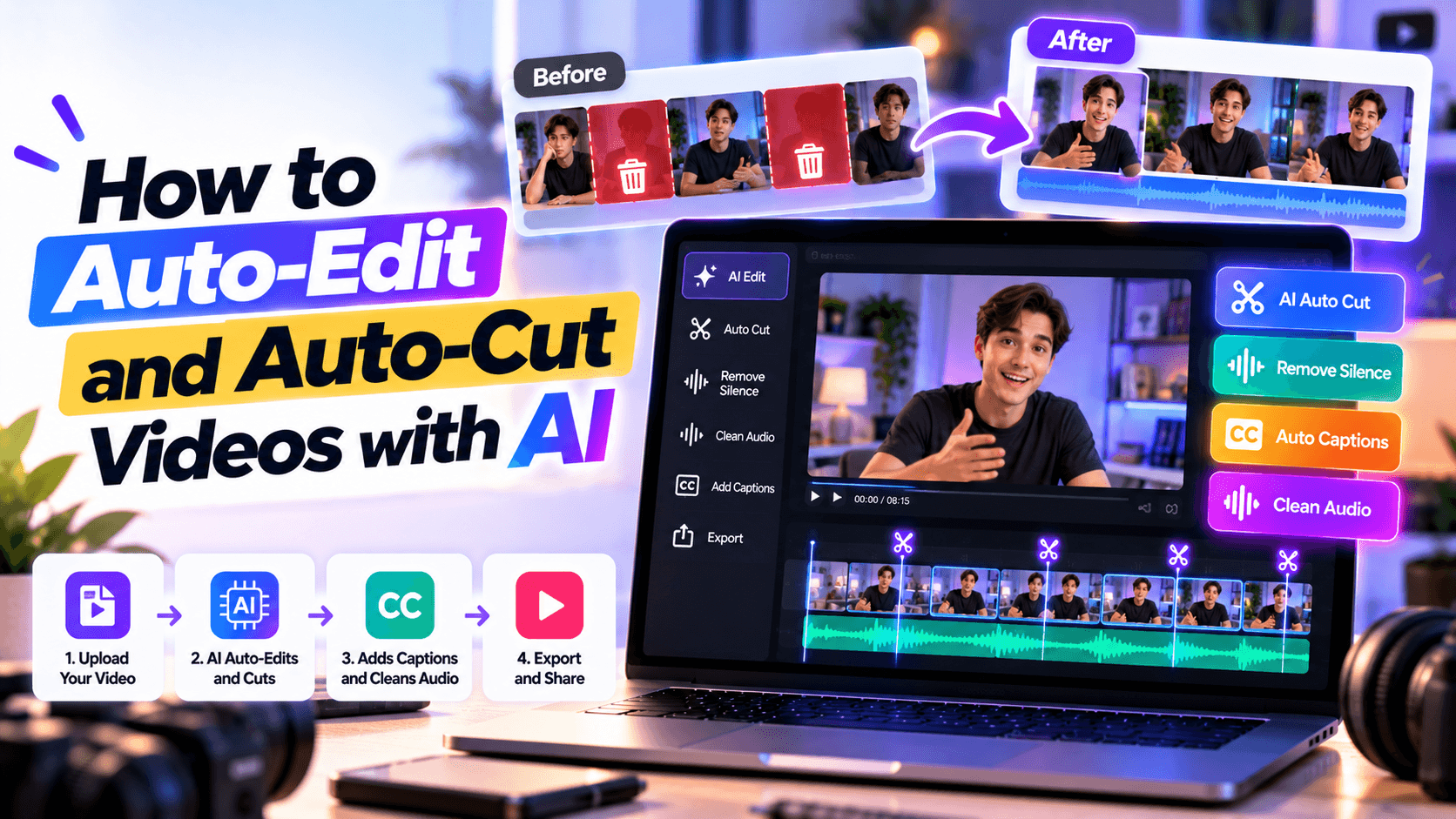
To auto-edit videos with AI, upload your footage to an AI video editor, choose the type of edit you want, let the tool analyze the transcript, audio, scenes, or visual patterns, then review the suggested cuts before exporting.
A practical workflow looks like this:
The review step is not optional. AI can make the first cut. A human still has to decide whether the edit makes sense.
AI auto-editing uses speech recognition, transcript analysis, scene detection, silence detection, object tracking, and pattern recognition to make editing decisions faster.
Depending on the tool, AI can help you:
Several current AI editing tools focus on different parts of this workflow. VEED describes auto video editing as using AI for repetitive work such as removing silences, adding subtitles, and optimizing formats. Kapwing focuses on cutting silences, reordering clips, and transforming long recordings into shorter videos with prompts. Descript is built around transcript-based editing and filler-word removal. CapCut describes Auto Cut as an AI feature that analyzes video and audio to create rhythm-synced cuts for fast-paced videos. OpusClip focuses on turning long videos into short clips for platforms like TikTok, Instagram Reels, and YouTube Shorts.
But “auto-edit” is not one feature. It is a family of editing shortcuts.
A silence remover is not the same as a highlight detector. A filler-word remover is not the same as a short-form clip generator. A tool that cuts to a beat is not the same as a tool that understands a webinar’s best sales moment.
That is why the first step is not choosing software. The first step is choosing the editing job.
Use this framework before uploading your video.
Most failed auto-edits happen because the wrong type of automation was used.
If you want a tighter podcast episode, use cleanup cuts. If you want social clips, use highlight detection and vertical reframing. If you want a polished business video, use AI to create the rough structure, then refine the message manually.
The best AI edit is not the shortest version. It is the clearest version.
People often use “auto-edit” and “auto-cut” interchangeably, but they are not exactly the same.
Auto-cutting is about removing. Auto-editing is about shaping.
That difference matters because a video can be cleanly cut and still be weak. If the hook is missing, the story is unclear, or the best moment arrives too late, the edit needs more than trimming.
AI editing tools work better when your footage is organized and readable. You do not need a professional editing setup, but you do need to give the tool a clean starting point.
Use the original recording whenever possible. Avoid editing from a downloaded social media file, compressed message app video, or screen recording unless that is the only version available.
A compressed video gives AI less information to work with. Transcripts may be less accurate, scene changes may be harder to detect, and auto-reframing may struggle with soft or noisy footage.
If the video is speech-based, audio quality matters more than visual polish. AI needs to understand the speaker before it can remove filler words, cut silences, or detect highlights.
Before uploading, check for:
If the transcript is wrong, the edit will probably be wrong too.
A YouTube tutorial, podcast clip, LinkedIn thought-leadership post, paid social ad, and internal training video should not be edited the same way.
Before using AI, decide:
AI can cut faster when the destination is clear.
If the footage is long, note the moments you already know matter: the strongest answer, product demo, customer quote, before/after reveal, pricing explanation, tutorial step, or emotional moment.
AI highlight tools are useful, but they do not always understand business context. A founder’s throwaway line may be the best quote. A quiet product explanation may matter more than a dramatic moment. A legally important disclaimer may not look like a “highlight” to AI.
The exact buttons vary by tool, but the workflow is usually the same.
Start by choosing the job you want AI to do.
This decision saves time later. If you choose a social clipping workflow for a training video, the result may be too fast. If you choose a silence remover for a podcast highlight, the clip may still lack a strong hook.
Upload the cleanest video file you have. If the editor supports separate audio, upload the best audio track as well.
For long videos, check the platform’s limits before uploading:
A tool may be excellent for short vertical clips but weak for full-length edits. Another may be great for transcript cleanup but not designed for social reframing.
For speech-based videos, the transcript becomes the editing map.
AI uses the transcript to detect sentences, pauses, topics, filler words, speaker changes, and possible highlights. If the transcript is inaccurate, the cuts may remove the wrong words or create awkward jumps.
Review:
A transcript does not have to be perfect before the first AI pass, but it should be accurate enough that you can trust what is being cut.
Descript’s filler-word tool is a good example of transcript-led editing: it removes filler words from audio or video by working from the transcript, which is why transcript accuracy matters before you accept the cut.
Silence removal is one of the most useful AI editing features for talking-head videos, podcasts, webinars, and course content.
Use it to remove:
Do not remove every pause. Pauses help people understand emphasis, emotion, and transitions. If every gap disappears, the speaker can sound rushed or unnatural.
A good silence cut should make the video feel tighter, not breathless.
VEED and Kapwing both position silence removal as part of faster AI editing workflows, but the better edit still needs a pacing review after the automatic cut.
AI can detect and remove filler words like “um,” “uh,” “you know,” “like,” repeated starts, and verbal stumbles. This is useful, but it needs restraint.
Remove fillers when they distract from the message. Keep them when they preserve a natural speaking rhythm or emotional tone.
A perfectly clean transcript is not always a better video. Sometimes a small pause or informal phrase makes the speaker feel human.
If you are working with a long podcast, webinar, interview, livestream, training session, or event recording, use AI highlight detection to find possible clips.
AI highlight tools often look for:
Use the results as candidates, not final clips.
A strong highlight clip needs three things:
If the clip starts in the middle of a thought, add a setup line. If it ends before the point lands, extend it. If it is interesting but not useful for your audience, skip it.
OpusClip describes its long-video workflow as analyzing videos to identify engaging moments and turning them into short clips optimized for TikTok, Instagram Reels, and YouTube Shorts. That is useful, but it still leaves the creator responsible for context, brand fit, and final message quality.
Auto-reframing helps turn horizontal videos into vertical or square formats by keeping the speaker or subject in frame.
Use it when repurposing:
Check the frame manually before export. AI may center the face but crop out the product, slide, hand gesture, subtitle, or important on-screen text.
For vertical videos, leave space for:
Auto-reframing is a starting point. It is not a final art direction pass.
Most auto-edited clips need captions, especially for social media. Captions make short clips easier to watch without sound and help viewers follow fast edits.
Add captions when:
Keep captions readable. Use short lines, high contrast, and safe placement. Do not cover faces, products, UI demos, or important visuals.
AI can suggest music, transitions, layouts, and visual styles. Use them carefully.
For social clips, music and fast cuts can help. For tutorials, webinars, course videos, and business explainers, clarity usually matters more than energy.
Before adding style, ask:
A clean edit usually beats a busy one.
CapCut’s Auto Cut help page describes the feature as useful for rhythm-synced cuts, especially for fast-paced formats like TikTok videos, Reels, or montages. That makes it a good example of a beat cut, not a universal editing workflow for every business video.
This is the step that separates a usable AI edit from a random collection of cuts.
Watch the full edited video and check:
AI can remove footage. It cannot always judge whether the message survived.
Talking-head videos are one of the easiest places to use AI editing because the structure is usually speech-led.
Use this order:
The biggest mistake is removing too much too early.
If you cut all pauses, all filler words, and all repeated phrases in one pass, the speaker may sound robotic. Use AI to speed up the edit, then restore a little breathing room where the message needs it.
Long-form repurposing is one of the best uses of AI editing. A one-hour podcast, webinar, interview, livestream, or course session may contain several short clips.
But not every interesting moment is a good short clip.
Use this test:
For short-form clips, the opening matters more than the chronology of the original video. Sometimes the best clip starts with the conclusion, then uses the rest of the video to explain it.
AI may choose a moment because it sounds energetic. You should choose the final clip because it has a point.
If the source is a long YouTube video, chapters can also help with segmentation and viewer navigation. YouTube’s video chapters help page explains how creators can break a video into sections, which is useful context when planning how to turn a long video into smaller clips.
Different videos need different editing logic.
The more emotional or trust-based the video is, the more careful you should be with automatic cuts.
A testimonial should not feel over-polished. A product demo should not cut so fast that people cannot see the product. A course video should not remove pauses that help students understand the step.
AI can speed up editing. It cannot fully replace editorial judgment.
AI is good at pattern recognition. Editing is more than pattern recognition.
Good editing asks: what should the viewer feel, learn, remember, or do next? That is still a human decision.
Pauses are not always dead air. They can create emphasis, signal a transition, or give the viewer time to process an idea.
If the edit feels rushed, restore some pauses.
Removing every filler word can make speech sound unnatural. This is especially true in interviews, podcasts, testimonials, and founder videos.
The goal is not perfect grammar. The goal is clear communication.
Some AI clipping tools rank moments by predicted engagement. That can be useful, but it does not know your brand strategy, audience priorities, or business goal.
A clip with a lower score may be more valuable if it explains the product, answers a customer objection, or supports a campaign.
A short clip should not feel like someone walked into the middle of a conversation.
If the first sentence depends on something said earlier, add a setup line or choose a cleaner starting point.
Auto-reframing can keep the speaker’s face centered while cutting off a slide, product, hand gesture, chart, or screen recording.
Always check the final frame manually.
Fast cuts work for some short-form content. They do not work for every tutorial, course, webinar, product demo, or B2B video.
Match pacing to the viewer’s intent.
Auto-cut clips often become harder to follow when they are shortened. Captions help restore clarity, especially on social platforms.
A YouTube Short, LinkedIn clip, Instagram Reel, TikTok, website video, and email embed may need different framing, pacing, captions, and aspect ratios.
One edit rarely fits everywhere.
The easiest way to make an AI-edited video feel robotic is to remove every imperfection.
Human editing is not only about speed. It is about rhythm.
If the speaker moves from one sentence to the next with no pause, the video can feel unnatural. Keep short pauses where a viewer needs time to understand the idea.
Do not cut a laugh, hesitation, reaction, or quiet moment just because it is not “efficient.” Sometimes that is the part that makes the clip feel real.
Jump cuts are normal online, but too many harsh cuts can make the video feel chopped. Use B-roll, text cards, zooms, or angle changes when needed.
If the video is a product tutorial, clarity wins. If it is a founder story, tone matters. If it is a social ad, the hook and offer matter. If it is a course video, pacing should help people learn.
Do one review as a viewer. Do not stare at waveforms, cuts, or transcript blocks. Watch the video normally and ask whether it works.
If the edit feels technically clean but emotionally flat, it needs a human pass.
Renderforest is most useful when auto-editing is part of a larger video creation workflow, not just a single cut.
For example, you may use AI to trim a rough recording, then turn the strongest parts into a branded social clip, product promo, explainer, course asset, ad, or presentation video. That final step often needs more than cutting. It needs layout, text, scenes, music, voiceover, visuals, captions, and export-ready formatting.
An AI video editor can help shape raw or semi-edited footage into a finished video asset with structure and branding. Renderforest’s AI Video Editor page describes a browser-based editor with AI-generated scenes, built-in voiceovers, and flexible style options, which makes the fit stronger for finishing branded assets rather than only trimming silences.
If your original footage is missing supporting visuals, an AI video generator can help create extra scenes, B-roll, or visual context from text, images, or scripts.
Use a dedicated auto-cutting tool when the job is only silence removal or transcript cleanup. Use Renderforest when the job is to turn footage or ideas into a finished branded video.
The right tool depends on what you need to automate.
A tool with the longest feature list is not automatically the right choice. The right tool is the one that matches the editing job.
VEED is useful to study for browser-based auto editing and repetitive tasks like silences and subtitles. Kapwing is useful for prompt-based auto-cutting and repurposing long recordings. Descript is strong as an example of transcript-based editing. CapCut is more relevant for rhythm-based, fast-paced edits. OpusClip is closer to long-video-to-short-clip repurposing.
If the video matters, test the AI edit before applying the same settings to the full project.
This test section is worth doing before publishing because it gives the editor real evidence. It also creates original material for screenshots, before/after examples, and practical notes that competitors usually do not have.
Before publishing, run the video through this checklist.
The best review method is simple: watch the video once without touching anything. If you feel confused, rushed, or distracted, the edit needs another pass.
Yes. AI can auto-edit videos by removing silences, cutting filler words, detecting highlights, generating captions, reframing clips, syncing cuts to music, and creating rough edits from longer footage. The result still needs human review to make sure the pacing, story, and meaning work.
Upload your video to an AI video editor or auto-cutting tool, choose the type of cut you want, generate a transcript if needed, remove silences or filler words, review the suggested cuts, then export the edited video. For long videos, use AI highlight detection to create shorter clips.
Auto-cutting usually means trimming or removing parts of a video automatically, such as silences, pauses, filler words, or dead space. Auto-editing is broader. It can include cutting, captions, reframing, music, transitions, highlights, scene organization, and platform-specific formatting.
Yes. AI silence removers can detect quiet sections and cut them automatically. This works well for talking-head videos, podcasts, webinars, and course content. Always review the result because some pauses are useful for emphasis, clarity, or natural rhythm.
Yes. Many AI editors can detect filler words such as “um,” “uh,” “like,” and repeated phrases. Removing them can make videos clearer, but removing every filler word can make speech sound unnatural. Use the feature carefully for testimonials, podcasts, and conversational videos.
Yes. AI clip makers can analyze long videos and suggest short clips based on highlights, topics, speaker moments, and engagement signals. These clips still need human review for context, hook quality, captions, framing, and brand fit.
AI video editing can speed up YouTube workflows, especially for trimming pauses, cleaning speech, adding captions, and creating Shorts from longer videos. For full YouTube videos, a human should still check structure, pacing, storytelling, and viewer retention.
Yes, AI can help business videos when the goal is to remove dead air, create social clips, clean up webinars, add captions, or create a branded draft. For sensitive claims, customer testimonials, legal content, pricing, and product details, human review is essential.
Check that the message still makes sense, cuts are clean, captions are accurate, the pacing feels natural, important visuals are not cropped, and the final format fits the platform. Watch the exported version as a viewer before publishing.
AI can replace repetitive editing tasks, not editorial judgment. It can cut faster, detect patterns, and create drafts. A human still needs to decide what the video should say, what emotion it should create, and whether the final version supports the goal.
AI can make video editing much faster, but speed is not the same as judgment.
Use AI to remove dead air, clean up speech, find highlights, reframe clips, and create rough drafts. Then review the edit like a human: does the story still make sense, does the pacing feel natural, and does the final video serve the viewer?
The best auto-edited video does not feel automatically edited. It feels clear, intentional, and easy to watch.
Share this


Article by: Liana Ziroyan
Liana is a marketing professional with 11 years of experience in digital marketing, content, and product communication. She has a strong eye for visual storytelling and loves turning ideas into engaging campaigns that connect with audiences. With her experience across branding, creative content, and user-focused messaging, Liana enjoys finding simple, effective ways to make products feel clear, useful, and exciting.
Read all posts by Liana Ziroyan