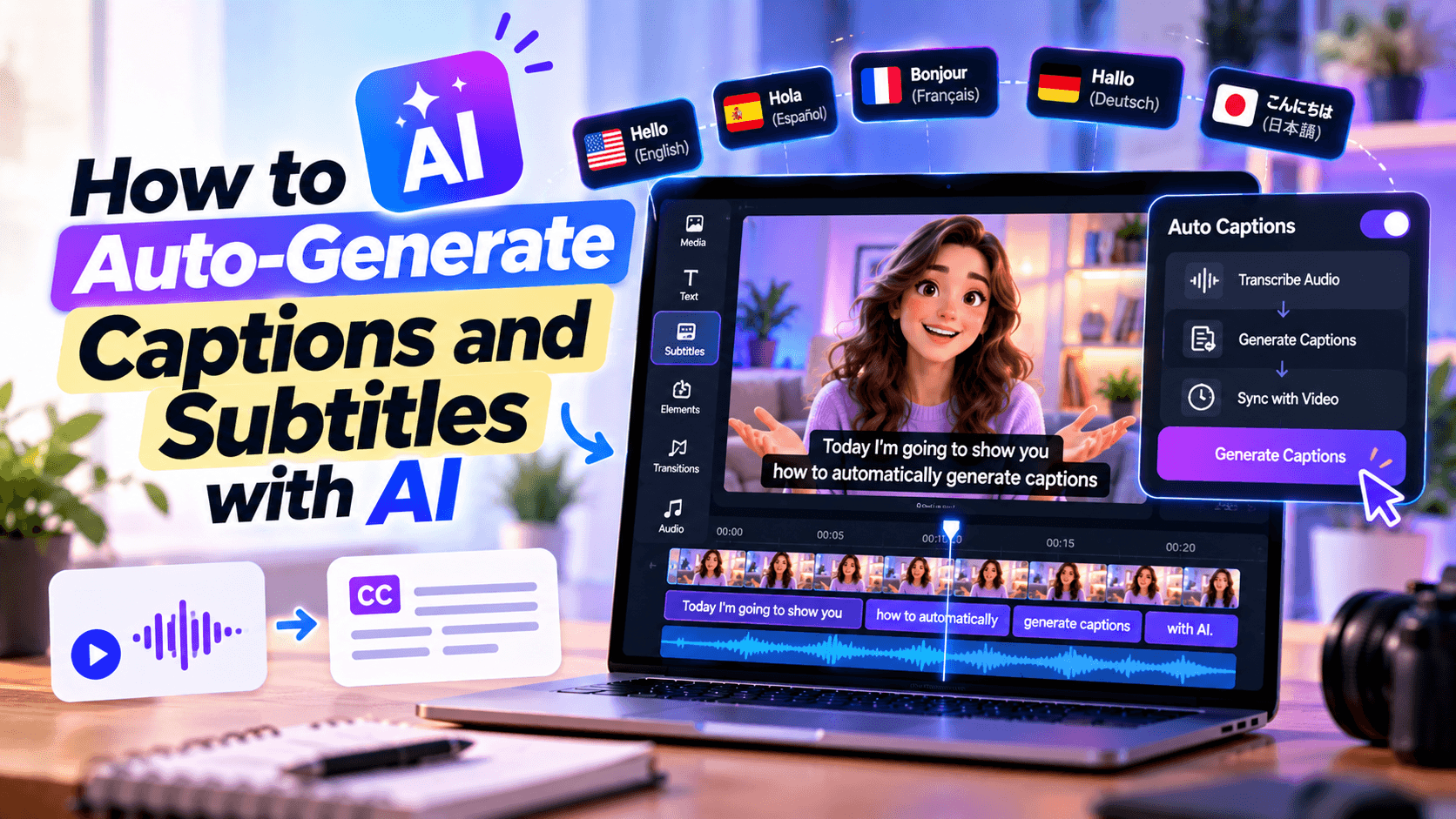
AI
AI can generate captions in seconds. The part that still needs a human is knowing whether those captions are accurate, readable, timed well, and right for the platform.
This guide shows you how to auto-generate captions and subtitles with AI, then polish them so they are ready for TikTok, Reels, YouTube, webinars, product videos, courses, and business content. You will learn how to prepare the video, generate the first caption draft, correct common AI mistakes, choose between burned-in captions and subtitle files, and export the right format.
Good captions are not decoration. They make your video easier to watch, easier to understand, and easier to share.
To auto-generate captions and subtitles with AI:
For social media videos, burned-in captions are usually best because they are always visible. For YouTube, online courses, webinars, accessibility workflows, and multilingual videos, export a separate caption file when the platform supports it.
W3C describes captions as synchronized text for speech and important non-speech audio, created so people who are deaf or hard of hearing can understand audio and video content. WCAG Success Criterion 1.2.2 also requires captions for prerecorded audio in synchronized media, except when that media is already a text alternative and clearly labeled as such. Source: W3C captions guidance.
People often use “captions” and “subtitles” interchangeably, but they are not always the same.
The practical difference is this: captions are built for understanding the full audio experience, while subtitles are often built for dialogue or translation. If someone cannot hear the video, captions should still tell them what matters: who is speaking, what is said, and which important sounds affect meaning.
AI captioning tools use automatic speech recognition to turn spoken audio into text. The tool listens to the audio, predicts the words, adds timestamps, and places the text on the video timeline.
Most tools then let you edit the result before export. Depending on the platform, you may be able to:
YouTube’s own help page says automatic captions can misrepresent spoken content because of mispronunciations, accents, dialects, or background noise. YouTube also recommends reviewing automatic captions and editing anything that was not properly transcribed. Source: YouTube automatic captioning help.
That is the right mindset for every AI caption tool: use AI for the first draft, then use human review for the final version.
AI captions are only as good as the audio they receive. If the voice is muffled, mixed under music, interrupted by noise, or recorded far from the microphone, the transcript will need more editing.
Before generating captions, check these five things.
AI transcription works best when the speaker is close to the microphone and the voice is louder than the background music. If the speaker sounds distant to you, the AI will probably struggle too.
Music is fine, but it should not fight the voice. If the music is nearly as loud as the speaker, captions will be less accurate.
When two people talk over each other, AI caption tools may mix the lines or assign words incorrectly. For interviews, podcasts, and webinars, clean turn-taking makes better captions.
AI tools often miss product names, company names, people’s names, acronyms, and technical terms. Make a short correction list before reviewing captions.
This small step saves time because you know what to look for before you start editing.
A caption style that works on TikTok may not work for a training video. A burned-in subtitle style that looks good on a Reel may be distracting in a webinar. Choose the output before you start editing.
The exact buttons vary by tool, but the workflow is usually the same.
Start with the final platform.
For social media, captions often need to be visible even when platform captions are off. For education, YouTube, and accessibility workflows, separate caption files give viewers more control.
Upload your video into the caption tool or editor. Most AI caption tools support common formats like MP4 or MOV. Some tools also accept audio files, YouTube links, or screen recordings.
If you are using a full video editor, place the clip on the timeline before generating captions.
Choose the language spoken in the video before generating captions. This helps the AI use the right speech recognition model.
Do not skip this step for multilingual videos. If the video switches languages, generate captions in sections or edit the transcript more carefully.
Run the tool’s auto-caption or auto-subtitle feature. The AI will create a transcript, split it into timed caption segments, and place it on the video.
Some tools generate word-by-word captions for short-form videos. Others create sentence-based captions that work better for YouTube, webinars, or courses.
CapCut’s official subtitle tool page describes a similar workflow: open the captions tab, choose auto captions, select the spoken language, and generate synchronized text on the timeline. Source: CapCut Add Subtitles to Video.
This is where most people stop too early.
Review the full caption track, especially:
AI captions can look correct at a glance but still change the meaning of a sentence. A wrong number, product name, or legal claim can damage trust.
Captions without punctuation are tiring to read. Add commas, periods, question marks, and proper capitalization where needed.
Weak caption:
we help small businesses make videos faster without hiring a production team
Better caption:
We help small businesses make videos faster, without hiring a production team.
The second version is easier to read because the viewer can follow the rhythm of the sentence.
Good captions are not just accurate. They are easy to read at speed.
Try not to split phrases in awkward places.
Line breaks should follow meaning, not just character count.
Captions should appear when the words are spoken and disappear shortly after. If captions arrive too early or lag behind the speaker, viewers notice.
Timing matters more on fast social clips, product demos, tutorials, and interviews. If the captions are even slightly delayed, the video feels less polished.
If the video is for accessibility, captions should include more than spoken words when the audio context matters.
Examples:
W3C explains that captions provide the speech and non-speech audio information needed to understand media, which is why speaker context and meaningful sound cues matter when they affect understanding. Source: W3C captions guidance.
If you are burning captions into the video, style matters.
For short-form video, captions should usually be:
For YouTube, webinars, and courses, avoid over-styled captions. Clean, readable text is usually better than animated words flying around the screen.
Choose one of these:
VEED says its auto-subtitle tool can burn subtitles into a video or download subtitle files such as SRT, VTT, and TXT. Descript also documents subtitle exports, including SRT and VTT. Source: VEED Auto Subtitle Generator and Descript subtitle export help.
AI-generated captions are not finished until they pass this check.
The final watch is the step that catches issues a transcript editor will not. Watch the video once as a viewer, not as the person who made it. If you lose track of the message with the sound off, the captions need more work.
The format matters because it affects how captions behave after publishing.
Burned-in captions are part of the video itself. They cannot be turned off.
Use them for:
Burned-in captions are practical because they travel with the video. If someone downloads, reposts, or previews the video without platform captions enabled, the captions remain visible.
SRT is one of the most common subtitle file formats. It stores caption text and timestamps in a simple structure.
Use SRT for:
SRT files are useful because you can edit, translate, upload, and archive them separately from the video.
VTT is commonly used for web-based captions. It can support more styling and metadata than basic SRT, depending on the player.
Use VTT for:
TXT is not a subtitle format. It is useful when you want the spoken content as plain text.
Use TXT for:
Use burned-in captions when you want full control over how captions look and need them to stay visible everywhere.
Use caption files when you want viewer control, accessibility flexibility, translation options, or platform-native captions.
A practical workflow is to export two versions: one clean video without burned-in captions and one social version with captions burned in.
Different videos need different caption workflows.
For TikTok, Reels, and Shorts, use burned-in captions. Viewers scroll quickly, often in public or sound-sensitive environments, and captions need to be visible immediately.
A good short-form caption workflow:
TikTok says auto-generated captions use speech recognition technology to generate text for audio or video content and help people who are deaf or hard of hearing access content on the platform. Source: TikTok accessibility help.
For YouTube, automatic captions can be a starting point, but review them before publishing. YouTube lets creators edit caption text and timing in YouTube Studio, and notes that edited automatic captions create a new caption track with your revisions. Source: YouTube edit captions help.
A good YouTube caption workflow:
YouTube says subtitles and captions can help reach a larger audience, including deaf or hard-of-hearing viewers and viewers who speak another language. Source: YouTube subtitles and captions help.
For podcasts and interviews, transcript-based editing is usually better. Tools like Descript are useful because the transcript, captions, and editing workflow live together.
A good podcast caption workflow:
For training and educational content, captions should be clean, consistent, and easy to follow. Avoid flashy animated captions unless the video is short and promotional.
A good training caption workflow:
For product videos, caption accuracy affects trust. A wrong price, feature, product name, or offer can cause real problems.
A good product caption workflow:
Social captions need to work on a small screen, often without sound, and usually while the viewer is moving quickly through a feed.
A good social caption style is readable before it is decorative.
If the viewer has to squint, the caption is too small. Test the video on a phone, not only on a desktop preview.
White text can disappear on bright backgrounds. Use a shadow, outline, stroke, or subtle background box when the video background changes.
Avoid the bottom edge and right side of vertical videos, where platform buttons, captions, usernames, and engagement icons often appear.
Do not place captions over faces, product details, demonstrations, pricing, or important screen recordings.
Animated word-by-word captions can work for short creator videos. They are less suitable for training, webinars, tutorials, finance, healthcare, legal content, or serious B2B videos.
The right tool depends on where you are editing and how much control you need.
Keep this section practical. You do not need the tool with the longest AI feature list. You need the tool that fits your publishing workflow.
Renderforest is most useful when captions are part of a larger AI video workflow.
For example, you might start with a script, generate a video draft, add voiceover, refine the scenes, then add captions before publishing. That is different from using a standalone caption tool after the video is already finished.
With Renderforest’s AI Video Generator, users can start from text, image, or script, choose a model, style, and format, then refine the visuals, voiceover, and scenes before exporting.
Use Renderforest when you want to create the video and polish the final asset in one guided workflow. Use a dedicated caption editor when your video is already finished and you only need transcript cleanup, SRT export, or platform-specific subtitle files.
AI captions are a draft. They are not a final accessibility pass.
YouTube’s warning is a good rule for every platform: automatic captions can misrepresent spoken content, especially with accents, dialects, background noise, or mispronunciations. Source: YouTube automatic captioning help.
Long captions are hard to read, especially on mobile. Break captions into short, natural phrases.
Weak:
Our new AI video generator helps small businesses create product explainers social videos and branded campaigns in less time.
Better:
Our new AI video generator
helps small businesses create
product explainers, social videos,
and branded campaigns in less time.
Do not place captions over faces, products, UI demos, pricing, or important visuals. For short-form video, also avoid areas where platform buttons and captions may overlap.
White text on a bright background is hard to read. Use contrast, shadow, outline, or a subtle background box.
Animated word-by-word captions work for some short-form content. They are not always appropriate for education, webinars, tutorials, healthcare, finance, or B2B videos.
If a sound changes the meaning of the scene, include it.
Examples:
AI translation can be useful, but it still needs human review. Literal translations may miss tone, idioms, product terms, legal meaning, or cultural context.
If you only export a burned-in version, you make future edits harder. Save the SRT or VTT file when the tool allows it. It can help with translations, republishing, courses, transcripts, and future edits.
You can improve AI caption accuracy before and after generation.
This is the workflow professionals use: automate the first pass, then polish the parts AI cannot reliably judge.
Upload your video to an AI caption tool or video editor, choose the spoken language, run the auto-caption feature, review the transcript, fix mistakes, adjust timing, then export a captioned video or subtitle file.
The best way is to use AI for the first transcript, then manually review the subtitles for accuracy, timing, punctuation, line breaks, and platform placement before exporting.
AI-generated captions can be accurate when the audio is clear, but they still make mistakes with accents, background noise, overlapping speakers, technical terms, and names. YouTube recommends reviewing automatic captions and editing incorrect parts before publishing. Source: YouTube automatic captioning help.
Captions usually include spoken words plus sound cues and speaker information for accessibility. Subtitles usually focus on dialogue and are often used for translation. In everyday creator tools, the terms are often used interchangeably.
Open captions are burned into the video and always visible. Closed captions are separate text tracks that viewers can turn on or off. Use open captions for short-form social videos and closed captions for platforms that support viewer control.
Use SRT for most video platforms, YouTube uploads, courses, and general subtitle workflows. Use VTT for web players and browser-based video experiences. Both include timestamps and caption text, but VTT is more common in web video environments.
Yes. YouTube can generate automatic captions, and creators can edit the caption text and timing in YouTube Studio. You can also upload your own subtitle file if you prefer editing captions outside YouTube. Source: YouTube edit captions help.
TikTok supports auto-generated captions using speech recognition technology. TikTok says this can help people who are deaf or hard of hearing access content. Source: TikTok accessibility help.
Automatic captions are a good starting point, but they should be reviewed and corrected before publishing when accessibility matters. WCAG requires captions for prerecorded audio in synchronized media, and W3C frames captions as a way for people who are deaf or hard of hearing to understand audio in videos. Source: W3C Understanding SC 1.2.2 Captions.
Many AI caption tools can translate subtitles, but translation needs review. Literal translations may miss tone, idioms, product terms, legal meaning, or cultural context. For important videos, have a fluent human review translated subtitles before publishing.
Use large, high-contrast captions with short lines. Keep them away from faces, products, and platform buttons. For fast short-form videos, word-by-word captions can work well, but avoid overusing animation when clarity matters.
Yes. Keep a clean version without burned-in captions and a captioned version for social media. The clean version is easier to reuse later for new languages, different caption styles, ads, courses, and platform-specific exports.
AI can auto-generate captions and subtitles in minutes, but the best results still come from a human-reviewed workflow.
Use AI to create the first draft. Then fix the transcript, clean up timing, improve line breaks, add speaker labels or sound cues when needed, and export the right format for the platform. Burn captions into social videos when visibility matters. Use SRT or VTT files when accessibility, translation, and viewer control matter more.
Good captions are not decoration. They make your video easier to watch, easier to understand, and easier to trust.
Share this


Article by: Liana Ziroyan
Liana is a marketing professional with 11 years of experience in digital marketing, content, and product communication. She has a strong eye for visual storytelling and loves turning ideas into engaging campaigns that connect with audiences. With her experience across branding, creative content, and user-focused messaging, Liana enjoys finding simple, effective ways to make products feel clear, useful, and exciting.
Read all posts by Liana Ziroyan