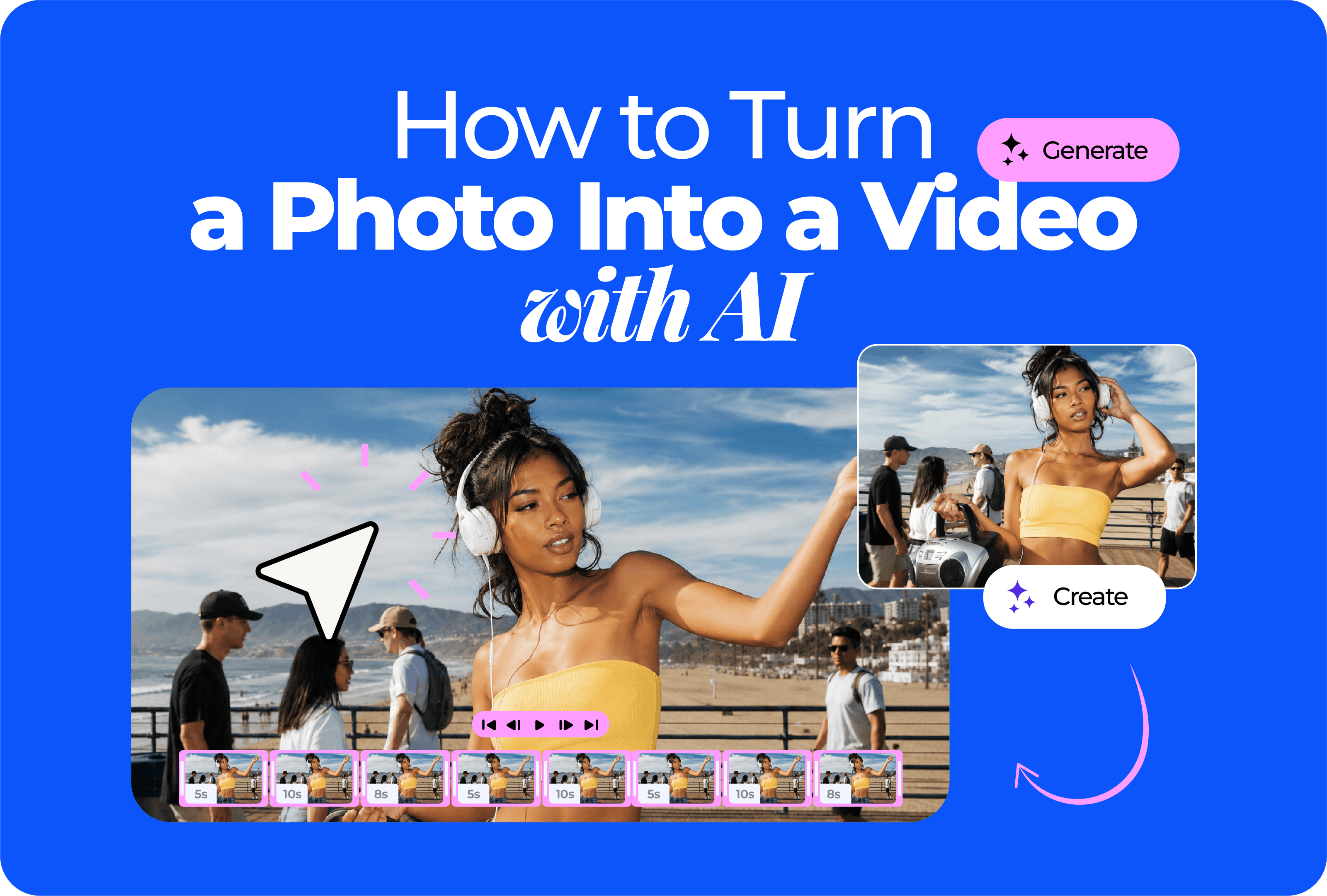
How to Turn a Photo into a Video with AI

How to Turn a Photo into a Video with AI
Table of Contents

You can turn a photo into a video with AI in a few minutes. Upload the image, describe the motion, generate a short clip, then add the pieces that make it feel finished: text, music, branding, captions, and the right format.

That last part is where most AI videos fail.

A moving photo is not automatically a good Reel, ad, product teaser, event promo, or website hero. A finished video needs motion, message, pacing, sound, and a clear next step. This guide shows you how to turn one still image into a video that feels useful, intentional, and ready to publish.

Steps on how to turn a photo into a video with AI

To turn a photo into a video with AI:

  1. Choose the final use: Reel, ad, website hero, YouTube clip, presentation, product video, or event promo.
  2. Pick the right format: 9:16 for vertical video, 16:9 for widescreen, 1:1 or 4:5 for feed posts.
  3. Upload your photo to an image-to-video AI tool.
  4. Write a prompt that explains what should move and what must stay unchanged.
  5. Generate a short test clip.
  6. Review the output for face drift, text distortion, product warping, strange background changes, or bad cropping.
  7. Add text, music, captions, voiceover, logo, transitions, or a CTA.
  8. Export the final video in the correct size and quality.
  9. Test it on the platform where it will be published.

Renderforest’s Image to Video AI is built for turning static visuals into motion videos with camera motion, depth, transitions, and different aspect ratios. Renderforest also says users can refine output in the editor, adjust pacing, add voiceovers, and use the result for social media, presentations, marketing, and ecommerce projects. Source: Renderforest Image to Video AI.

Photo animation vs. photo-to-video: what is the difference?

Photo animation usually means adding movement to a still image. The goal is to make the image feel alive.

Photo-to-video is broader. The goal is to turn the photo into a video asset with motion, message, pacing, text, music, format, and a reason to exist.

Use case Photo animation Photo-to-video
Product image Add camera movement or light motion Create a product teaser with text, music, CTA, and brand styling
Portrait Add blinking, hair movement, or camera push-in Create a speaker promo, profile video, or personal brand intro
Event poster Add subtle background motion Create an event promo with date, location, music, and CTA
Real estate photo Add a smooth camera move Create a property highlight video with text overlays and contact details
Restaurant dish Add steam or light motion Create a social ad with offer text, music, and call-to-action
Travel photo Add clouds, water, or parallax Create a destination teaser, Reel, or website visual

This article focuses on the full photo-to-video workflow. Not just “how do I make the photo move?” but “how do I turn this photo into something I can actually publish?”

A moving photo is not the same as a finished video

A still image becomes a finished video when it has five layers.

Video layer What it adds Example
Motion Makes the photo feel alive Camera push-in, parallax, steam, light movement
Message Tells the viewer what to notice “New collection is here”
Pacing Controls how quickly the idea lands Hook in the first second, CTA at the end
Sound Adds mood, rhythm, or clarity Music, voiceover, sound effects
CTA Gives the viewer a next step “Shop now,” “Book a visit,” “Register today”

This is the biggest difference between a raw AI output and a usable video. The AI clip gives you motion. Editing gives you meaning.

The 5-part photo-to-video workflow

Use this framework before you generate anything.

Step What it means Why it matters
Goal Decide what the video should do Prevents random motion
Format Choose platform and aspect ratio Avoids bad crops and unreadable layouts
Motion Decide how the photo should move Gives the AI clear direction
Message Add text, music, voice, or CTA Turns movement into communication
Finish Export and test Makes the video publishable

Most weak AI videos fail because they skip one of these steps. They may have motion, but no message. Or they may have a nice prompt, but the wrong crop. Or they may look good in preview, but fail on mobile.

The workflow is simple: Goal → Format → Motion → Message → Finish.

Start with the video goal, not the photo

Before you upload anything, answer one question:

What should this photo become?

That decision changes the prompt, movement, aspect ratio, text, sound, and final edit.

Goal Best video format Best motion style What to add after generation
Instagram Reel 9:16 Quick visual hook, clean movement Text hook, captions, music
Product ad 9:16, 4:5, or 1:1 Product-safe camera movement Offer, logo, CTA
Website hero 16:9 or custom Subtle loop, slow movement Minimal text, no distracting elements
Event promo 9:16 or 16:9 Poster-safe background motion Date, location, ticket CTA
YouTube intro 16:9 Clean cinematic motion Title, logo, sound
Real estate clip 16:9 or 9:16 Slow camera push-in or pan Property details, agent info
Restaurant post 9:16 or 4:5 Steam, light, slow camera movement Offer, location, CTA
Presentation video 16:9 Calm, readable movement Title, short explanation

A common mistake is generating motion first and trying to “turn it into content” afterward. Start with the outcome. The video will be cleaner.

When one photo is enough, and when it is not

One strong photo can become a good video, but not every goal can be carried by one image.

Your goal Is one photo enough? Why
Product teaser Yes One strong product image can carry a short ad
Event announcement Yes Poster + motion + date/location/CTA can work
Personal brand intro Yes A portrait can become a short profile video
Restaurant promo Yes One dish photo can become a strong offer post
Website hero Yes A clean hero image can loop with subtle motion
Real estate listing Sometimes One room photo works for a teaser, not a full tour
Full brand story Usually no You need more scenes or supporting visuals
Tutorial Usually no One photo is rarely enough to explain steps
Product demo Usually no A demo needs function, steps, or multiple angles

If the video only needs to attract attention, one photo may be enough. If it needs to explain, compare, or prove something, you probably need more scenes.

Choose the right kind of photo

AI can turn many photos into video, but some images are much easier to work with.

The best photos have:

  • One clear subject
  • Good lighting
  • Sharp focus
  • Enough space around the subject
  • Simple or understandable background
  • No important text near the edges
  • No awkwardly cropped faces, hands, or products
  • Enough resolution for the final format

Avoid images where the AI has to guess too much.

Better photo choice Riskier photo choice
Product centered with clear label Product partly cropped or covered
Portrait with visible face and clean background Blurry selfie with hidden eyes or hands
Event poster with simple layout Poster with tiny text and crowded design
Real estate room with straight lines Wide-angle room with clutter and distortion
Food photo with one clear dish Crowded table with overlapping dishes
Logo or graphic on clean background Logo inside a busy design
Travel photo with depth Flat or noisy image with no focal point

If the source photo is messy, the AI video will usually be messy too. Clean input gives you more control.

Decide what kind of video you want to create

A single photo can become several different types of video. The best option depends on your goal.

Video type What it does Best for
Motion clip Adds movement to the photo Social posts, website hero visuals, mood clips
Product teaser Turns a product image into a short ad Ecommerce, launches, promotions
Story video Uses one photo as the main visual with text and music Brand storytelling, personal posts, campaigns
Promo video Adds offer, CTA, brand elements, and music Events, sales, services
Explainer scene Uses the photo as a visual anchor while text explains the message Tutorials, presentations, educational posts
Reel or Short Turns the photo into a vertical short-form video Instagram, TikTok, YouTube Shorts
Slideshow-style video Combines one hero photo with extra scenes or supporting visuals Portfolios, recaps, before/after content

If you only need movement, image-to-video AI may be enough. If you need a campaign asset, you also need editing.

How to turn a photo into a video with AI step by step

Step 1: Pick the final platform

The platform decides the shape and pacing of the video.

Platform Recommended format Best length Notes
Instagram Reels 9:16 5–15 seconds Strong first frame and fast hook
TikTok 9:16 5–15 seconds Visual change should happen early
YouTube Shorts 9:16 5–20 seconds Keep text large and centered
YouTube video 16:9 5–30 seconds Works well for intros, transitions, or B-roll
Website hero 16:9 or custom 5–10 seconds loop Motion should be subtle
Product ad 9:16, 4:5, or 1:1 6–15 seconds Product accuracy matters most
Presentation 16:9 5–20 seconds Keep motion calm and readable
Email or landing page 16:9 or 1:1 3–8 seconds File size and loading speed matter

A vertical video needs different composition than a horizontal one. If your subject is too close to the edges, generate or crop carefully.

Step 2: Prepare the photo

Before uploading, make the photo easier for AI to understand.

Do this first:

  • Crop for the final aspect ratio.
  • Remove unnecessary clutter.
  • Improve brightness and contrast if needed.
  • Keep the subject centered or intentionally framed.
  • Leave breathing room around the subject.
  • Avoid tiny text that must remain exact.
  • Use the highest-quality version available.

For product, logo, or brand images, make sure the label and edges are clear. If the logo is tiny, angled, or partly hidden, AI is more likely to distort it.

For portraits, choose a photo where the face is sharp and not partly covered.

For real estate, choose a photo with straight walls, stable perspective, and clean composition.

Step 3: Upload the photo

Open your image-to-video AI tool and upload the photo.

In Renderforest, users can start AI video creation from text, an image, or a script, then choose a video model, style, and format before refining and exporting. Renderforest’s AI Video Generator page also says users can upload an image, choose aspect ratio and duration, and edit within the same workflow. Source: Renderforest AI Video Generator.

This matters because a photo is not only a starting frame. It can also act as a visual anchor for the product, person, style, scene, or brand.

Step 4: Write the prompt

A good photo-to-video prompt tells the AI six things.

Prompt part What it answers
Goal What is this video for?
Subject protection What must stay unchanged?
Motion What should move?
Style How should it feel?
Message space Where can text, logo, or CTA appear?
Output What format should the video use?

Use this structure:

Turn this photo into a [length] video for [platform/use case]. Keep [subject details] unchanged. Add [specific motion]. Use a [visual style] look. Leave space for [text/logo/CTA]. Avoid [things that should not happen]. Format as [aspect ratio].

Example:

Turn this product photo into a 7-second vertical video for an Instagram ad. Keep the product shape, label, logo, color, and packaging exactly the same. Add a slow camera push-in, soft studio light movement, and subtle background depth. Use a clean premium ecommerce style. Leave clean space in the top third for a short text hook and in the final second for a CTA. Avoid changing the label, adding objects, making the product float, or distorting the logo. Format as 9:16.

The prompt should not just ask for movement. It should define the video.

Step 5: Generate a short test

Start short. Four to eight seconds is usually enough for the first generation.

Short tests help you catch problems early:

  • Face drift
  • Logo distortion
  • Product shape changes
  • Text rewriting
  • Strange background movement
  • Unwanted objects
  • Motion that feels too dramatic
  • Cropping issues

If a short test fails, a longer generation usually will not fix it. Fix the prompt first.

Step 6: Review the result frame by frame

Do not only watch the video once. Pause it.

AI artifacts often hide in motion but become obvious in still frames.

Check:

Review point What to look for
Subject accuracy Does the subject still match the original photo?
Product truth Did the shape, label, and color stay correct?
Face stability Did the person’s identity change?
Text quality Did letters, numbers, or dates change?
Background control Did the AI add unwanted objects?
Motion quality Does the movement feel natural?
Platform fit Does the subject fit the frame?
Brand fit Does the tone match the purpose?

If the photo is for a business video, be stricter. A strange frame can make a product, person, or brand feel less trustworthy.

Step 7: Add video elements

A moving photo becomes a finished video when you add structure.

Depending on the use case, add:

  • Opening hook
  • Text overlay
  • Logo
  • Brand colors
  • Music
  • Captions
  • Voiceover
  • Scene transitions
  • Offer or message
  • CTA
  • Final frame

Renderforest’s Image to Video AI page says users can edit scenes, replace images, adjust pacing, and add voiceovers in the built-in editor. It also describes the tool as useful for social media, presentations, cinematic sequences, and marketing. Source: Renderforest Image to Video AI.

That is the difference between turning a photo into motion and turning a photo into a publishable video.

Step 8: Export and test

Export the video in the right format for your platform.

Before publishing, test it on the actual device or placement where it will appear.

Use this checklist:

Test Pass condition
Mobile test Subject and text are clear on a phone
First-frame test The viewer understands the video immediately
Sound-off test The video still makes sense without audio
Pause test No obvious AI distortion when paused
Brand test Logo, colors, and product details are accurate
Platform test Format and pacing fit the channel
Rights test You have permission to use the photo and output
Export test No unwanted watermark, crop, or compression issue

If the video is for ads, client work, ecommerce, real estate, or a paid campaign, do not skip this step.

How to turn a photo into a video in Renderforest

Here is a practical workflow for Renderforest:

  1. Open Renderforest’s Image to Video AI.
  2. Start an AI video project.
  3. Upload your photo.
  4. Choose the model, style, and format that fit the video goal.
  5. Describe the video you want in the prompt.
  6. Specify what must stay unchanged.
  7. Generate a short test clip.
  8. Review the output for accuracy.
  9. Add text, music, branding, voiceover, transitions, or CTA.
  10. Export the finished video in the format you need.

Renderforest’s Image to Video AI page describes the workflow as uploading a photo, illustration, or design, choosing a video generation model, writing a prompt, generating the result, and fine-tuning it in the editor. Source: Renderforest Image to Video AI.

Use this workflow when the goal is not just to animate the photo, but to create a video that can be used in marketing, social media, business communication, ecommerce, presentations, or a website.

Prompt templates for turning a photo into a video

Product photo to video prompt

Turn this product photo into a 7-second vertical video for a social ad. Keep the product shape, label, logo, color, packaging, and proportions exactly the same. Add a slow camera push-in, soft studio light movement, and subtle background depth. Use a clean premium ecommerce style. Leave clean space in the top third for a short text hook and in the final second for a CTA. Avoid changing the label, rewriting text, adding fake ingredients, making the product float, or distorting the logo. Format as 9:16.

Best for:

  • Ecommerce ads
  • Product launches
  • Instagram Reels
  • TikTok product videos
  • Website product sections

Avoid:

  • Fast spinning
  • Floating products
  • Label warping
  • Fake ingredients
  • Overly dramatic camera movement

Portrait photo to video prompt

Turn this portrait into a 6-second personal brand video. Keep the person’s identity, face, hairstyle, outfit, skin tone, expression, and background accurate. Add a subtle camera push-in, natural blinking, soft hair movement, and gentle lighting. Use a warm editorial style. Leave space for a name title or short caption. Avoid changing facial features, teeth, eyes, mouth, expression, age, hands, or body shape. Format as 4:5.

Best for:

  • Speaker promos
  • Personal brand posts
  • LinkedIn videos
  • Profile videos
  • Creator introductions

Use permission when animating a real person, especially for business, ads, testimonials, or client content.

Event poster to video prompt

Turn this event poster into an 8-second vertical promo video. Keep the event title, date, time, location, logo, and main design exactly the same. Add subtle background motion, light movement, and a clean text reveal effect. Use an energetic but readable event promo style. Leave space for a final “Register now” or “Get tickets” CTA. Avoid rewriting text, changing the date, distorting the logo, adding extra symbols, or making the design too busy. Format as 9:16.

Best for:

  • Concert announcements
  • Webinar promos
  • Workshop posts
  • Local event ads
  • Story posts

For text-heavy posters, keep the original text static and animate the background or supporting design elements.

Real estate photo to video prompt

Turn this interior photo into a 7-second real estate video. Keep the room layout, walls, windows, furniture, decor, and proportions accurate. Add a slow camera push-in and subtle sunlight movement. Use a clean premium property-tour style. Leave space for short property text and agent contact details. Avoid bending walls, moving furniture, changing decor, adding objects, or distorting straight lines. Format as 16:9.

Best for:

  • Property listings
  • Realtor social posts
  • Website hero sections
  • Short property tours
  • Presentation clips

Real estate videos should feel stable. Avoid dramatic movement that makes a room look artificial.

Restaurant photo to video prompt

Turn this food photo into a 6-second vertical video for a restaurant social post. Keep the dish, plate, ingredients, colors, texture, and composition accurate. Add subtle steam, soft light movement, and a slow camera push-in. Use a warm appetizing style. Leave room for offer text, logo, and location. Avoid changing the dish shape, adding ingredients, moving the plate, melting textures, or making the food look artificial. Format as 9:16.

Best for:

  • Restaurant Reels
  • Delivery promos
  • Menu highlights
  • Seasonal offers
  • Local ads

Food videos should look appetizing, not surreal. Steam and light usually work better than heavy object movement.

Travel photo to video prompt

Turn this travel photo into an 8-second cinematic video. Keep the location, buildings, landscape, people, and composition accurate. Add slow camera movement, gentle cloud motion, soft atmospheric depth, and natural light. Use a cinematic travel style. Leave space for a short destination title. Avoid adding people, vehicles, animals, buildings, unrealistic weather, or changing the location. Format as 16:9.

Best for:

  • Travel reels
  • Destination teasers
  • Tourism promos
  • Blog visuals
  • Mood videos

Travel images can handle more atmosphere than product photos, but still need boundaries.

Brand graphic to video prompt

Turn this brand graphic into a 5-second video for a social post. Keep the logo, text, colors, layout, typography, and spacing accurate. Add subtle background motion, clean parallax, and a smooth final frame. Use a modern minimal style. Avoid changing letters, rewriting text, adding extra symbols, distorting the logo, or making the layout too busy. Format as 1:1.

Best for:

  • Brand announcements
  • Social posts
  • Launch graphics
  • Presentation openings
  • Logo-led content

When text matters, protect it in the prompt or add it manually after generation.

The safest motion by photo type

The safest video is usually not the one with the most motion. It is the one that protects the image while giving it enough life to hold attention.

Photo type Safest motion Risky motion
Product photo Slow camera push-in, light sweep, background depth Product spinning, floating, changing shape
Portrait Subtle push-in, blinking, light movement Talking, big smile change, head turn
Event poster Background motion, light effect, text-safe reveal Text rewriting, logo distortion
Food photo Steam, light movement, slow camera push Food reshaping, fake ingredients
Real estate photo Slow pan or push-in Walls bending, furniture moving
Travel photo Clouds, water, slow camera movement New objects, fake weather
Logo graphic Parallax, background motion Letter changes, extra symbols
Fashion photo Fabric movement, hair motion, lighting Body shape changes, warped hands

If the photo contains a face, logo, product label, price, date, legal text, or address, use safer motion.

How to turn one photo into a complete video story

Sometimes you only have one photo, but you still need a video with a beginning, middle, and end.

Use this structure:

Video part What happens Example
Opening frame Show the photo clearly Product, person, place, or event poster appears
Motion moment Add AI movement Camera push-in, light movement, parallax
Message layer Add text or voiceover “New collection is here”
Proof or detail Add one supporting point “Available this Friday”
CTA Tell the viewer what to do “Shop now,” “Book a visit,” “Register today”
Final frame End cleanly Logo, URL, handle, or product shot

A single photo can become a full video if the message is structured.

Example: product teaser

  1. Show the product photo.
  2. Add slow camera push-in.
  3. Add text: “New drop.”
  4. Add second text: “Made for everyday use.”
  5. Add logo.
  6. End with: “Shop now.”

Example: event promo

  1. Show the poster.
  2. Add subtle background motion.
  3. Highlight the date.
  4. Highlight the location.
  5. Add music.
  6. End with a ticket CTA.

Example: personal brand video

  1. Show the portrait.
  2. Add a subtle push-in.
  3. Add name and title.
  4. Add one credibility line.
  5. End with website or social handle.

This is where photo-to-video becomes more than a visual effect. The photo becomes the anchor for a message.

Other AI tools that can turn photos into videos

Different AI tools can turn images into video in different ways, but the core workflow is usually the same: upload an image, describe the motion or scene, generate the clip, then edit or export.

CapCut describes its image-to-video AI generator as a tool for turning albums, product shots, and event photos into dynamic video stories, with AI-generated transitions, script alignment, voiceovers, and motion design. Source: CapCut Image to Video AI.

Adobe Firefly’s documentation says users can generate videos with keyframe images and text prompts, including uploading an image as the first frame and using a prompt to guide the transition or generated clip. Source: Adobe Firefly: Generate videos using images.

Runway describes its product as a creative toolkit with image, video, audio, editing, and language models in one workflow, including tools that can generate video from text, image, video, or audio inputs. Source: Runway Product Page.

The tool matters, but the process matters more. A clean photo, specific prompt, platform-aware format, and careful final edit will usually beat a vague prompt in a more advanced tool.

Common mistakes when turning a photo into a video with AI

Mistake 1: Treating motion as the whole video

Motion is only one part. A video also needs message, pacing, format, and ending.

A photo that moves but says nothing may look nice. It may not convert, explain, promote, or hold attention.

Mistake 2: Asking the AI for too much

Bad prompt:

Turn this into an epic cinematic ad with lots of action.

Better prompt:

Turn this product photo into a 7-second ad. Keep the product unchanged. Add slow camera movement, soft lighting, one text hook, and space for a CTA.

Specific beats dramatic.

Mistake 3: Forgetting the final crop

A photo that works in 16:9 may fail in 9:16. If the subject is too wide or close to the edge, vertical cropping can cut off important details.

Plan the format before you generate.

Mistake 4: Letting the AI rewrite text

AI video tools often struggle with exact letters, numbers, and dates. If text matters, keep it static or add it manually in the editor.

This is especially important for:

  • Event dates
  • Prices
  • Product labels
  • Brand names
  • Legal disclaimers
  • Contact details
  • Address information

Mistake 5: Publishing without checking rights

You need the right to use the original photo. You may also need permission from people shown in the image, especially if the video is used commercially.

If the AI changes a person, product, or place in a misleading way, do not publish it.

Mistake 6: Making the video look generated instead of edited

A finished video should feel intentionally designed. If the output is just a moving photo with no hook, no text, no pacing, and no CTA, it may not work as content.

Mistake Why it hurts Fix
Only adding motion The video has no message Add hook, text, or CTA
Using the wrong format The subject gets cropped Choose platform first
Asking for too much motion The image distorts Use one motion idea
Letting AI rewrite text Dates, prices, or logos become wrong Add text manually
Skipping sound-off review Social users may miss the point Add captions or text
No final frame Video ends abruptly Add logo, URL, handle, or CTA

Troubleshooting: why the AI video looks wrong

Problem Why it happens Fix
Product label changed AI redrew text during motion Tell it to keep label flat, readable, and unchanged
Face looks different Too much expression or head movement Reduce subject motion; keep face and identity unchanged
Video feels fake Motion is too dramatic Use slower camera language and fewer effects
Background melts The prompt gives too much freedom Keep background stable; add only depth or light
Text is unreadable AI rewrites letters Add text manually after generation
Subject is cropped Wrong format or framing Choose aspect ratio first and leave space around the subject
New objects appear Prompt is too open Add “do not add people, objects, animals, logos, or text”
Output feels boring No story layer Add hook, message, music, or CTA
Clip is too slow No pacing instruction Add “visual movement in the first second”
Brand feels off Prompt lacks tone Add style words like premium, clean, playful, editorial, minimal

Most problems come from unclear instructions. The fix is usually not a longer prompt. It is a better boundary.

Photo-to-video AI vs. traditional video editing

AI photo-to-video is not replacing every video workflow. It is best when you need to create motion from limited assets.

Use AI photo-to-video when… Use traditional editing when…
You only have a still image You have real video footage
You need a fast social clip You need full timeline control
You want to test ad concepts quickly You need precise cuts and audio sync
You need simple product motion You need complex product demonstration
You want a website hero loop You need professional film editing
You want to create many visual variations You need frame-perfect accuracy

For small businesses, marketers, and creators, AI photo-to-video is useful because it turns one asset into something more flexible. But the best result still needs human judgment.

What to check before publishing

Before using the video publicly, check:

Area What to verify
Photo rights You own or have permission to use the source image
Likeness rights People in the photo agreed to this use
Product truth The product still looks accurate
Text accuracy Dates, prices, labels, and brand names are correct
Brand safety No strange or misleading visual changes
Platform format Correct aspect ratio and length
Audio use Music or voiceover is licensed or allowed
Tool terms The AI tool allows your intended use
Watermark The export is appropriate for the channel
Final frame The video ends cleanly with a clear next step

If the photo is being used in advertising, ecommerce, real estate, healthcare, finance, education, politics, or client work, review it more carefully.

A video generated from a photo can still create real-world expectations. Make sure it does not misrepresent the product, person, event, or place.

FAQ

How do I turn a photo into a video with AI?

Upload your photo to an image-to-video AI tool, write a prompt describing the motion and style, generate a short clip, review it for errors, then add text, music, branding, captions, or a CTA before exporting.

What is the best way to turn a photo into a video?

The best way is to start with the final use. Decide whether the video is for a Reel, product ad, website hero, event promo, or presentation. Then choose the right aspect ratio, motion style, prompt, and editing elements.

Can AI make a video from one photo?

Yes. AI can generate a short video from one photo by adding motion, depth, camera movement, lighting, or scene changes. To make it publishable, you may still need to add text, music, captions, branding, and a clear ending.

What should I write in a photo-to-video AI prompt?

A good prompt tells the AI what the video is for, what must stay unchanged, what should move, what style to use, what to avoid, and what format to export.

Example:

Turn this photo into a 7-second vertical video for Instagram Reels. Keep the subject unchanged. Add a slow camera push-in, soft background depth, and natural light movement. Avoid changing the face, text, logo, or background objects. Format as 9:16.

Can I turn a product photo into a video with AI?

Yes. Keep the movement subtle and protect the product details in the prompt. Ask the AI to keep the label, logo, packaging, shape, color, and proportions unchanged. Use camera movement, light motion, or background depth instead of making the product itself move too much.

Can I turn an old photo into a video with AI?

Yes, but use gentle motion. Ask for subtle depth, slow camera movement, and minimal facial movement while preserving the person’s identity, age, clothing, and original photo style.

Can I make a video from a photo for free?

Some AI tools offer free or limited image-to-video access, but free plans may restrict credits, resolution, watermark removal, commercial use, or export quality. Check the tool’s current plan details before using the video commercially.

Why does my AI video distort the photo?

AI video tools generate new frames from the original image. If the prompt allows too much movement, the tool may redraw faces, hands, logos, text, products, or backgrounds incorrectly. Reduce the motion and tell the AI exactly what must stay unchanged.

How long should a video from one photo be?

Most photo-to-video clips work best at 4–10 seconds. Short clips are easier to control, less likely to distort, and better suited for social media, ads, website hero visuals, and presentations.

Can I use AI photo-to-video clips in ads?

You can, but check the source photo rights, likeness permissions, tool license, watermark, product accuracy, and commercial-use rules first. If the AI changes a product, person, claim, or setting in a misleading way, do not publish it as an ad.

Is turning a photo into a video the same as making a slideshow?

No. Turning a photo into a video usually means using AI to create motion from one image. A slideshow uses multiple images arranged in sequence. A finished video can combine both: one animated hero photo plus supporting slides, text, music, and CTA.

Final takeaway

Turning a photo into a video with AI is not just about adding movement. It is about giving one still image a job.

Start with the platform. Decide the message. Protect the subject. Add only the motion the photo can handle. Then finish the video with text, sound, branding, format, and a clear next step.

The best photo-to-video result does not look like an AI trick. It looks like a simple, intentional video made from a strong image.

User Avatar

Article by: Liana Ziroyan

Liana is a marketing professional with 11 years of experience in digital marketing, content, and product communication. She has a strong eye for visual storytelling and loves turning ideas into engaging campaigns that connect with audiences. With her experience across branding, creative content, and user-focused messaging, Liana enjoys finding simple, effective ways to make products feel clear, useful, and exciting.

Read all posts by Liana Ziroyan
Related Articles
Close icon
Search icon