AI
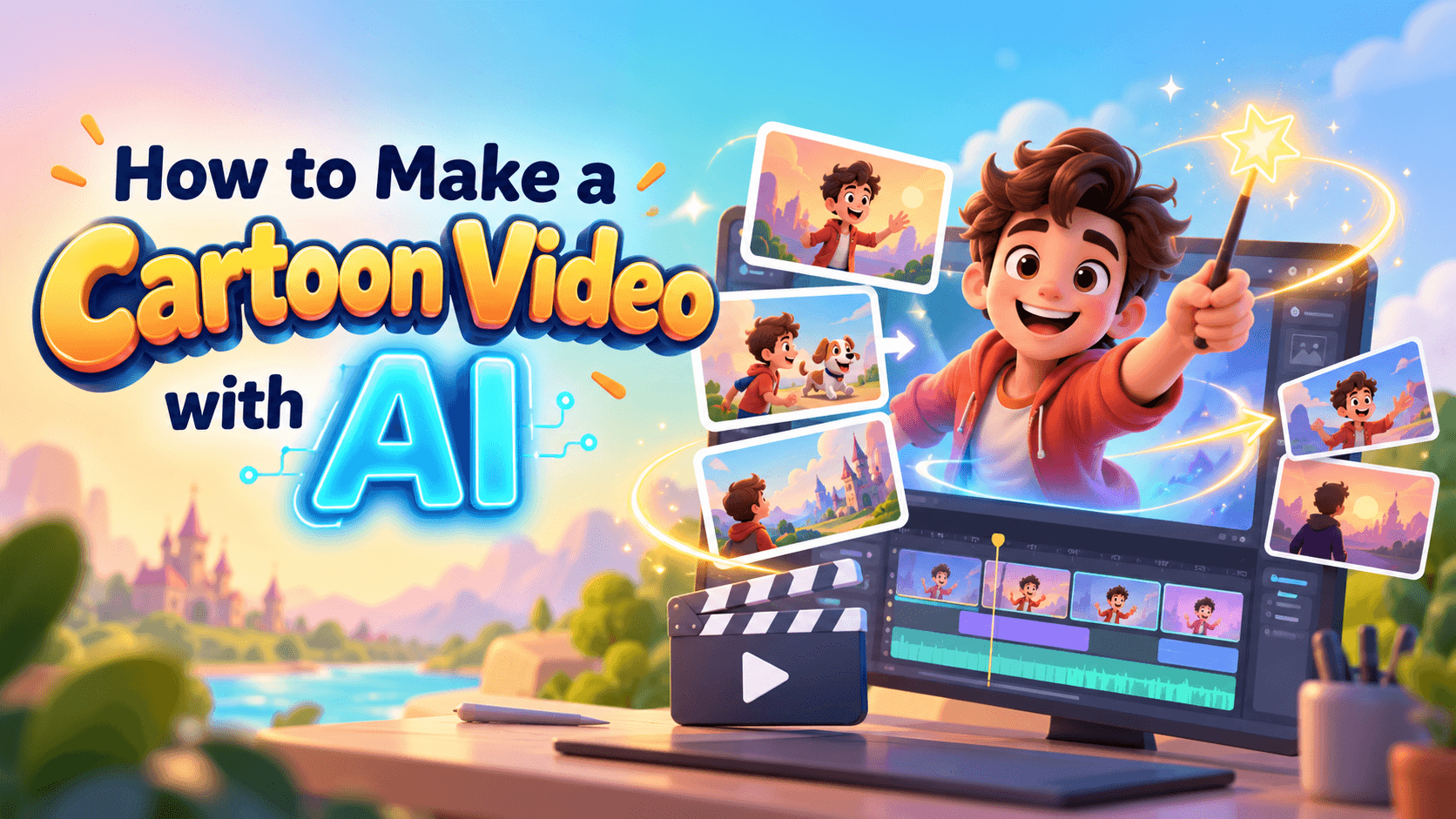
You can make a cartoon video with AI much faster than you can animate one from scratch. But a useful cartoon video still needs more than a prompt. It needs a message, a short script, a scene plan, a consistent style, clear voiceover, readable captions, and a final edit.
AI can generate the draft. It cannot decide the message, pacing, proof, or final judgment for you.
That is where most weak AI cartoon videos go wrong. They look animated, but they do not feel planned. The story jumps. Characters change. Captions are hard to read. The voiceover says too much. The ending has no clear next step.
This guide shows you how to make a cartoon video with AI like a producer, not just a prompt writer. You will learn how to plan the video, write a script, storyboard scenes, turn that storyboard into an AI prompt, review the draft, fix common problems, and export the final version for the right platform.
To make a cartoon video with AI, start with one clear goal, write a short script, break it into scenes, choose a cartoon style, generate a first draft, review the visuals and audio, edit weak scenes, add captions or branding, then export the video in the right format.
Renderforest’s AI Cartoon Generator is built for this kind of workflow because it can generate custom cartoon animations from an idea with voiceover and music. Renderforest’s AI Video Generator also supports creating videos from text, images, or scripts with visuals, voiceover, and editing handled in one place.
A cartoon video is not just an animated image. It is a mix of story, visuals, motion, audio, and editing. If one part is weak, the whole video feels unfinished.
Use this formula before you generate anything:
The AI gives you motion. The script gives it meaning.
Not everyone starts from the same place. Some people have only an idea. Others have a script, a product, a character, or a photo. Your workflow should change based on what you already have.
A cartoon video is only as strong as its scene plan. Do not ask AI for a finished video before you know what each scene should do.
Start with the outcome, not the animation. Ask: what should the viewer know, feel, or do after watching?
A weak goal is “make a cartoon about our app.” A stronger goal is “explain how our app helps freelancers send invoices faster.” A weak goal is “create a fun animation.” A stronger goal is “teach kids why brushing teeth before bed matters.” A clear goal protects the video from becoming a collection of nice-looking scenes with no reason to exist.
Before writing the full script, choose the video type. Length affects pacing, scene count, voiceover, captions, and export format. For short-form ads, keep the idea tight and move fast. For explainers, give the viewer enough time to understand the problem and solution. For lessons or stories, structure matters more than speed.
Most AI cartoon videos fail because the script is too long for the format. Voiceover needs space. Animation needs breathing room. Captions need time to be read.
If the script feels cramped, do not ask the AI to speak faster. Cut the script.
A cartoon video works best when the script is simple. Do not write like a brochure. Write like someone explaining one idea to one person.
Use a simple arc: hook, problem, solution, proof or example, and CTA. For most AI cartoon videos, keep the script under 120 words unless you are making a lesson, story, or training clip. The first draft can be rough. The important thing is that every line has a job.
The storyboard should come before the AI prompt. If you skip this step, the AI has to guess what happens visually.
A simple storyboard does not need drawings. A table with scene, goal, voiceover, visual direction, and on-screen text is enough. The goal is to give the AI a shot list instead of a vague idea. It also helps you see whether the story has missing steps before generation.
A strong AI cartoon video prompt is not one long paragraph. It is a compressed storyboard. Include the goal, audience, format, length, cartoon style, scene plan, voiceover tone, captions, branding, and restrictions.
Create a 45-second flat cartoon explainer video for small business owners. The video should explain how [product] helps users [main benefit]. Use a friendly professional voiceover, clean cartoon characters, simple office scenes, and readable captions. Scene 1: show the problem. Scene 2: introduce the product. Scene 3: show the product solving the problem. Scene 4: show the outcome. Scene 5: end with a clear CTA. Do not add unsupported claims or fake customer quotes.
Create a 20-second 3D cartoon video ad for [product]. The audience is busy parents. Start with a fast visual hook in the first 3 seconds. Show the problem, the product moment, one clear benefit, and a final CTA. Use bright but not childish colors, short captions, upbeat music, and a friendly voiceover. Keep the video vertical for TikTok and Instagram Reels.
Create a 60-second cartoon lesson for middle school students explaining [topic]. Use a simple flat cartoon style, clear narration, and three visual examples. Keep the language age-appropriate. Use captions for key terms. End with a one-sentence recap. Avoid scary imagery, stereotypes, or unnecessary complexity.
Create a 30-second cartoon video introducing an original mascot for [brand]. The mascot should feel friendly, simple, and memorable. Show the mascot solving one customer problem in three scenes. Use brand colors, a clean background, and a warm voiceover. Do not copy or resemble existing cartoon characters.
Create an 8-second cartoon intro for a YouTube channel about [topic]. Use a fast-paced animated style, bold title reveal, upbeat music, and one visual hint of the channel theme. Keep it short, clean, and reusable. Do not include a long explanation.
The more important the video is, the more specific the prompt should be.
Cartoon style affects trust. A playful 3D cartoon may work for a toy brand, but it might feel wrong for compliance training. A flat explainer style may be perfect for software but too plain for a children’s story.
Flat explainer cartoons work well for SaaS, education, and internal training. 3D cartoons can work for YouTube, social ads, and creator content. Whiteboard-style animation can help with process explainers and training. Storybook cartoons work for children’s stories and gentle topics, but they need careful age-appropriate review. Mascot animation can work for brand characters, ads, and onboarding, but it needs consistency and ownership review.
Choose the style you can repeat. A one-off cartoon may be fine for social. A brand series needs a style that can stay consistent across future videos.
Once you have the script, storyboard, style, and prompt, generate the first draft. Treat it as a draft, not the final video.
Renderforest’s AI Cartoon Generator can generate custom cartoon animations from an idea, including voiceover and music. Renderforest’s Text to Video AI is also useful when you are starting from a script and want to turn text into scenes with narration and pacing.
After the first draft, watch the video twice: first to see whether the story makes sense without pausing, then again to identify what needs fixing scene by scene.
Do not start by tweaking colors. First check whether the story works.
Renderforest is a natural workflow fit when you want one place for idea or script, cartoon visuals, voiceover, music, editing, and export.
A simple workflow:
Renderforest’s AI Video Generator supports creating videos from text, images, or scripts with visuals, voiceover, and editing handled in one place. Its AI Cartoon Generator is more specific to cartoon-style animated content.
Use Renderforest when you want a complete cartoon video workflow, not just a still cartoon image.
AI video can look impressive and still fail as communication. Review the draft in layers: hook, story, scene match, character consistency, motion, voiceover, captions, text, brand, and claims. This is where the human part matters. AI can generate a lot of video. It cannot always tell whether the result is persuasive, accurate, or on-brand.
Most AI cartoon video problems fall into predictable categories. If the story feels random, rewrite the prompt as scene-by-scene instructions. If characters change between scenes, repeat character details in every scene. If the video feels slow, cut words and shorten transitions. If captions are hard to read, use higher contrast and fewer words. If the ending feels weak, add one clear next action.
Do not fix a weak story with more animation. Sometimes the better solution is cutting a scene, replacing a line, changing the music, or simplifying the CTA.
Continuity is one of the hardest parts of AI cartoon video. A character may change outfit, face shape, age, or color palette between scenes unless you keep the direction consistent.
Repeat outfit details in each scene. Use the same character description throughout. Specify brand colors and background style. Use a product reference when product shape matters. Repeat the selected cartoon style. Keep one caption style across all scenes.
A little variation is normal. But if the viewer has to figure out whether they are looking at the same character, the video needs another pass.
Audio often decides whether a cartoon video feels finished. A strong visual with weak voiceover still feels amateur. Use clear narration, short captions, music that supports the mood without overpowering, and sound effects only when they help.
For social videos, captions are not optional. Many viewers watch without sound first. Keep caption lines short and make sure they do not cover important visuals.
Editing is often subtraction. If the draft feels slow or confusing, look for what to remove before adding more animation. Cut long intros, too many characters, repeated scenes, visual clutter, repeated claims, and vague examples. If two scenes say the same thing, cut one.
A cartoon video made for YouTube may not work on TikTok without editing. Plan the export before the final cut.
If you are making one video for several platforms, create platform-specific versions instead of forcing one export everywhere.
Before publishing, score the video honestly. Use 1 for weak, 3 for acceptable, and 5 for strong. Check the message, first 3 seconds, scene logic, character consistency, visual quality, voiceover clarity, caption readability, brand fit, claim accuracy, and platform fit. If any category scores below 3, fix it before publishing.
Here is a simple example for a fictional meal-planning app.
Notice that every scene has a job. No scene is there just to look nice.
AI cartoon videos can feel low-risk because they are animated, but they still need review. Check real person likeness, voice cloning, children’s content, product claims, copyrighted characters, music and sound rights, AI disclosure, and client-work terms.
YouTube says creators should disclose content that is AI-generated or meaningfully altered when it could mislead viewers, and YouTube Studio includes an AI-use disclosure setting for this purpose. Source: YouTube Help: Disclosing use of altered or synthetic content.
Canva’s AI Product Terms say users are responsible for inputs and outputs and must have the rights, licenses, and permissions needed for what they upload and generate.
Adobe’s Generative AI User Guidelines include restrictions around harmful, deceptive, infringing, or abusive content.
For a simple animated explainer, the risk may be low. For ads, children’s content, client projects, political topics, health claims, finance claims, or real-person likenesses, slow down and review carefully.
AI cartoon video tools are useful, but they are not the best choice for every project. Use a different workflow when you need a trademarkable character, frame-by-frame acting, exact product demonstration, legal or medical proof, a famous-character parody, long narrative consistency, children’s content at scale, or a celebrity voice or likeness.
AI is strong for fast drafts, explainers, social videos, and simple storytelling. It is not a shortcut around ownership, accuracy, consent, or audience safety.
Avoid starting with a vague prompt, making the video too long, choosing style before audience, ignoring the first 3 seconds, letting scenes drift, trusting AI text inside visuals, using loud music, skipping captions, overloading brand elements, and exporting one version for every platform.
A good AI cartoon video feels planned. A weak one feels generated.
Use this checklist when you want a publishable result.
The tool gets you the draft. The workflow gets you the video.
Making a cartoon video with AI is not about replacing the creative process. It is about speeding up the parts that used to block non-animators: scene creation, motion, voiceover, music, and editing.
Start with a clear message. Write a short script. Break it into scenes. Choose a style that fits the viewer. Then use AI to build the first draft and your judgment to make it publishable.
That is the difference between an AI-generated cartoon and a cartoon video that actually works.
Start with a clear idea, write a short script, break it into scenes, choose a cartoon style, generate the video with an AI cartoon video tool, review the draft, edit weak scenes, add captions or branding, and export it for your target platform.
The best tool depends on the workflow you need. Renderforest is a strong fit when you want an AI cartoon video workflow with scenes, voiceover, music, editing, and export in one place.
Yes. Text-to-video AI tools can turn prompts, scripts, or scene descriptions into cartoon-style videos. For better results, provide a scene-by-scene prompt instead of one vague paragraph.
Yes, but the workflow depends on the tool. You can use a photo as a character reference or visual starting point, then build animated scenes around it. For a complete story or explainer, a script and storyboard matter more than the photo alone.
For social ads, 15–30 seconds is usually enough. For product explainers, 30–60 seconds often works well. For lessons or stories, 60–180 seconds can work if the structure is clear.
No. AI cartoon video tools can generate scenes, motion, voiceover, and music from prompts or scripts. You still need to guide the idea, review the output, and make editing decisions.
Include the goal, audience, format, length, cartoon style, scene plan, voiceover tone, captions, branding, and restrictions. The more specific the prompt, the easier it is for the AI to generate a useful first draft.
Write each scene in a table with the scene goal, voiceover line, visual direction, motion, and on-screen text. Then turn that storyboard into the AI prompt.
Sometimes, but it depends on the tool’s terms, your input assets, music rights, voice rights, and how the video is used. Check commercial-use terms before using AI cartoon videos in ads, client work, monetized channels, or product pages.
It depends on the platform and whether the content could mislead viewers. YouTube asks creators to disclose AI-generated or meaningfully altered content when it could appear realistic or misleading.
A clear script, scene-by-scene structure, consistent cartoon style, readable captions, clean voiceover, balanced music, accurate claims, and platform-specific export make the biggest difference.
Share this


Article by: Liana Ziroyan
Liana is a marketing professional with 11 years of experience in digital marketing, content, and product communication. She has a strong eye for visual storytelling and loves turning ideas into engaging campaigns that connect with audiences. With her experience across branding, creative content, and user-focused messaging, Liana enjoys finding simple, effective ways to make products feel clear, useful, and exciting.
Read all posts by Liana Ziroyan