AI
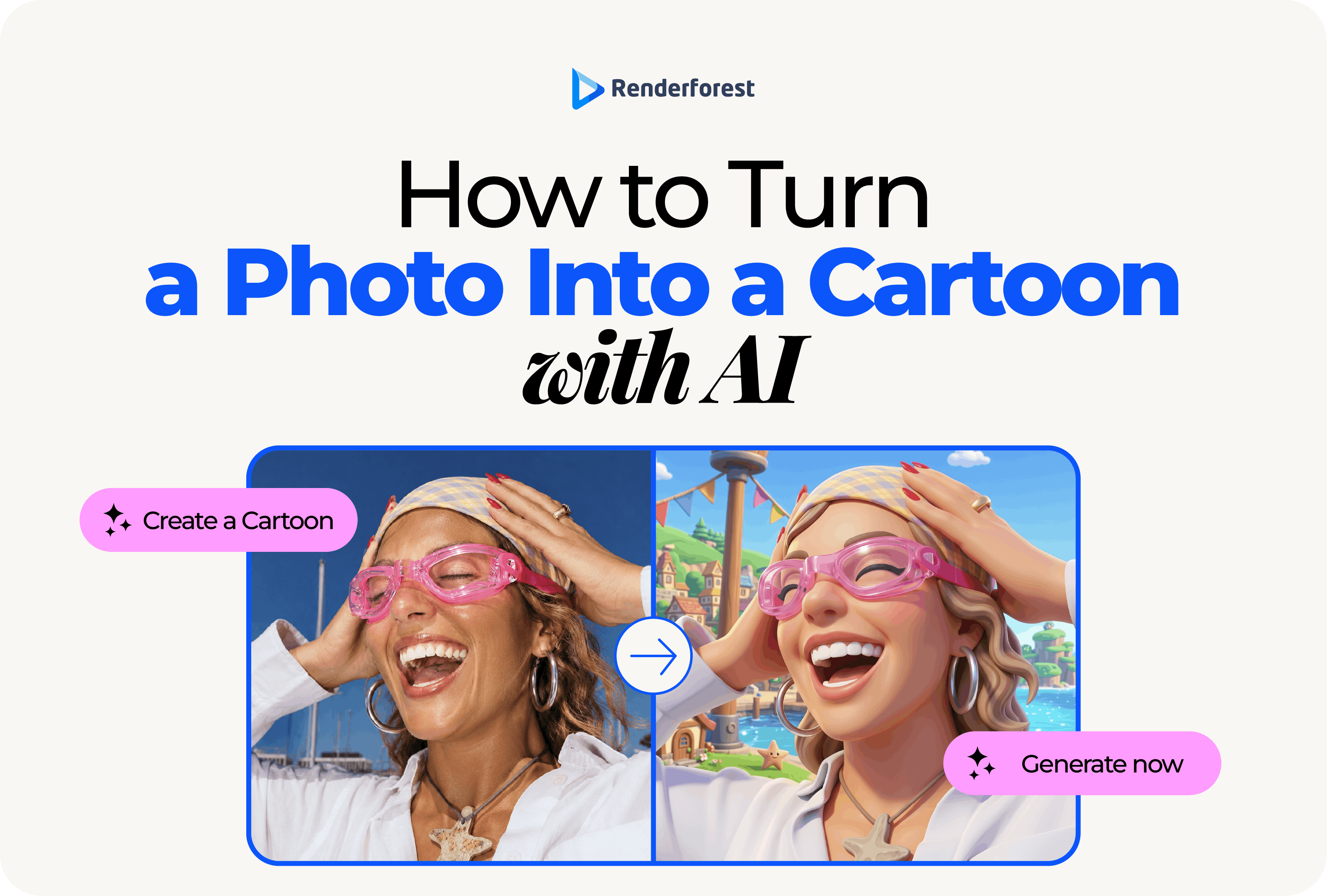
You can turn a photo into a cartoon with AI by uploading the photo as a reference image, describing the cartoon style you want, telling the AI which details must stay recognizable, generating a few versions, and refining the best result.
The conversion itself is easy. The real skill is making sure the cartoon still looks like the person, pet, product, or scene you started with.
A good AI cartoon changes the style, not the identity. Hair should not suddenly change color. Glasses should not disappear. A pet should keep its markings. A product should keep its shape, packaging, and logo. Those details matter more than producing the most dramatic-looking result.
Renderforest’s AI Image Generator supports reference images, so you can start with an existing photograph rather than asking AI to recreate the subject from text alone. You can upload up to three reference images, restyle or edit the result, upscale it, and continue into an image-to-video workflow if you later want motion. Source: Renderforest AI Image Generator.
For most photos, this six-step workflow is enough:
That workflow works for selfies, professional portraits, pet photos, couples, family pictures, products, social media visuals, and many other everyday images. What changes from project to project is how much creative freedom you should give the AI.
Not every photo-to-cartoon tool works in the same way.
A traditional cartoon filter mainly transforms the pixels already present in the photograph. It may simplify colors, strengthen outlines, smooth textures, or create a painted effect while keeping the original composition relatively stable.
Generative image-to-image AI has more freedom. Your photograph becomes a visual reference, but the model can reconstruct the scene in a different visual language. It can change lighting, background, linework, texture, proportions, clothing treatment, facial exaggeration, and even composition.
That extra freedom is why generative AI can produce much richer transformations. It is also why it can occasionally change details you wanted to keep.
If your priority is “make this exact photo look illustrated,” a conservative transformation is usually safer. If your priority is “reinterpret this person as an original 3D, comic, anime-inspired, or storybook character,” generative AI gives you far more creative control.
Neither approach is automatically better. The right choice depends on how much change the final image can tolerate.
The source photo often matters more than the sophistication of the prompt.
For a portrait, choose an image where the eyes, face shape, hairline, hairstyle, skin tone, and important accessories are easy to see. Soft, even light is generally more useful than a heavily shadowed or backlit image.
For a pet, look for a clear view of the eyes, ears, coat color, and distinctive markings. For a product, make sure the full object, packaging, logo placement, colors, and important structural details are visible.
Group photos require even more care. If faces overlap or one person appears very small in the frame, the model has less information with which to preserve each identity.
Avoid using a weak source simply because it is the photo you already have. A blurry selfie, heavily compressed screenshot, extreme beauty filter, or dark photograph forces the AI to guess.
If an important detail is hard for you to inspect in the original, expect the AI to have trouble with it too.
Once you have the source photo, use it as a visual reference instead of trying to describe the subject from text alone.
In Renderforest, open the AI Image Generator, upload the photograph in the reference-image area, then describe how you want the image transformed. The tool currently allows up to three reference images and supports image-to-image restyling, editing, background changes, upscaling, and further use of the result in video. Source: Renderforest AI Image Generator.
A second reference image can be useful when one photograph does not clearly show an important feature. For example, one portrait may show the face perfectly while another shows the hairstyle more accurately.
More references are not always better, though. If several images show different hairstyles, ages, clothing, or lighting, you can give the model conflicting instructions. Use additional references only when they clarify the same subject.
“Cartoon” can mean anything from a restrained editorial illustration to a highly exaggerated character. Choose the style based on where the image will appear—not simply because one preset looks impressive.
There is a trade-off worth understanding: the harder you push the style, the more freedom you give the model to reinterpret the subject.
If the cartoon looks beautiful but no longer looks like you, do not automatically make the prompt longer. Try reducing the intensity of the transformation first. Move from exaggerated caricature or dramatic 3D styling toward a cleaner illustrated portrait, then add stylization back gradually.
A weak prompt tells AI what style you want.
A strong photo-to-cartoon prompt also tells it what must survive the transformation.
A useful structure is:
Turn this [photo/portrait/pet/product] into a [cartoon style] for [use case]. Keep [important details] recognizable and unchanged. Use [visual qualities]. Change [what may change]. Keep the background [direction]. Avoid [unwanted changes].
For this particular task, preservation instructions are often more useful than piling on artistic adjectives.
Turn this portrait into a polished modern cartoon avatar. Keep the person clearly recognizable. Preserve the face shape, hairstyle, hair color, skin tone, glasses, expression, and clothing colors. Use clean linework, soft illustrated shading, natural facial proportions, and a simple light background. Do not add text, accessories, or exaggerated facial features.
Turn this pet photo into a warm illustrated cartoon portrait. Preserve the animal’s fur color, distinctive markings, ear shape, eye color, expression, and body proportions. Use clean outlines, soft shading, and a simple background. Do not change the markings, breed characteristics, or add clothing and accessories.
Turn this product photograph into a clean cartoon-style illustration for a social media graphic. Preserve the exact product shape, color, proportions, packaging structure, and logo placement. Simplify the visual style and lighting without redesigning the product. Do not invent labels, alter the logo, rewrite text, or add product features.
For more detailed prompt structures, style directions, restrictions, and repair prompts, see Renderforest’s dedicated guide to AI cartoon prompts. Keeping the deeper prompt library there also makes this guide more useful as a focused photo-to-cartoon workflow rather than turning it into a second prompting manual.
One of the most common frustrations is simple: the result is recognizably a cartoon, but no longer recognizably you.
When that happens, fix the problem in this order.
If the face is small, blurry, heavily filtered, turned away, or hidden in shadow, the model has to infer details. A clearer reference often improves likeness more than an extra paragraph of instructions.
For a portrait, that may mean the face shape, curly hair, glasses, freckles, beard, nose shape, skin tone, or expression. For a pet, it may be a white patch over one eye or an unusual ear shape.
Do not assume the AI knows which details are essential to you.
This is the correction people often miss.
A highly exaggerated 3D face or caricature naturally moves further away from photographic proportions. If likeness is the priority, pull the style back toward editorial illustration or lightly stylized cartoon art.
If everything is right except the hair, do not restart the entire image direction.
Try a focused correction such as:
Keep the face, expression, clothing, pose, lighting, and background unchanged. Restore the same shoulder-length dark curly hairstyle shown in the reference photo.
Specific corrections make it easier to judge whether the next iteration actually improved the image.
Do not treat the first generation as the final image.
Generative AI can produce different interpretations from the same source and similar instructions. Create several alternatives, then compare them against the original photograph.
For a portrait, check the face, eyes, hairstyle, expression, glasses, skin tone, clothing, and any distinguishing features. For pets, compare the markings and proportions. For products, inspect every commercially important detail.
The most attractive generation is not automatically the most successful one.
If your goal is a recognizable profile picture, a slightly simpler image that still looks unmistakably like the person is better than a spectacular rendering of somebody else.
A personal cartoon portrait can tolerate artistic interpretation. A commercial product visual often cannot.
If you are cartoonizing a product, inspect the output for changed colors, packaging proportions, logos, labels, claims, ingredients, buttons, ports, or other identifying details. Generative AI should not become the factual source of truth for what a product looks like.
The same principle applies to branded material. If a generated image distorts the company logo, replace the AI-rendered mark with the correct original asset rather than trying to convince the model to reproduce it indefinitely.
For advertising, the U.S. Federal Trade Commission’s long-standing truth-in-advertising guidance says ads must be truthful, non-deceptive, and supported where claims require evidence. That principle applies to the overall impression created by visual material as well as copy. Source: Federal Trade Commission advertising guidance.
The practical rule is straightforward: the more an image influences a purchasing, identity, or factual decision, the less creative freedom you should give the AI.
Once you have the right generation, fix small problems before downloading it.
Remove distracting objects. Simplify the background if necessary. Restore any accurate brand elements manually. Check the crop at the size where the image will actually appear.
A profile image needs a clear face and silhouette when viewed very small. A thumbnail may need room for text. A sticker benefits from a clean edge and transparent background. A print needs enough resolution to remain sharp at its final physical size.
Renderforest’s AI Image Generator includes editing and upscaling alongside generation, so you can refine the selected result before using it elsewhere. Source: Renderforest AI Image Generator.
Do the quality check on the exported image—not only on a small preview inside the generator.
Yes. Once the still cartoon looks right, you can treat it as a reference image for motion.
If you only need subtle movement—a camera push-in, blinking, hair movement, environmental motion, or a short social clip—continue with an image-to-video workflow. Renderforest’s guide on how to turn a photo into a video with AI covers that process without repeating it here.
If the project needs several scenes, narration, dialogue, music, or a complete animated story, use the AI Cartoon Generator. It is designed around prompt-to-cartoon video creation with scenes, styles, voiceover, music, editing, and export. Source: Renderforest AI Cartoon Generator.
If you need a repeatable character rather than a single cartoonized photograph, move instead to the dedicated guide on how to create a cartoon character with AI. Character consistency across poses and scenes is a different problem from transforming one photograph.
Before uploading a photograph, consider whether you have the right to use it and whether you are comfortable sending it through an AI service.
This is especially important with client material, children’s images, employee photos, unreleased products, confidential brand assets, or other sensitive content.
Renderforest’s current AI terms explain that its AI Image Generator can process prompts and visual references, including uploaded images and brand assets. Depending on the AI model used, submitted materials may be processed by the provider associated with that model. Renderforest also states that users are responsible for having the necessary rights, licenses, and permissions for submitted material, including required consent when it contains someone’s image, likeness, or other personal data. Read the current Renderforest Privacy Policy and AI Products terms before using sensitive material.
Copyright deserves similar care. In the United States, the U.S. Copyright Office’s AI initiative explains that using AI as an assistive tool does not automatically prevent copyright protection, but purely AI-generated material does not become protectable simply because someone supplied prompts. The amount and nature of human authorship matter.
For a casual profile image, these questions may be relatively simple. For client campaigns, merchandise, advertising, a permanent mascot, or other commercially important assets, review the platform terms and rights in the source material carefully. Seek qualified legal advice when ownership or publicity rights are important to the project.
AI cartoonization is an interpretation tool, not a replacement for every kind of image.
Keep the original photograph—or use a controlled professional design workflow—when:
AI is excellent at creative reinterpretation. It should not be mistaken for documentary accuracy.
Upload the photo as a reference image, describe the cartoon style you want, tell the AI which details must remain recognizable, generate several alternatives, refine the strongest result, and export it in the size and format you need.
Yes. Start with a sharp, well-lit selfie where your face, hairstyle, and important accessories are visible. Ask the AI to keep you recognizable and preserve facial structure, hairstyle, skin tone, glasses, and other distinctive features.
The source image may be unclear, the style may be too exaggerated, or the prompt may give the model too much freedom. Try a clearer reference, explicitly preserve your defining features, and reduce the degree of stylization before making the prompt more complicated.
Use the actual photograph as a reference and ask the AI to preserve facial structure and recognizable features. Choose a relatively restrained style when likeness is essential. If the tool supports several reference images, an additional clear photo of the same person may help clarify features that are difficult to see in the first image.
Yes. Pet photos work especially well when the eyes, ears, coat color, fur pattern, and distinctive markings are clearly visible. Mention those details in the prompt so the model knows they should not change.
Yes, but use a more conservative transformation than you would for personal art. Generative AI may alter packaging, labels, logos, colors, or proportions. For ecommerce and advertising, keep the original product photograph and approved brand assets as the factual reference.
Yes. Upload the photo as a reference and describe an original anime-inspired treatment using visual characteristics such as clean line art, controlled cel shading, expressive eyes, and a particular color mood. For original or commercial work, describe the qualities you want rather than asking the model to reproduce a particular copyrighted character or franchise.
Many AI services offer free generations, limited credits, or free entry-level models. Check the available resolution, editing limits, watermark policy, generation credits, privacy terms, and commercial-use conditions before investing time in a final image.
Not necessarily. A traditional cartoon filter generally modifies the original image while preserving its structure closely. Generative image-to-image AI can reconstruct the photograph in a new style, which gives you more control but also creates more opportunity for unwanted changes.
Turning a photo into a cartoon with AI is easy. Turning it into a cartoon you can actually use requires better decisions.
Start with a clear photograph. Use it as a reference. Choose the style for the job rather than for novelty. Tell the AI exactly what must remain recognizable, compare several results, and correct small mistakes before export.
Change the style, not the identity. If the person still looks like themselves, the pet keeps its markings, and the product remains accurate, the cartoon has done its job.
Share this


Article by: Liana Ziroyan
Liana is a marketing professional with 11 years of experience in digital marketing, content, and product communication. She has a strong eye for visual storytelling and loves turning ideas into engaging campaigns that connect with audiences. With her experience across branding, creative content, and user-focused messaging, Liana enjoys finding simple, effective ways to make products feel clear, useful, and exciting.
Read all posts by Liana Ziroyan