AI
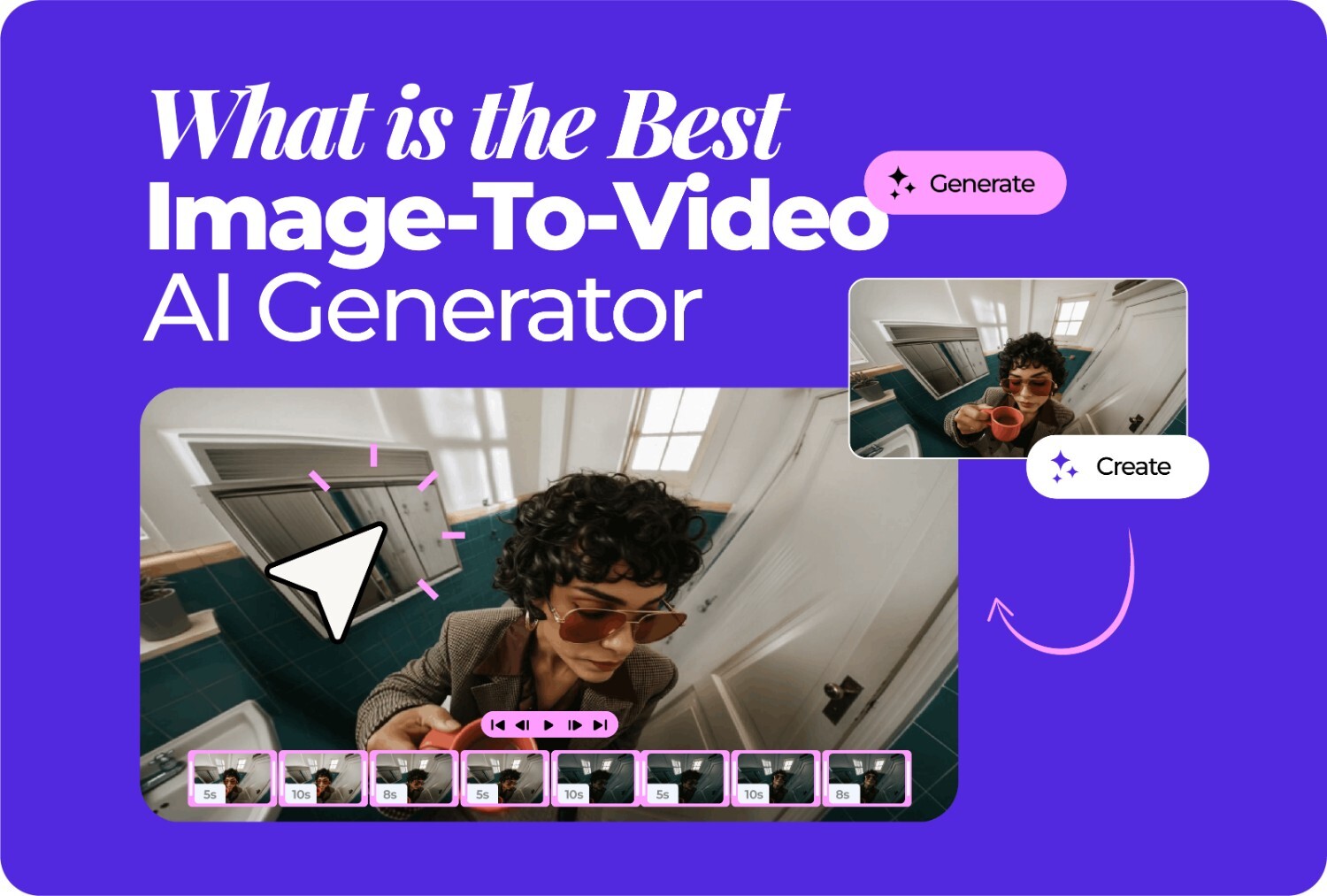
A year ago, animating a still image meant hiring someone or learning software you’d use once. Now, many AI video tools can turn a still image into motion in minutes, and most position themselves around similar promises. The first step is always figuring out what is the best image-to-video AI generator for you, and that’s what this comparison is here to answer.
Editorial note: All tool information in this comparison was sourced from publicly available product pages, independent benchmarks, and third-party reviews as of May 2026. Scores reflect publicly verifiable evidence at the time of writing and are subject to change as tools update. Renderforest is the publisher of this article.
Scope: This comparison covers AI video tools that include image-to-video as a core or notable feature. It includes both dedicated AI video generators and broader creative platforms. Tools are assessed against six criteria relevant to the primary audience: marketers, content creators, small business owners, and non-technical users who need finished video output, not raw model access. Recommendations are segmented by primary use case.
Image-to-video AI has gone from a niche research demo to a crowded product category in under two years. There are now dedicated generation tools, broader creative platforms with AI video features, and everything in between, all competing for the same search: what is the best image-to-video AI generator. They look similar in screenshots, but behave very differently in practice.
“Best” is doing a lot of work in that question. The tool that wins on raw output quality is not the same tool that wins on ease of use or workflow completeness. A filmmaker and a social media manager have almost nothing in common in terms of what they need from this category.
We evaluated six tools against six criteria: output quality, ease of use, image-to-video capability, workflow completeness, pricing and value, and best-fit use case. Scores are evidence-constrained and mapped to publicly verifiable sources. No overall total is calculated, because adding up scores across criteria that serve different users would produce a number that means nothing.
| Score | Definition |
| 5 | Native capability + public documentation + third-party validation |
| 4 | Native capability + documented evidence |
| 3 | Partial capability or add-on dependency |
| 2 | Limited capability or limited public evidence |
| 1 | Claimed capability with insufficient evidence |
| 0 | No verifiable evidence |
| Criterion | Description | Source types used |
| Output quality | Visual fidelity, motion realism, and frame-to-frame consistency of image-to-video output | Independent benchmarks (Artificial Analysis Video Arena), third-party comparative reviews |
| Ease of use | How quickly a non-technical user can produce a finished video without prior editing experience | User reviews (G2, Capterra, Trustpilot), product documentation |
| Image-to-video capability | How faithfully the tool preserves and animates a source image, including character consistency across scenes | Independent comparative reviews, hands-on test reports |
| Workflow completeness | Whether the tool covers the full production process (script, visuals, audio, and export) or only one step | Product feature pages, third-party tool breakdowns |
| Pricing and value | What each tier actually includes relative to cost, including credit limits, watermark policies, and commercial rights | Official pricing pages, verified third-party pricing guides |
| Best-fit use case | Which type of user or project the tool genuinely serves based on its capabilities and positioning | User review patterns, independent positioning analysis |
Scoring transparency note: Each score is evidence-constrained and mapped to the definitions above. Where evidence was primarily vendor-reported, confidence in the score is noted. No overall total is calculated as tools serve different primary use cases and cross-category totals would be misleading.
| Tool | Output quality | Ease of use | Image-to-video capability | Workflow completeness | Pricing and value |
| Renderforest | 4 | 5 | 4 | 5 | 4 |
| Runway Gen-4.5 | 5 | 2 | 5 | 4 | 3 |
| Kling AI 3.0 | 4 | 3 | 5 | 3 | 5 |
| Luma Dream Machine (Ray3) | 4 | 3 | 4 | 2 | 3 |
| Pika 2.5 | 3 | 5 | 4 | 2 | 4 |
| Canva | 2 | 5 | 2 | 3 | 3 |
The tools below are reviewed for overall fit for the primary audience of this comparison: marketers, content creators, small business owners, and non-technical users who need finished video output. If you already know what you’re looking for, the category outcomes table at the end maps each tool to its best use case.
Who this is for: Marketers, small business owners, HR teams, educators, and content creators who need a finished, publish-ready video.
Not ideal for: Professional filmmakers or VFX artists who need granular camera controls and frame-level editing precision.
Renderforest is the only dedicated video creation tool in this comparison that automates the full production pipeline in one place: image input, scene building, voiceover, music, and export without requiring manual assembly at each step.
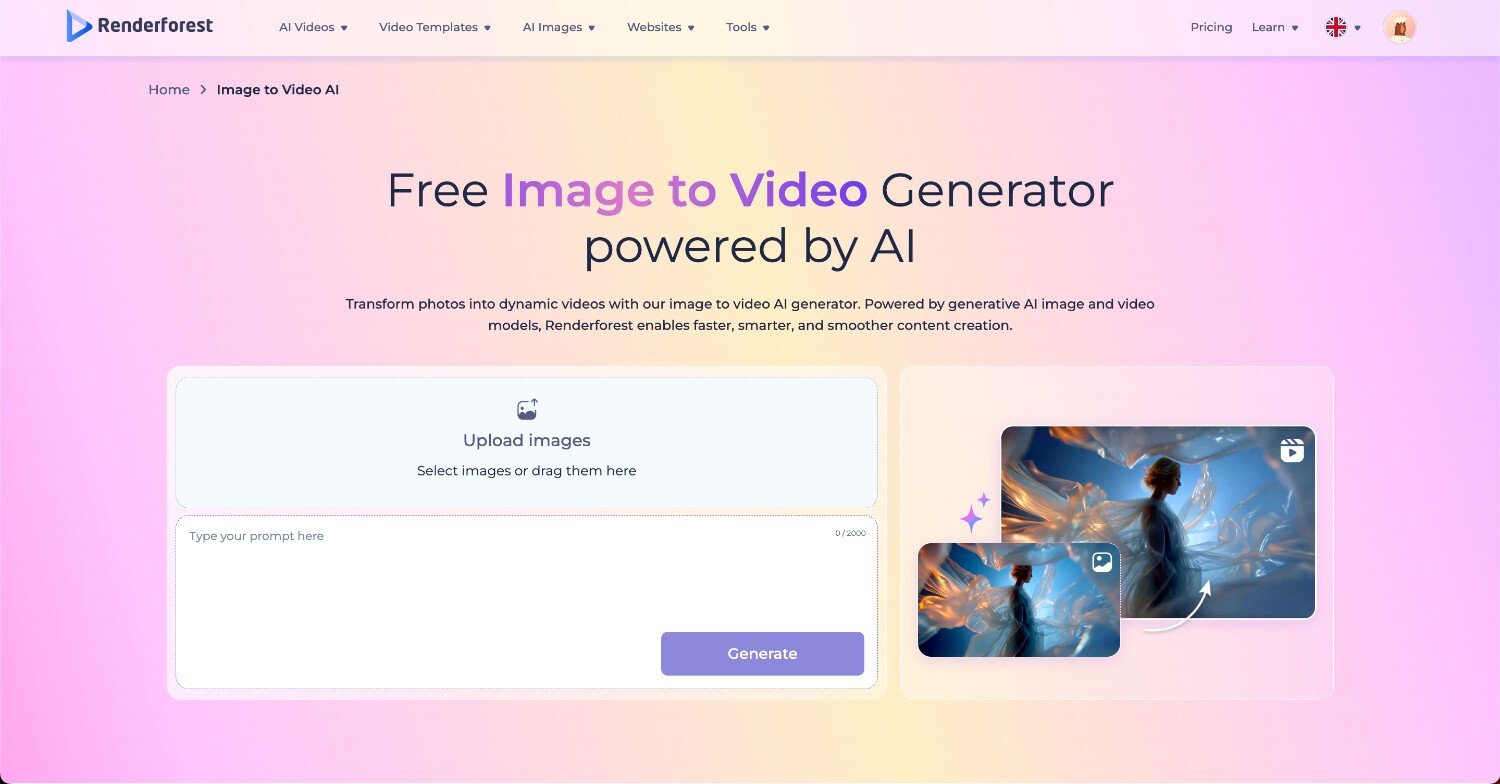
How image-to-video works: Upload a reference image and select a creation mode. Renderforest generates scene structure, matches transitions, and assembles audio around your input. Four modes are available: template-based animation, stock video, AI image-packed, and generative AI. It also lets you modify visuals after generation using plain-language prompts. The platform draws from multiple AI models including Sora 2, Veo 3, Hailuo, and Pixverse depending on the mode selected.
What works well:
Limitations:
Pricing: Free plan: watermarked exports. Pro plan: from $10/month (annual), unlimited HD video creations, access to 5M+ stock assets, and commercial use rights.
Who this is for: Filmmakers, VFX artists, and professional content studios who need precise camera control, character consistency across shots, and a full post-production editing suite.
Not ideal for: Non-technical users or anyone who needs a finished video quickly.
Runway reported that Gen-4.5 held the top position on the Artificial Analysis Text to Video benchmark with 1,247 Elo points, making it one of the strongest raw quality reference points in this comparison.
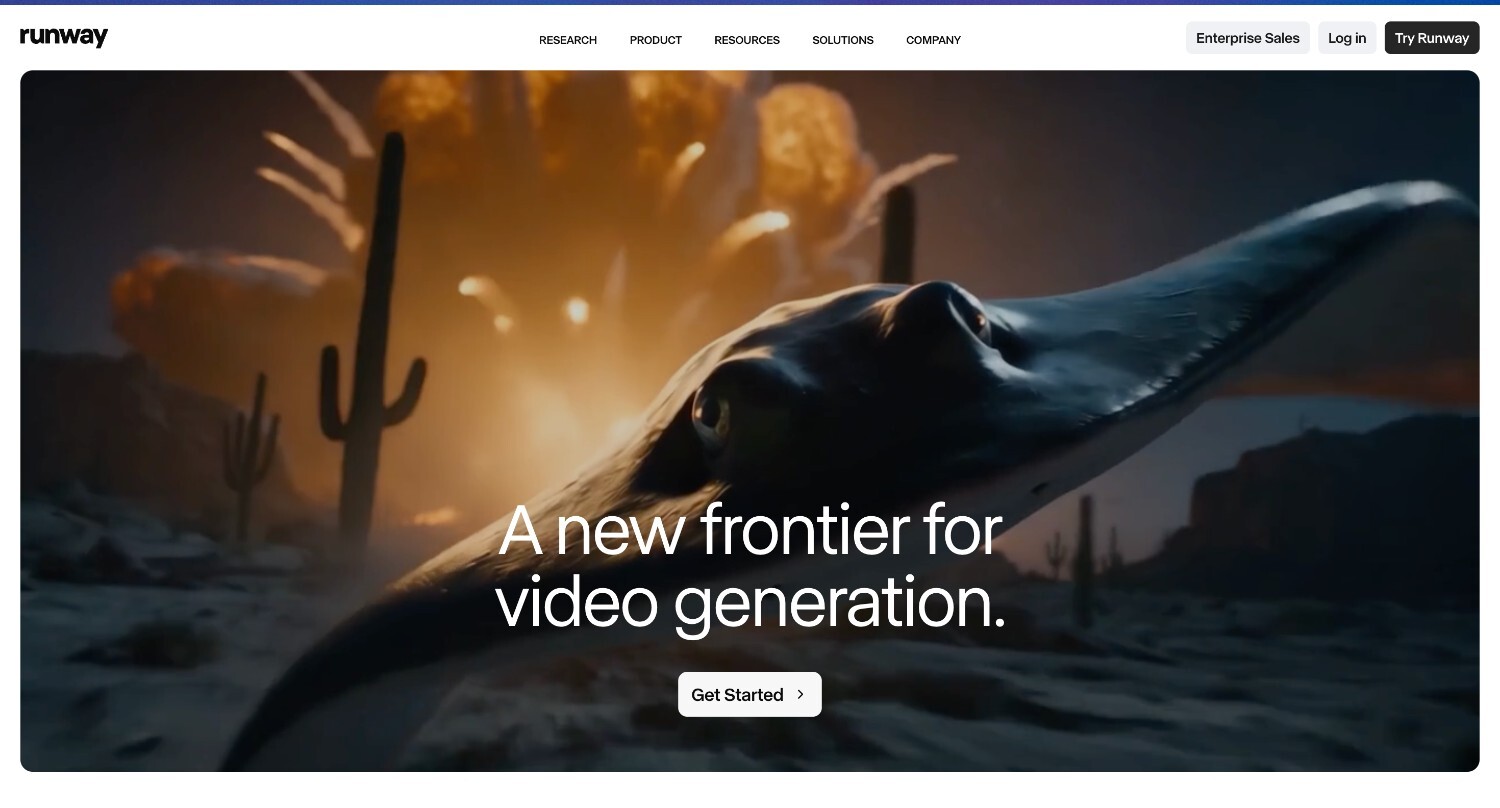
How image-to-video works: Upload a reference image to anchor character appearance across shots. From there, Motion Brush lets you define which parts of the image move and how. Camera controls give you shot type and movement direction. Runway’s image-to-video workflow handles the animation itself. Runway also includes native audio generation: ambient sound, dialogue, and music beds are produced alongside the clip in a single generation.
What works well:
Limitations:
Pricing: Free for 125 one-time credits, watermarked. Paid from $12/month (Standard).
Who this is for: Marketing teams, social media managers, and ad creators whose content features people.
Not ideal for: Users who need cinematic camera controls or a full production workflow with voiceover and templates.
Kling is a strong fit for human-subject video, especially for teams creating people-focused ad creative and social clips.
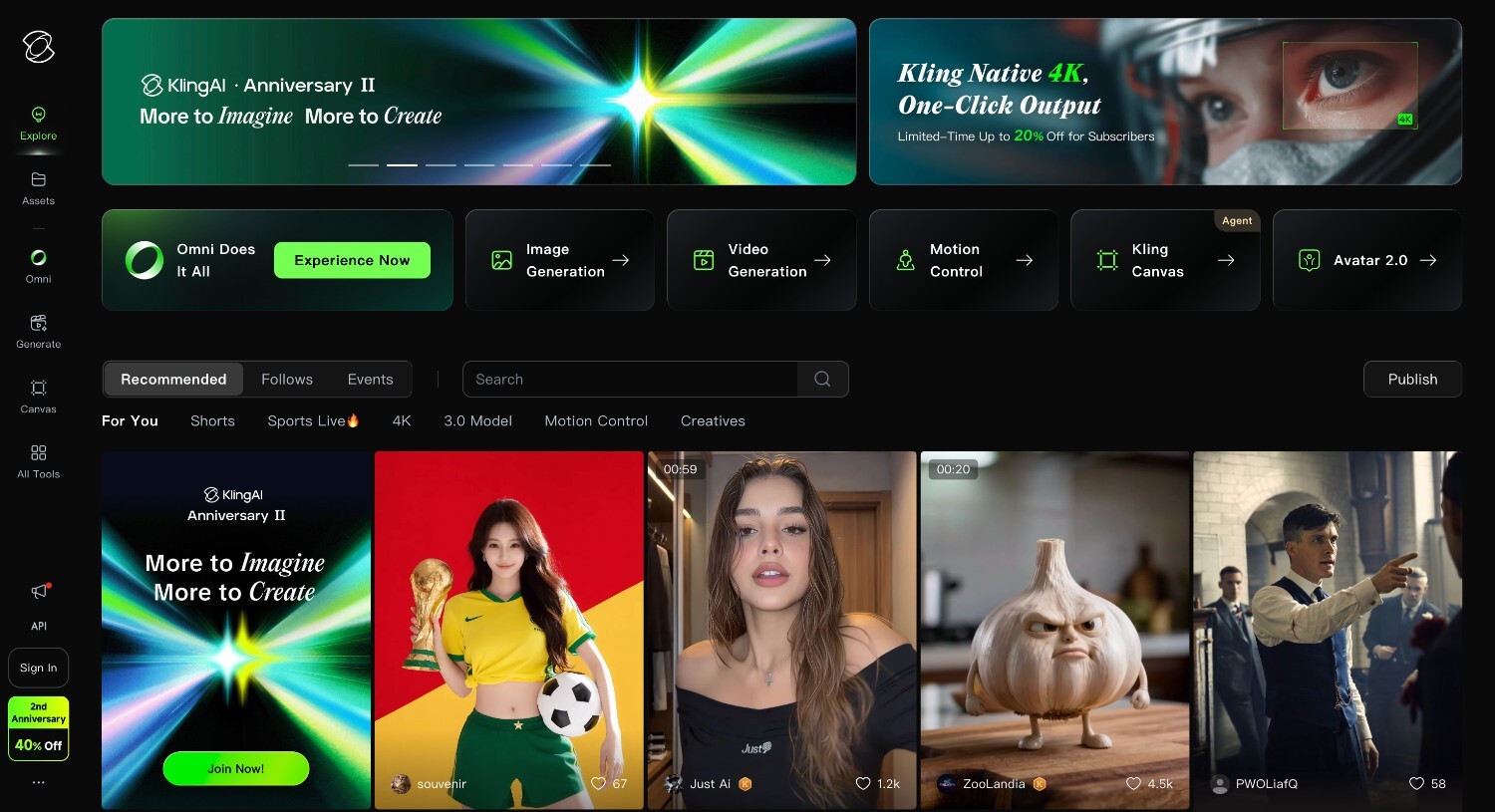
How image-to-video works: Upload a reference image and Kling preserves face and body detail with high fidelity through the generated clip. The multi-shot storyboard system supports up to six shots with character consistency maintained across all of them. Motion transfer lets you apply movement patterns from one clip to another.
What works well:
Limitations:
Pricing: Free plan availability and daily credits vary by account and region. Paid plans start at $6.99/month (Standard).
Who this is for: Filmmakers, creative directors, and product photographers who prioritize visual quality and cinematic color grading.
Not ideal for: Users who need a complete production pipeline; no voiceover, templates, or built-in audio.
Luma is a strong fit for cinematic color, lighting, and smooth camera movement, especially for users who prioritize visual polish over a complete production workflow.
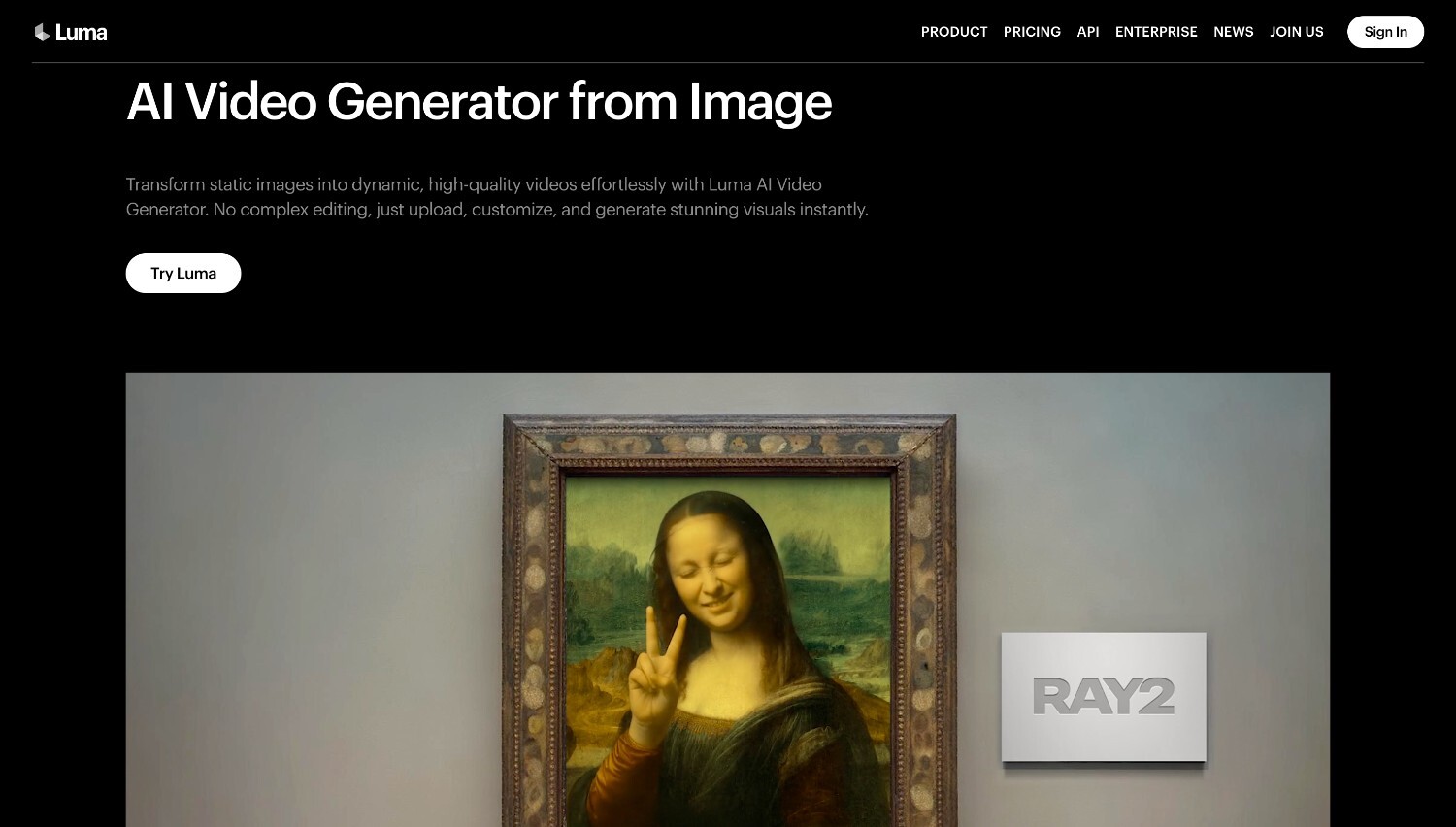
How image-to-video works: The 3D volumetric model analyzes depth and lighting in your source image and generates motion and camera movement from it. The result tends toward cinematic color and smooth camera arcs rather than fast or stylized motion. The Modify tool lets you adjust the output after generation using a text prompt. Native audio is not part of the image-to-video workflow evaluated here.
What works well:
Limitations:
Pricing: Free web plan includes limited monthly credits, draft resolution, non-commercial use, and watermarks. Commercial use is available on the Web Plus plan at $29.99/month.
Who this is for: Social media managers and short-form content creators who need fast, stylized clips and image transitions.
Not ideal for: Professional or commercial production where photorealism, complex physics, or 4K output are required.
Pika is positioned around fast, beginner-friendly short-form generation, built around a distinctive mechanic that no other tool here replicates.
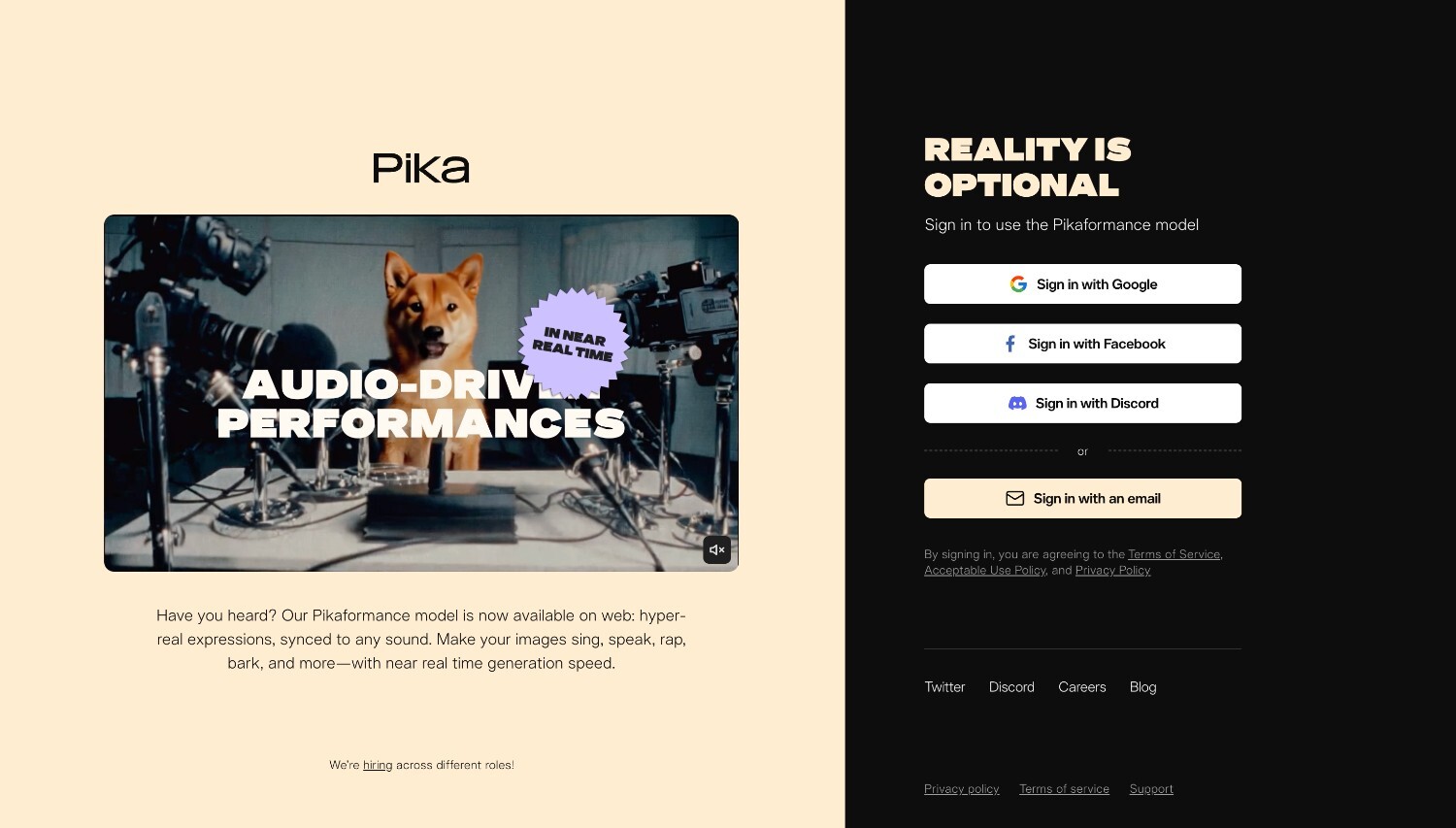
How image-to-video works: Pikaframes lets you upload a start image and an end image, and Pika generates the transition between them. Clip length depends on the Pika feature and plan, with standard image-to-video options commonly listed at 5 or 10 seconds. Pikaffects adds a layer of stylized effects on top of the transition. There are no camera controls or audio generation; the focus is entirely on the visual clip itself.
What works well:
Limitations:
Pricing: Free: 80 credits/month, 480p, watermarked. Paid from $8/month. Commercial rights require Pro at $28/month.
Who this is for: Marketing teams and social media managers who already use Canva and want to add motion to existing brand assets without switching platforms.
Not ideal for: Users whose primary need is dedicated image-to-video generation outside a design workflow.
Canva is a design platform where image-to-video is one feature among many, not a dedicated video tool.
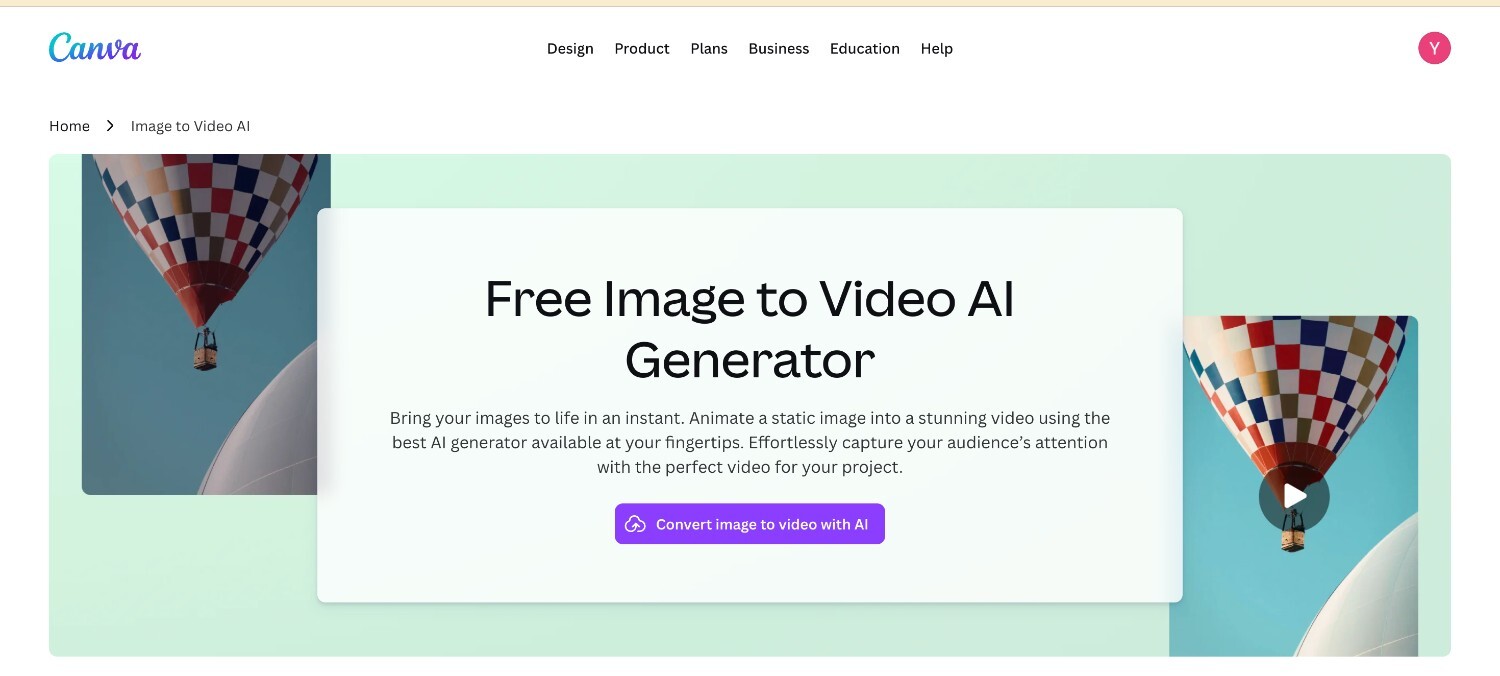
How image-to-video works: Smart mode applies automatic motion to a static image without any input from you. Custom mode lets you describe the motion you want in a text prompt. Canva’s image-to-video workflow is focused on animating static visuals into short clips, while Canva’s separate AI video features can generate clips with synchronized sound. The feature is powered by Google Veo 3, though with more restricted access than you’d get from a standalone Veo tool.
What works well:
Limitations:
Pricing: Free: included within monthly AI credit allowance. Paid from $15/month (Canva Pro, $120/year).
Based on the methodology and scores above, recommendations are best interpreted by use case:
| Best for | Tool | Key rationale | Supporting evidence |
| Full production workflow from image to finished video | Renderforest | Four creation modes, multi-model AI, voiceover in 50+ languages, character consistency up to 3 minutes, smart editing, 1,200+ templates, all in one platform | Product documentation; Pollo AI third-party breakdown; G2 and Capterra user reviews |
| Cinematic control and professional post-production | Runway Gen-4.5 | Reported 1,247 Elo score on the Artificial Analysis Text to Video benchmark, plus advanced camera controls, reference-based consistency, and editing tools | Artificial Analysis Video Arena benchmark; AdCreate independent review; AI Tool Analysis April 2026 |
| Human-subject video and ad creative | Kling AI 3.0 | Strong face realism, body motion, and lip-sync per multiple independent 2026 reviews; multi-shot storyboard up to 6 shots; lowest commercial entry price in this comparison | max-productive.ai independent review; Kling AI review April 2026; independent pricing comparison |
| Cinematic aesthetics and HDR color quality | Luma Dream Machine (Ray3) | 3D volumetric model produces distinctive HDR lighting and smooth camera movement; Ray3.14 tier for fast iteration | Flowith independent filmmakers comparison; OutreachZ Runway alternatives review; Luma AI review GoEnhance |
| Image transitions and social media short-form content | Pika 2.5 | Pikaframes (start + end image to AI transition) is a unique mechanic; Pikaffects for stylized effects; fastest and most beginner-friendly interface | Soloa.ai four-tool comparison; OutreachZ alternatives review; Pika official documentation |
| Brand-consistent content within an existing design workflow | Canva | Integrated into existing Canva design suite; Brand Kit, Magic Resize, and caption tools available in the same workflow | Canva Help Center documentation; WaveSpeed independent review; Clipcat review |
The scores differ because each tool makes different trade-offs. Here’s how to read those trade-offs against your own use case.
If you want one tool that covers the most ground across all of these without managing multiple subscriptions, Renderforest is the place to start.
Your choice of the best image-to-video AI generator depends on what you’re making. The category outcomes table above maps each tool by use case. For most non-technical users who need a finished video, Renderforest covers the most ground in one place.
Most tools in this comparison have a free tier worth trying. Pika offers 80 credits per month, Renderforest has a free plan with limited AI credits and watermarked exports, and Kling replenishes credits daily. The right starting point depends on how often you’re generating and what output type you need.
For ongoing regular use, a daily replenishing credit model gives you more room than a fixed monthly allowance. Renderforest’s free plan also lets you test the full pipeline before committing to a paid tier.
Yes, but the required plan tier varies by tool. Always check the current terms of service before publishing commercially.
Image-to-video starts with a visual asset, a photo or illustration, and animates or extends it. Text-to-video starts from a written prompt and generates the visual from scratch. Image-to-video tends to be better for preserving a specific look, character, or brand asset. Text-to-video offers more flexibility when you’re starting with no visual reference at all.
Yes. You can upload a reference image to Renderforest’s image-to-video AI and choose from multiple creation modes, from template-based animation to generative AI, depending on the output you need. Voiceover, music, and export are all handled in the same platform.
Share this


Article by: Sara Abrams
Sara is a writer and content manager from Portland, Oregon. With over a decade of experience in writing and editing, she gets excited about exploring new tech and loves breaking down tricky topics to help brands connect with people. If she’s not writing content, poetry, or creative nonfiction, you can probably find her playing with her dogs.
Read all posts by Sara Abrams